Aurora is the AI assistant built into Awrora's admin. You write what you want done, and she finds the answer or does the job for you — using the same features you use yourself in the admin. The assistant is included in every plan and doesn't need to be switched on.
Get started#
Go to Home
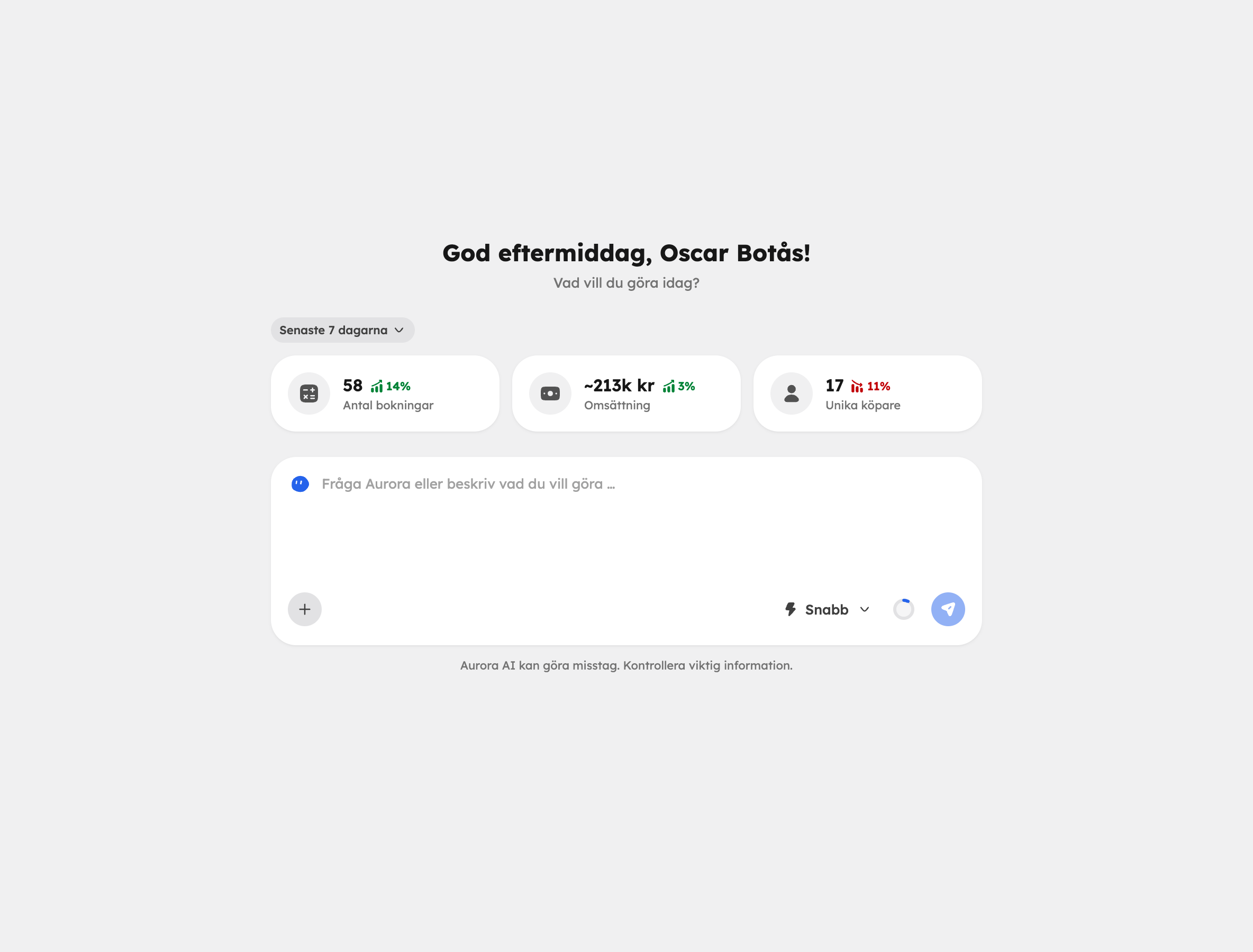
Open Home in the sidebar. Below the question "What would you like to do today?" you'll find Aurora's text box. On every other page in the admin the same box sits at the bottom, and on mobile you open Aurora with the button in the top bar.
Write what you need help with
Write in your own words, for example "Which bookings do we have on Saturday?" or "Move all bookings on the kayak tour on 12 June to 14:00".
Follow the answer
The chat opens over the page. You can see what Aurora is doing while she works, and the answer can include tables, links to the right page in the admin and files to download. Close the chat with Esc.
You can attach files with Add files and copy an answer with Copy the answer. You'll find your earlier chats under Recent conversations at the top of the chat, where you can also pin a chat to the top. Your conversations are your own — colleagues can't see them, not even administrators.
What can I ask Aurora to do?#
Almost anything you can do in the admin, you can also ask Aurora to do. A few examples:
- Bookings — search, create, edit, reschedule, cancel, refund and export.
- Calendar and departures — cancel or move a departure and notify the guests.
- Experiences — create, edit, duplicate and adjust prices.
- Customers — find duplicates, merge customers, email them or pull up a customer's history.
- Discounts, gift cards, reviews and add-ons.
- The shop — pages, blog posts, menus, forms, SEO and images.
- Statistics and reports — compile figures for a period.
- Settings — users, notifications, policy texts and more.
Aurora knows what day it is, which company you're working in, what role you have and where you are in the admin, so you don't need to explain everything from scratch.
Paste a link#
If you already have a description of a tour on another website, you can paste the link and ask Aurora to make a draft experience from it. She only reads the exact page you pasted. If you want to move a whole existing website to Awrora, you can ask her that too — she fetches pages and images and adds them as drafts.
Reports as PDF or CSV#
Ask Aurora to put together a report, for example "Make a report for June with bookings per experience". She builds it from what she has found in the conversation and delivers it as a PDF in your accent colour or as a CSV. The report stays available to download for 90 days.
Choose a model#
In the text box you choose a Model, that is, how much Aurora should think:
| Tier | Suited to |
|---|---|
| Fast | Everyday questions and simple changes. |
| Thinking | Tasks where the answer needs to be thought through more carefully. |
| Pro | Complex and demanding tasks. Included from the Bas plan. |
Aurora may suggest moving up a tier if the task needs it — you choose Switch to … or Continue — but she never switches on her own.
You always have the final say#
Before Aurora does anything that's hard to undo — such as cancelling, refunding or deleting — she shows a card with exactly what's going to happen. Nothing happens until you click Confirm. If you click Cancel, nothing is done.
- What runs is exactly what was on the card, nothing else.
- A proposal is valid for ten minutes and can only be confirmed by you.
- Aurora can only do what your role allows, and only in apps that are switched on. So if you're a Viewer, she can read but not change anything. Read more in Team and roles.
Aurora AI can make mistakes. Check important information before you go ahead.
AI usage#
Every message you send uses credits from the company's AI usage for the month: Fast 1, Thinking 4 and Pro 10.
The ring in the text box shows the percentage left. How many credits are included depends on the plan, and usage is topped up at the start of each new period. Under SettingsBilling, AI usage shows exactly how many credits have been used, broken down by tier and by user. If usage runs out, Aurora stops before answering and shows when it resets — she doesn't quietly switch to a lower tier.
The owner can turn on Extra usage to carry on after the month's usage has run out. Read more in AI credits.
More AI features in the admin#
- Alt text for images in the media library, see Media library.
- Summary of a customer on the customer card, see The customer card.
- Translation of the shop's content, see Languages and currencies.
- Want AI services such as ChatGPT to be able to book your experiences for their users? See The AI sales channel.