If you welcome guests from other countries, the shop can be shown in several languages and with several currencies. Visitors change language and currency in the shop's header.
Add a language#
Go to SettingsLanguages.
Add
Click Add language and choose a language. You can choose from English, German, French, Spanish, Danish, Norwegian, Finnish, Dutch, Italian, Polish and Swedish.
Translate
The language is added as a Draft. It isn't visible to visitors yet, so you can translate at your own pace.
Publish
When the translations are ready, click Publish. If you want to hide the language again, choose Unpublish in the menu on the language's row.
Administrator permissions are required to add languages and currencies.
A custom domain per language#
With Edit domains you can connect a language to one of your domains, for example dittforetag.com for English. Without its own domain, the language gets a prefix in the address, for example /en. You connect the domains first under Domains and SEO.
The translation overview#
Click a language, or choose Edit translations in the menu on the row, to open Translations. There you'll see everything that can be translated — templates and sections, experiences, menus, blog posts, pages and staff, but also reviews, add-ons and policy texts.
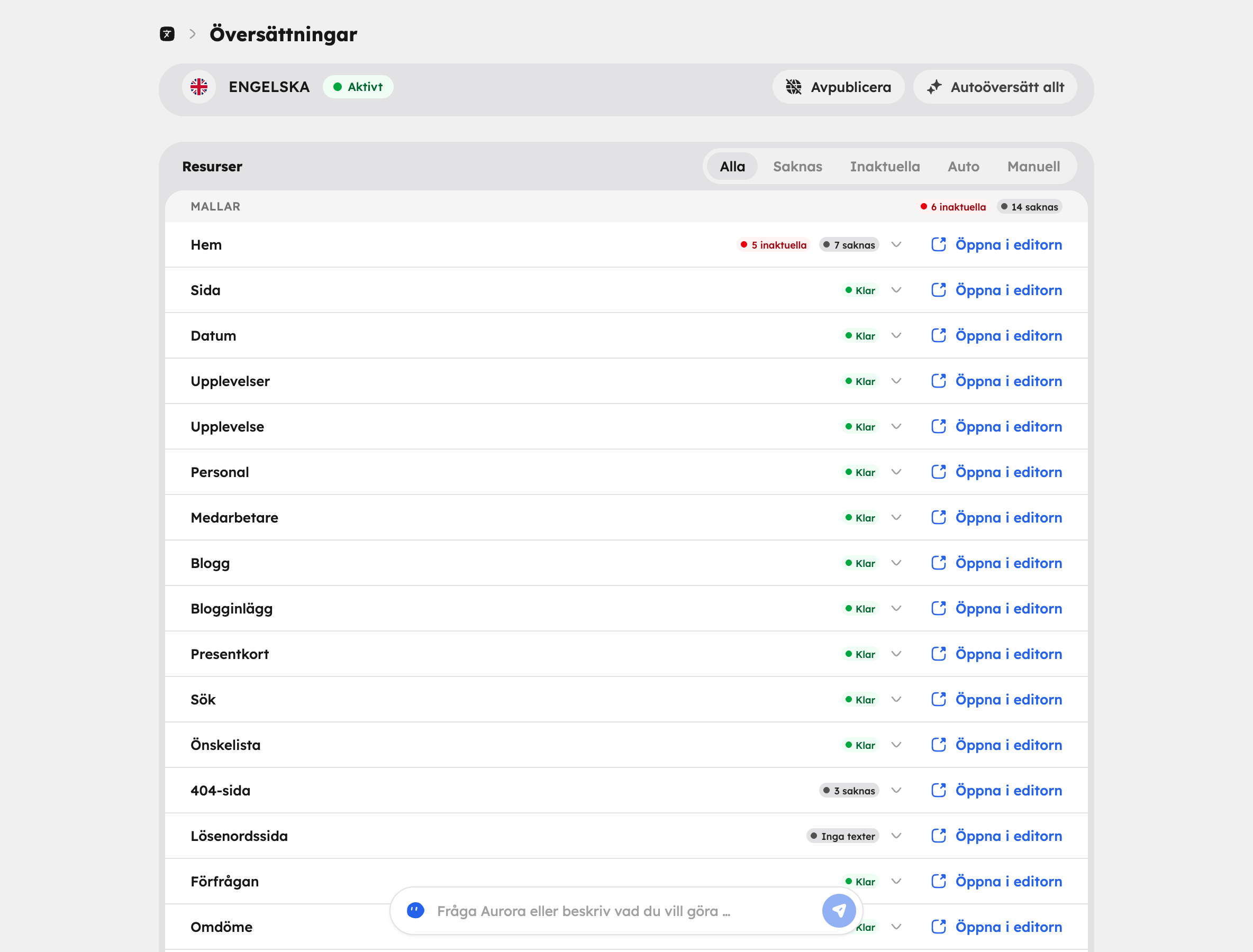
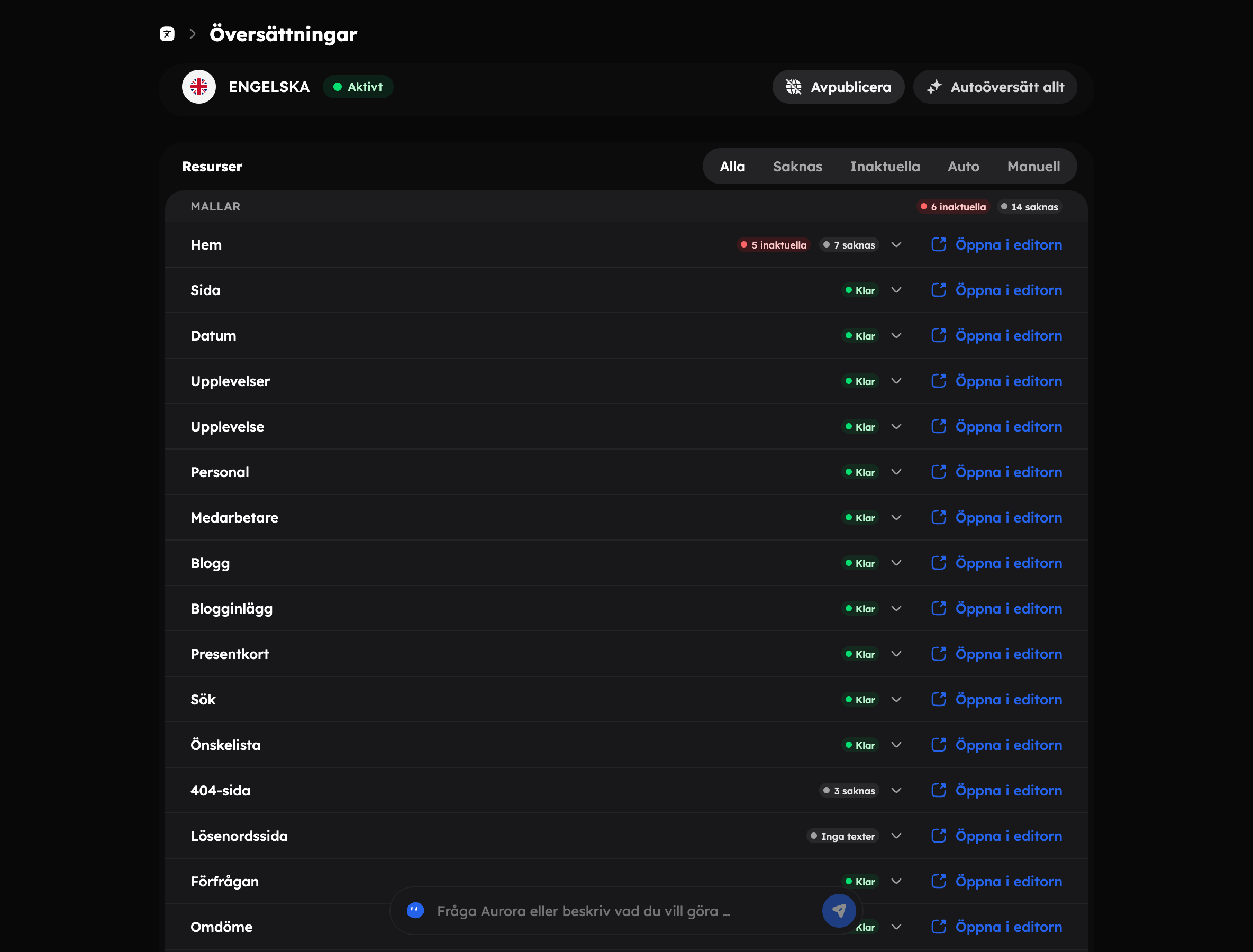
Filter the list to see where work is needed:
- Missing: not translated yet.
- Outdated: the source text has changed since the translation was made.
Each translation is labelled Auto or Manual, so you can see what has been machine-translated and what someone has written by hand.
Auto-translation#
Click Auto-translate all to let Awrora translate everything that's missing. You can see how far the job has got while it's running. You can also auto-translate a single resource.
Auto-translation never touches manual translations. If you've polished a text by hand, it stays as it is.
Auto-translation has a monthly budget per site and a limit of 500,000 characters per day.
Translate by hand#
You can edit every translated field yourself, in two ways:
- In the translation overview, where the source text sits next to the translation.
- In the web editor, where you switch language and translate field by field directly on the page. Click Open in editor to jump there.
Blog posts and your own pages also have a translation panel in their editing view.
Translated addresses#
Addresses (slugs) can also be translated per language. Visitors who use the original address are automatically sent to the right place.
Currencies#
You manage currencies under SettingsCheckoutPrices and fees.
- The table shows your primary currency, which is the base currency for your prices, and the currencies you've added.
- Click Add Currency, enter a Currency Code, for example EUR, and choose whether the currency should be Active or Inactive.
- From the menu on a row you open the currency's Settings or choose Remove. The primary currency can't be removed.
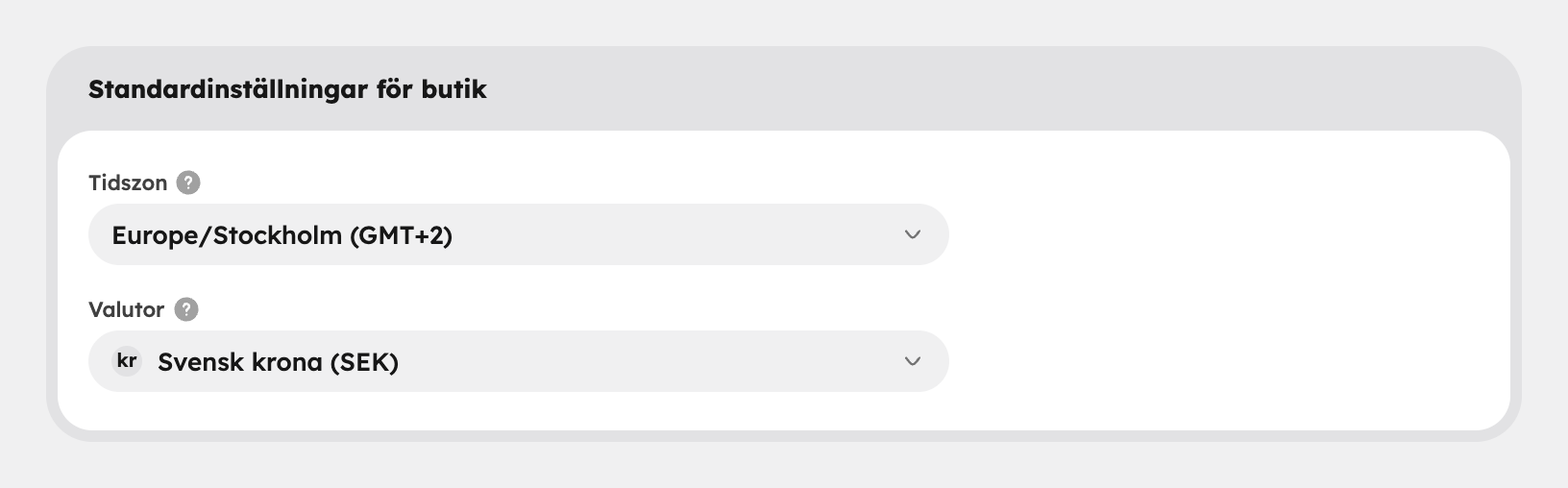
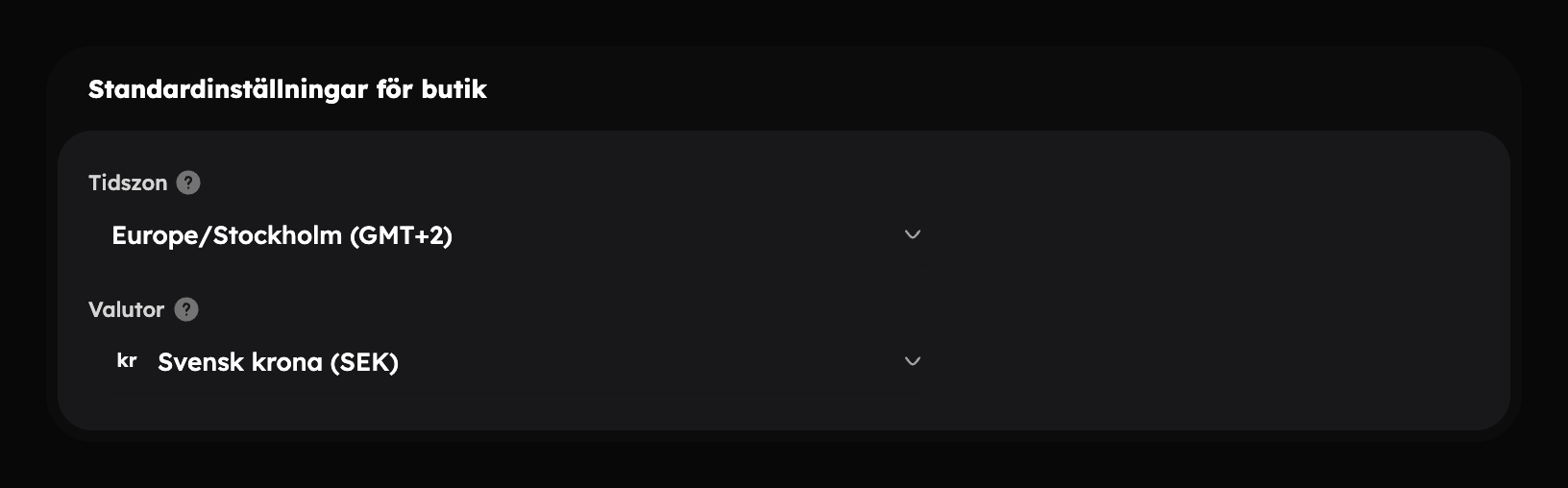
The Currencies field is also on SettingsOrganisation, in the Store defaults card. There you can add a currency straight away, and if you choose a currency in the list you're taken to its settings under Checkout.
Active currencies are shown in the currency switcher in the shop's header. You can read about setting prices per currency in Prices.