Gift cards are an easy way to sell experiences to someone who wants to give them away. The guest buys a card for an amount in your shop, and the recipient uses the balance when they book — over several bookings if they like.
Switch on the Gift cards app under SettingsApps. Gift cards then appears under Apps in the sidebar. Read more about apps.
How it works for the guest#
When the app is on, visitors can buy gift cards in your shop. They choose a preset amount between 500 and 2,000 kr or enter their own amount between 100 and 100,000 kr.
- A gift card is valid for 2 years from the date it's issued.
- The card can be used several times until the balance runs out. The balance can never go negative.
- Before the card expires, the holder automatically receives a reminder email.
You manage the emails that are sent — the receipt to the buyer, the gift card to the recipient and the reminder — under Email and notifications.
Issue a gift card yourself#
If you want to give a card away, or replace an old one, you can create it in the admin. You need to be an administrator to do this.
New gift card
Go to Gift cards and click New gift card.
Code
Enter your own Gift card code, or leave the field empty and the code is generated automatically.
Amount
Fill in Original value (kr). The card is valid for 2 years, which can't be changed.
Create
Check that Active is switched on and click Create gift card.
If you have gift cards from a previous system, you can import them: when the list is empty, there's an Import button next to New gift card.
The overview#
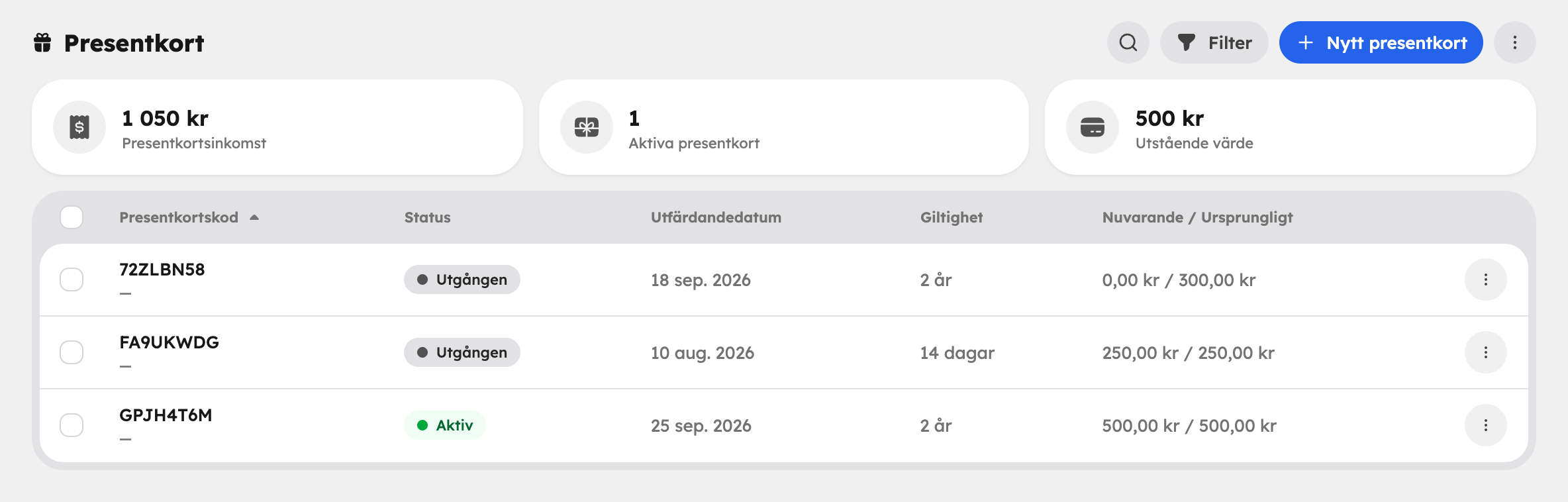
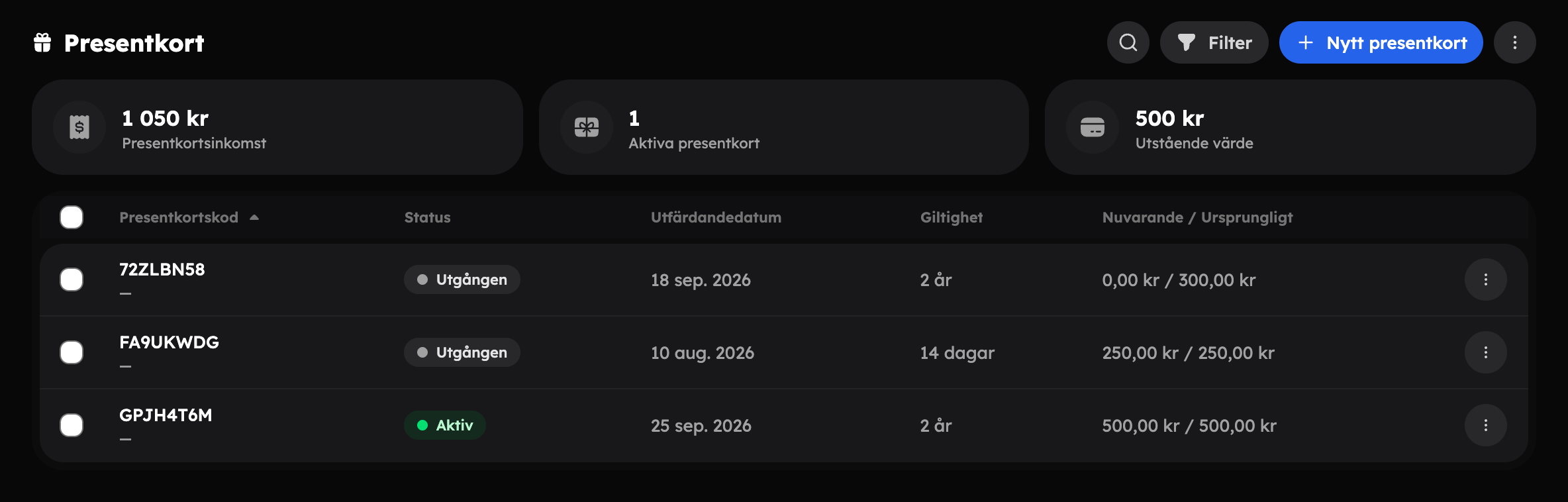
At the top of the page you'll see Gift card income, Active gift cards and Outstanding value — that is, how much is left to redeem across all cards.
In the list you'll see Gift card code, Status, Issue date, Validity and the Current / Original balance.
The gift card page#
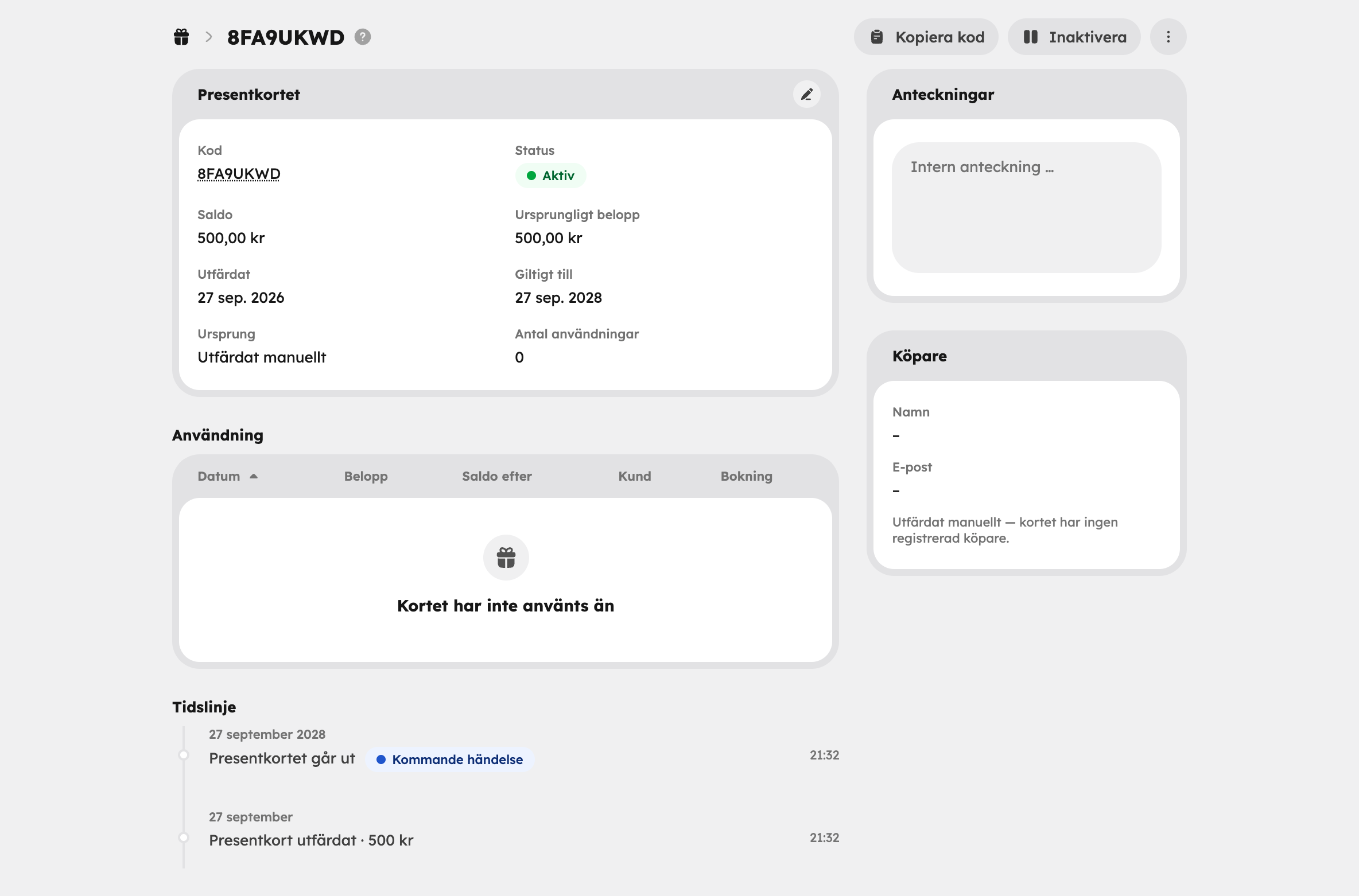
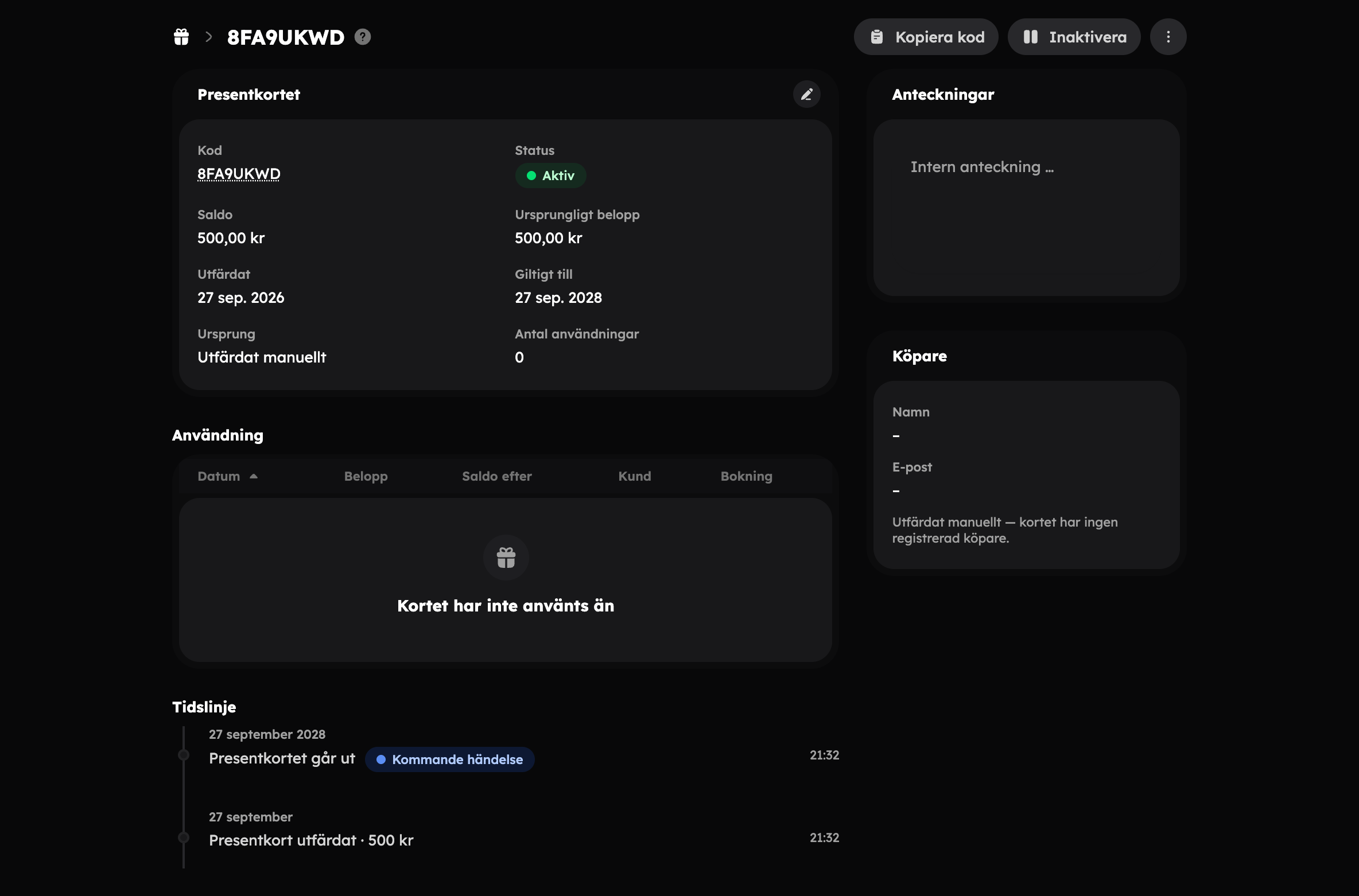
Click a gift card to see everything about it:
| Card | Contents |
|---|---|
| Gift card | Code, status, balance, original amount, issued, valid until, origin and number of uses. |
| Purchaser and Recipient | Who bought the card and who it went to. |
| Usage | Each redemption with date, amount, balance afterwards, customer and booking. |
| Timeline | Everything that has happened to the card. |
| Notes | Internal notes that only staff can see. |
In the top right you can Copy code and Deactivate or Activate the card. The menu next to them has Delete. With the pencil in the Gift card card (Edit gift card) you change the code and the recipient. The amount can't be changed after the card is issued — if it's wrong, delete the card and issue a new one.
If a booking costs less than the balance, the rest stays on the card. Each redemption appears under Usage with the amount and the balance afterwards, so you can always answer questions about how much is left.
Delete and restore#
Choose Delete in the menu on a row or on the gift card's page. The card goes to the Bin in the status filter, and you can undo straight away in the message that appears. In the Bin you can Restore the card or Delete permanently. You can also see how long is left before the card is deleted permanently on its own.