Under Calendar you can see all your time slots — when they run, how much is booked and which guests are coming. This is where you plan the week and do most of the day-to-day work around a tour.
Four views#
- Month — an overview of the whole month.
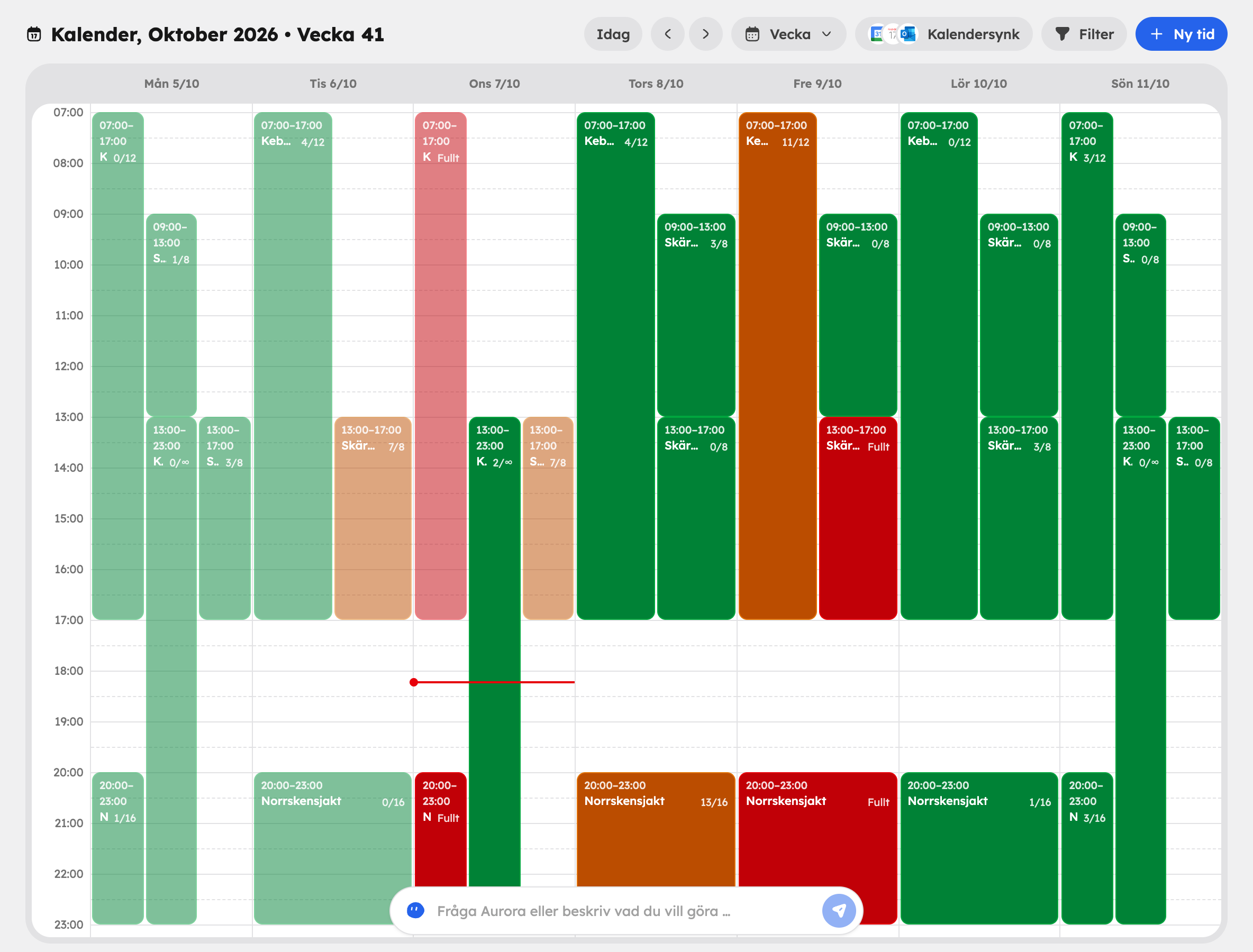
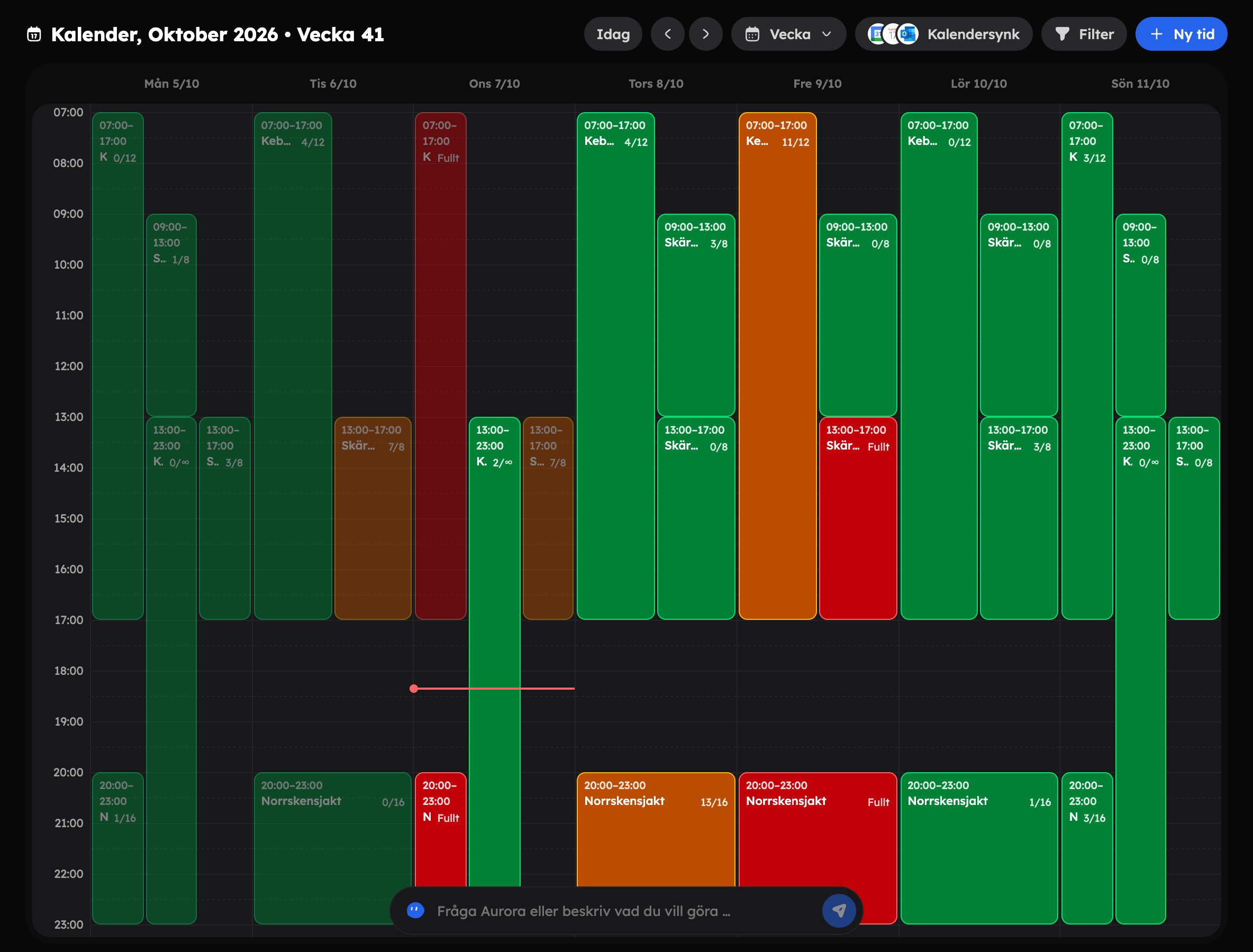
- Week and Day — a time grid where you can drag and drop times.
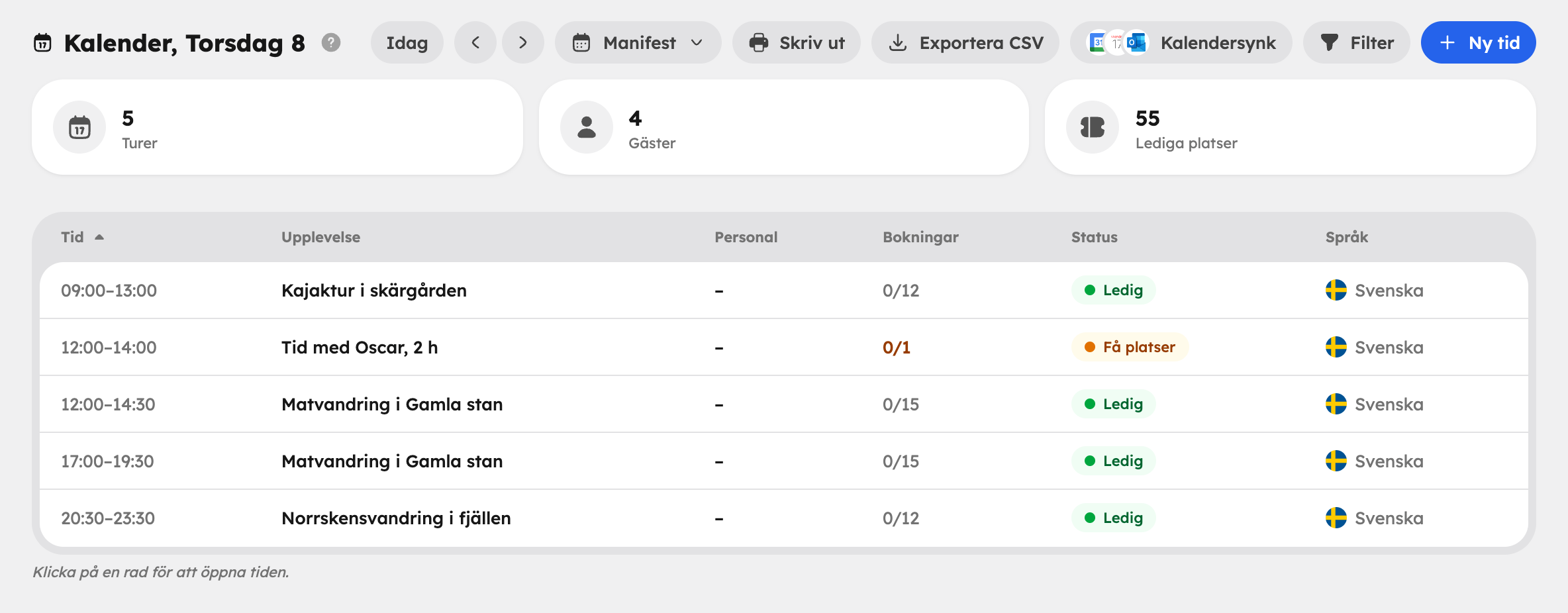
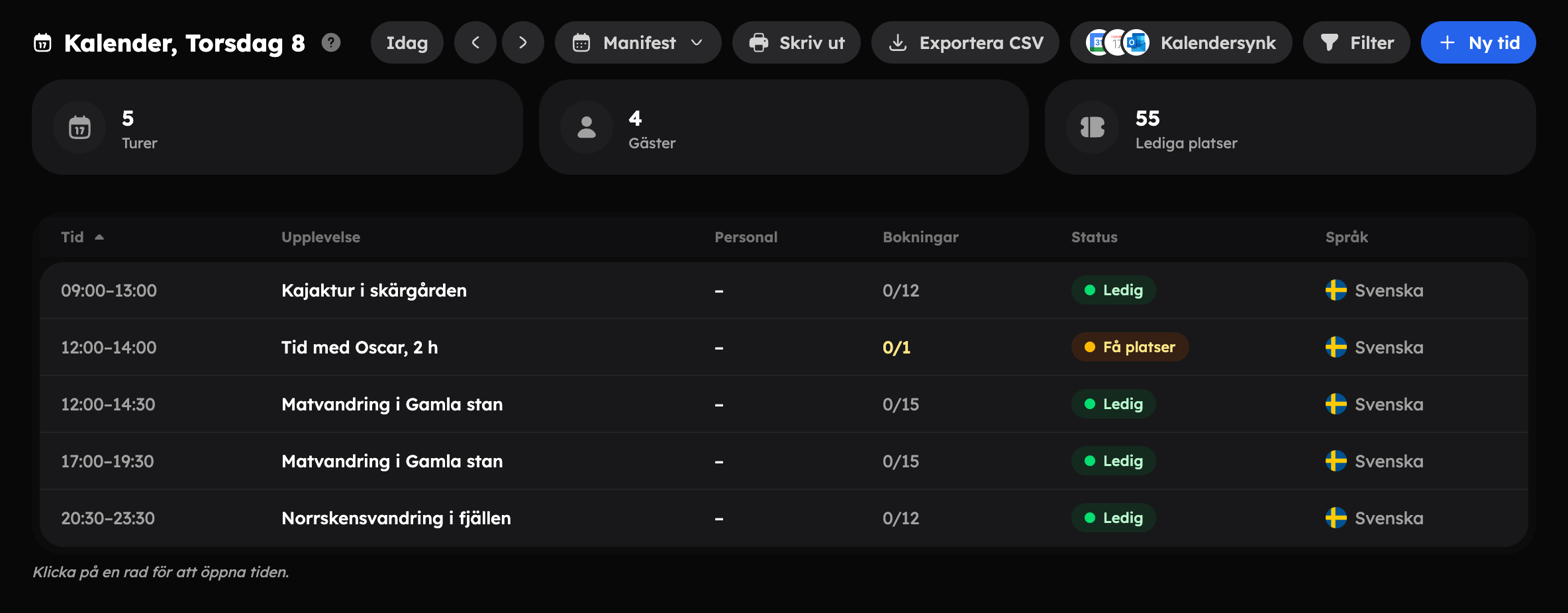
- Manifest — the day's departure list with the number of Tours, Guests and Available places, plus the guest lists for each tour. Use Print to take it with you in the morning, and Export CSV to get it as a file.
The view, date and selected tour are saved in the address in your browser. Copy the link and a colleague will see the same thing.
The colours#
Each tour is colour-coded by how full it is: Available, Few places, Full or Closed (sales are closed).
If the tour has a minimum number of participants, a small dot shows whether it's going ahead. When you click the tour, Is the tour going ahead? shows Yes, No with how many more are needed, or Cancelled.
Add a time#
Click New time slot and fill in Experience, Date, Start time and End time. You can also enter Capacity (optional), Minimum participants (optional), Language (optional) and a Recurrence to create a whole series in one go.
In the week and day views you can also draw a new time directly in the grid by dragging with the mouse.
There's more about recurrences, capacity and minimum numbers in Schedule rules.
Move a tour#
In the week and day views, drag the tour to a new time or day. Drag the bottom edge to change how long it lasts. Before anything is saved, you confirm in Move time slot?.
You can also click the tour and choose Move time slot. With Email booked guests switched on, every guest on the tour gets an email about the new time. Time slots that have passed or are cancelled can't be moved.
Everything you can do with a tour#
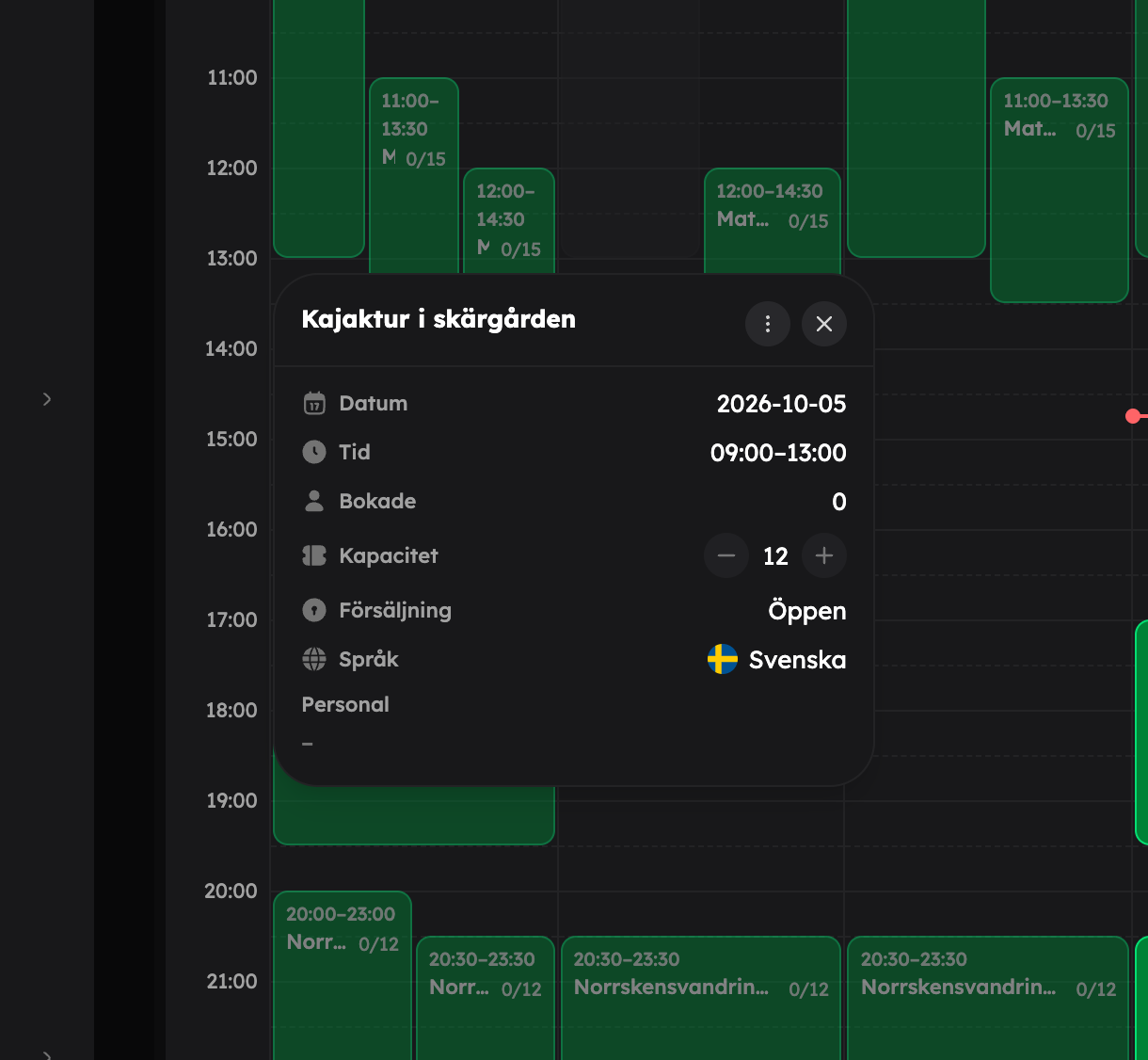
Click a tour to see the details. There you can also change the capacity directly with plus and minus — but never to fewer places than have already been booked. The actions are in the three-dot menu:
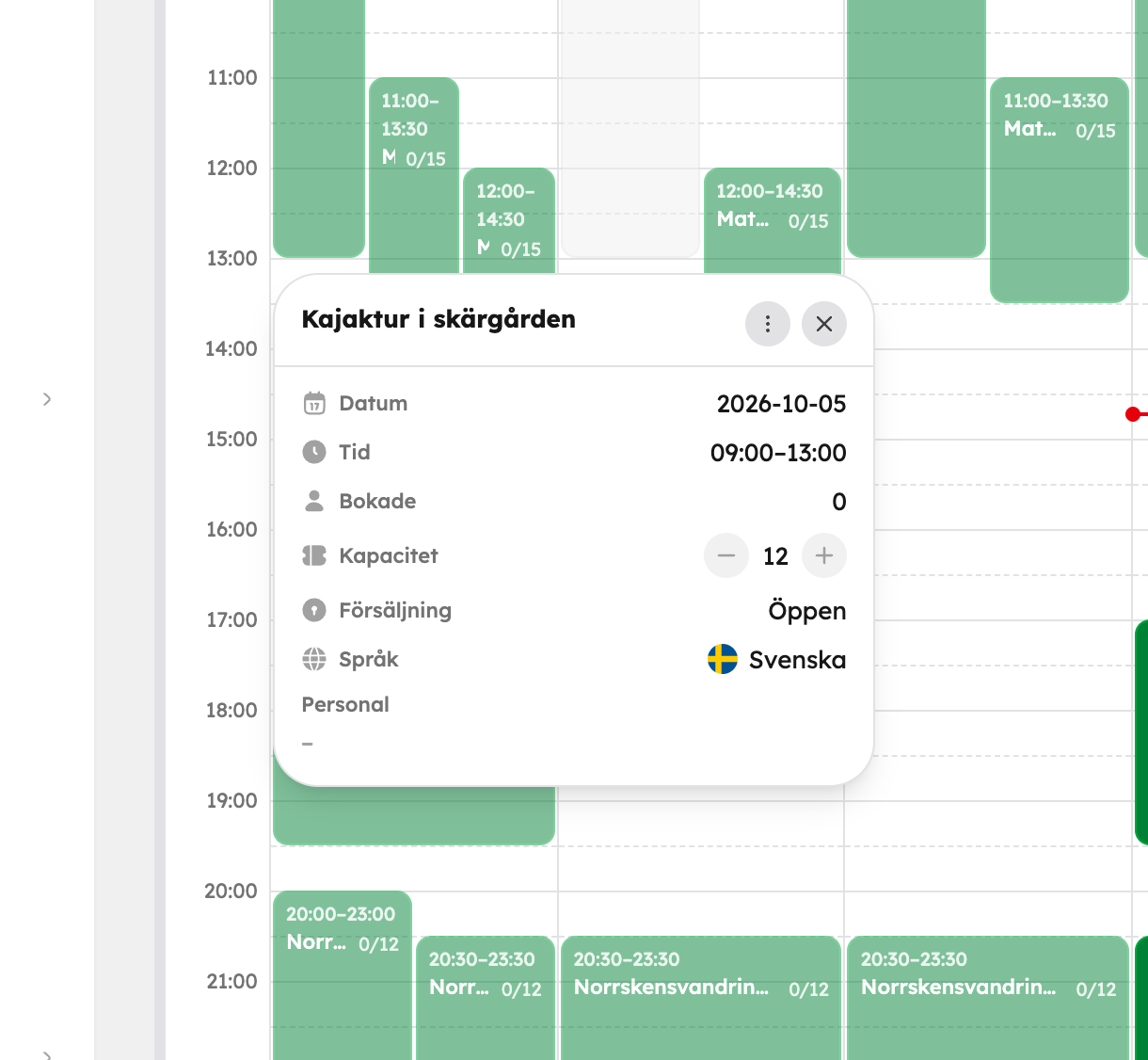
| Action | What it does |
|---|---|
| Edit | Change the date, time, capacity, minimum number and language in Edit date and time. |
| Move time slot | Move the tour to a different time. |
| View guest list | Everyone booked, with booking number, tickets and payment status. |
| Print guest list | A printer-friendly list to take with you. |
| Add guest | Add a manual booking to the tour. |
| Close sales | Stop new bookings in the shop without removing the tour. Existing bookings and guests you add yourself aren't affected. Choose Open sales to open it again. |
| Send email | Email everyone who has booked the tour in Email the tour. |
| Cancel tour | Cancel the tour. All bookings are cancelled and the guests get an email. |
The guest list can also be exported with Export CSV or Export PDF.
Cancel tour can't be undone. All bookings on the tour are cancelled, and the guests get a full refund and a cancellation email. The tour stays in the calendar as cancelled and can't be booked.
Filters and saved views#
With Filter you show only certain Experiences, a particular Language or a particular Occupancy. If you have the Staff app switched on, you can also filter by Staff.
Do you use the same filters often? Save them as a view with Save view and give it a name. Then you can quickly switch between your views and Full calendar. Saved views are personal and follow you between computers and mobile.
Calendar sync#
Want to see your tours in Google Calendar, Apple Calendar or Outlook? Click Calendar sync. It's the Calendar app. If the app is installed, the button takes you to it; otherwise it takes you to SettingsApps, where you install it. Read more in Calendar feed.