Schedule rules control when your experiences run and how they can be booked: how many people fit, whether the tour needs a minimum number of guests and how close to the start customers can book. You set default values for the whole company and make exceptions per experience where needed.
Single times and series#
A time can be a single departure with a start and an end. If the experience runs regularly, you create a series instead. Choose a Recurrence when you add a time — in the calendar with New time slot, or under Dates in the experience with Add date.
| Recurrence | What you get |
|---|---|
| Daily | Every day. |
| Every other day | Every second day. |
| Weekly | The same weekday every week. |
| Every weekday (Mon–Fri) | Monday to Friday. |
| Every weekend (Sat–Sun) | Saturday and Sunday. |
| Custom… | Your own rule, see below. |
Also set Until — the last date in the series.
Your own rule#
With Custom… you build exactly the schedule you need:
- Repeat every — a number of days or weeks, for example every third day.
- Days of the week — which days of the week the tour runs.
- Week number (ISO) — All weeks, Even weeks (w2, w4, …) or Odd weeks (w1, w3, …).
- Day of the month — all dates, or only even or odd ones.
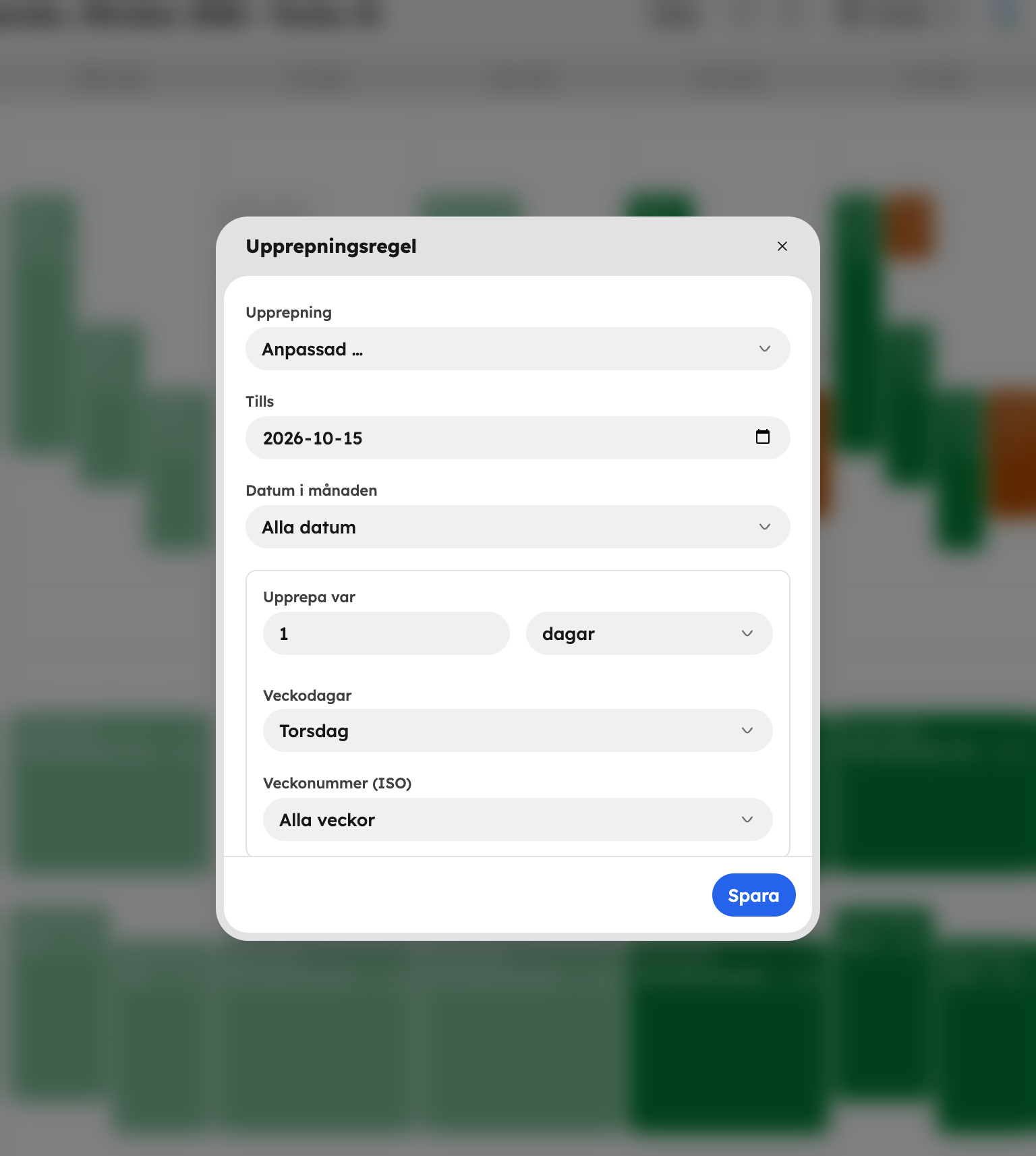
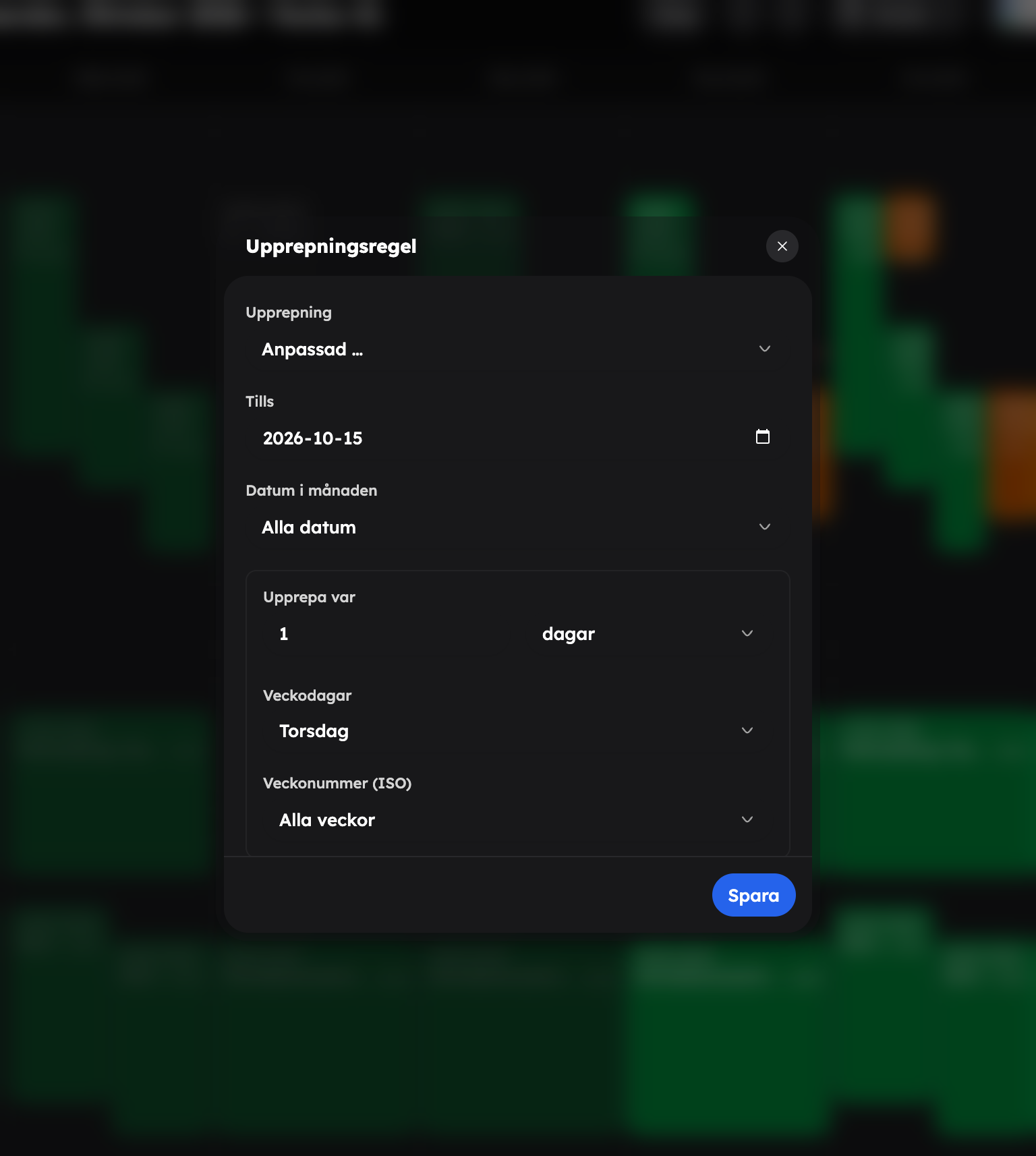
A series can contain up to 366 time slots. If a time already exists it's skipped, so you won't get any duplicates. Afterwards you can see how many time slots were added.
Capacity#
Each time slot has a Capacity — how many places there are. If you leave the field empty, it becomes Unlimited. You can change the capacity of a single time slot with Edit, but never to fewer places than have already been booked.
Minimum number of participants#
Does the tour need a minimum number of guests to go ahead? You set the default value with Minimum number of participants under SettingsBooking rules. It's switched off until you enter a number. You can make exceptions per experience (see below) and per time slot with Minimum participants (optional) — if you leave it empty, the value is inherited from the experience.
Under When the minimum isn't reached you choose what should happen if not enough people book:
- Show only in admin (calendar) — only you can see that the tour is uncertain.
- Show guests that the tour is unconfirmed — guests can see that the tour isn't confirmed yet.
- Cancel and refund when booking closes — when booking closes, the tour is cancelled automatically and the guests get their money back.
Booking cut-off#
With Booking cut-off you decide how many hours before the start booking stops — the field is called Close booking (hours before start). If the tour starts at 12:00 and you enter 2 hours, it can't be booked after 10:00. You set the default value under SettingsBooking rules.
Exceptions per experience#
Does one experience need different rules from the rest? Open the experience and go to SettingsBooking rules at the bottom of the page. There you'll find Custom booking cut-off, Custom minimum and Custom action when the minimum isn't reached. Anything you don't change follows the company default. Click Save in the experience when you're done.
Close sales on a tour#
Want to stop bookings on a single tour without removing it? Click the tour in the calendar and choose Close sales. This only stops bookings in the shop — existing bookings and guests you add yourself aren't affected. Use Open sales to open it again.
Change a time that has bookings#
If you move a time slot that already has bookings, the guests get an email about the new time. If you don't want to send anything, switch off Email booked guests before you save. See The calendar.
Language and guide#
Each time slot can have a Language, so that customers can see which language the tour is held in. With the Staff app you can also link a guide to each time slot. Read more in Staff.