Awrora takes payments through Stripe. The money goes to your own payment account, and receipts show your company name. Without a connected account and at least one payment method switched on, online payment isn't possible, and without any way to pay at all — online or Pay on site — guests can't book in the shop. That's why this step is important.
It's the company's owner who connects the payment account. Aurora can't do it for you, but shows you the way to the right page.
Connect the payment account#
Open Checkout
Go to SettingsCheckout.
Start connecting
Click Connect payment account. You're taken to Stripe.
Fill in your details with Stripe
Stripe asks for details about the company and which bank account payouts should go to. When you're done, you come back to Awrora and see the message Payment account connected.
Check that it's done
The button now says Manage payment account, and the payment methods can be switched on. You use the same button to change your details with Stripe later.
Switch on payment methods#
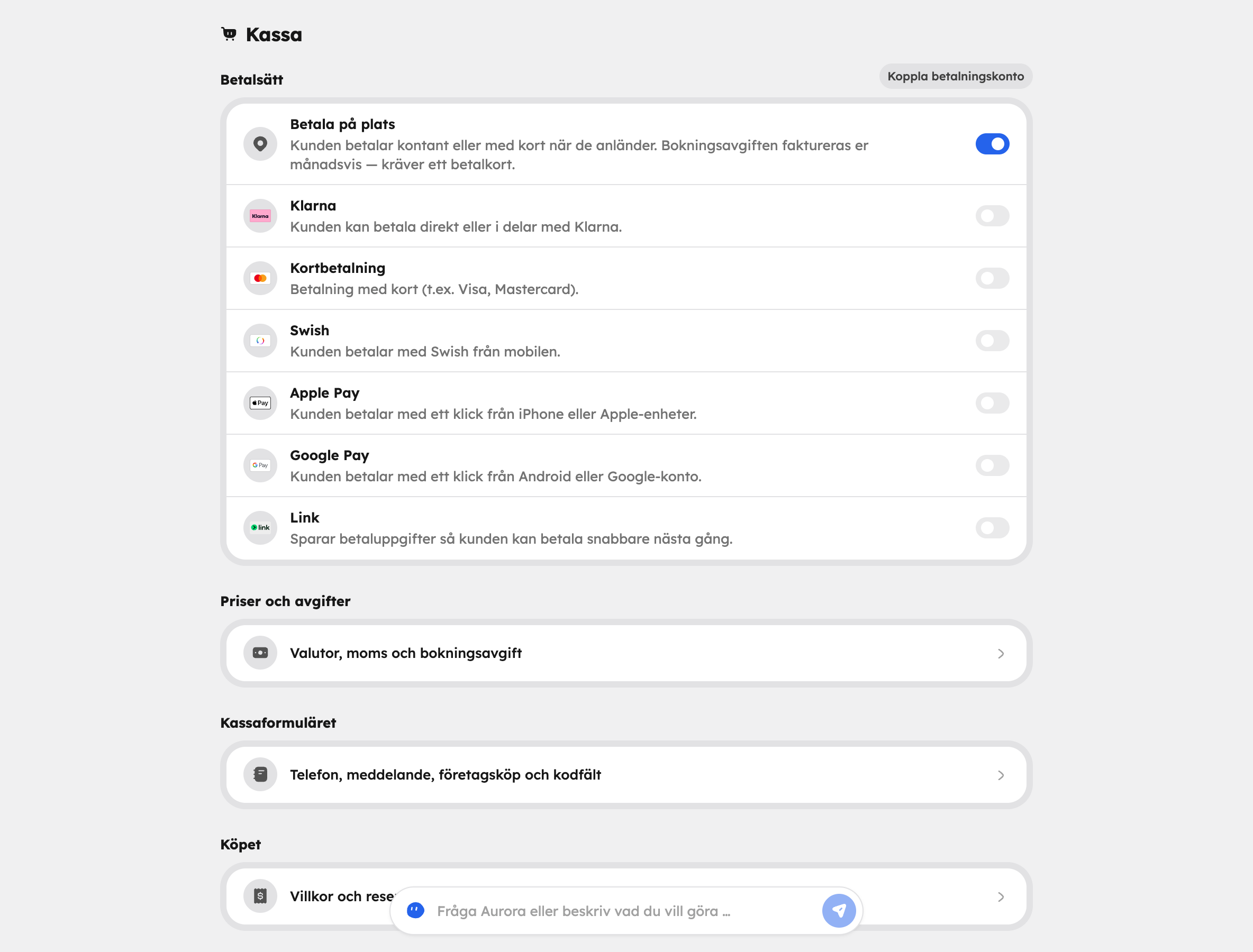
The payment methods are switched off to begin with. Once the account is connected, switch on the ways guests can pay — at least one, otherwise online payment isn't possible. If you don't want to take payment online at all, you can switch on Pay on site instead:
| Method | How it works |
|---|---|
 Card payment Card payment | Visa, Mastercard and other cards. |
 Apple Pay Apple Pay | Pay with one click from an iPhone and other Apple devices. |
 Google Pay Google Pay | Pay with one click from Android or a Google account. |
 Link Link | Saves payment details so the customer pays faster next time. |
 Klarna Klarna | Pay now or in instalments. |
 Swish Swish | Pay with Swish from a mobile phone. |
If a payment method is greyed out, Stripe hasn't approved it for your account yet. Finish your details via Manage payment account, or activate the method in Stripe's payment settings.
Pay on site#
Pay on site is switched off to begin with. When it's on, the guest books now and pays in cash or by card on arrival. On the booking, you mark the payment with Mark as paid once the guest has paid.
The booking fee for bookings paid on site is invoiced to you monthly. That's why Awrora asks you to add a payment card when you switch on Pay on site — you do that right on the Checkout page.
The booking fee#
Awrora charges a booking fee per paid booking. How much it is depends on your plan. With card payments, the fee is deducted automatically.
By default the guest pays the fee — it's added to the price as a separate line at checkout. If you'd rather cover it yourself, switch off The guest pays the booking fee under SettingsCheckoutPrices and fees. The guest then pays only the price, and the fee is deducted from your payout. See Plans and billing for the fee on each plan.
More under Checkout#
Below the payment methods on the Checkout page there are three sub-pages. The defaults work for most companies, but it's good to know where they are (every option is described in Checkout):
- Prices and fees — currencies, VAT and the booking fee.
- Checkout form — phone number, message, business purchases and the field for discount codes and gift cards.
- Purchase — how the guest accepts the terms and how long places are reserved during payment.
See your money#
Under Finance you can see your payout balance — what's pending and what's available — and every payout to your bank account. There's more about refunds and finance in Payments.
Next step#
Customers can now pay. Time to make sure they can find you: Publish the shop.