With the Staff app you give your guides their own profile, show who leads each tour and can let customers book time directly with a particular guide.
Switch on the Staff app under SettingsApps. Staff then appears under Apps in the sidebar. Read more about apps.
A guide profile is what guests see. It doesn't give a login to the admin. If you want a colleague to be able to log in, invite them under SettingsUsers. See Team and roles.
Create a guide profile#
New guide
Go to Staff and click New guide. Fill in Name, Email, Region and Language, choose an Image if you like and switch on Approved for F-tax if it applies. Click Create guide.
Content
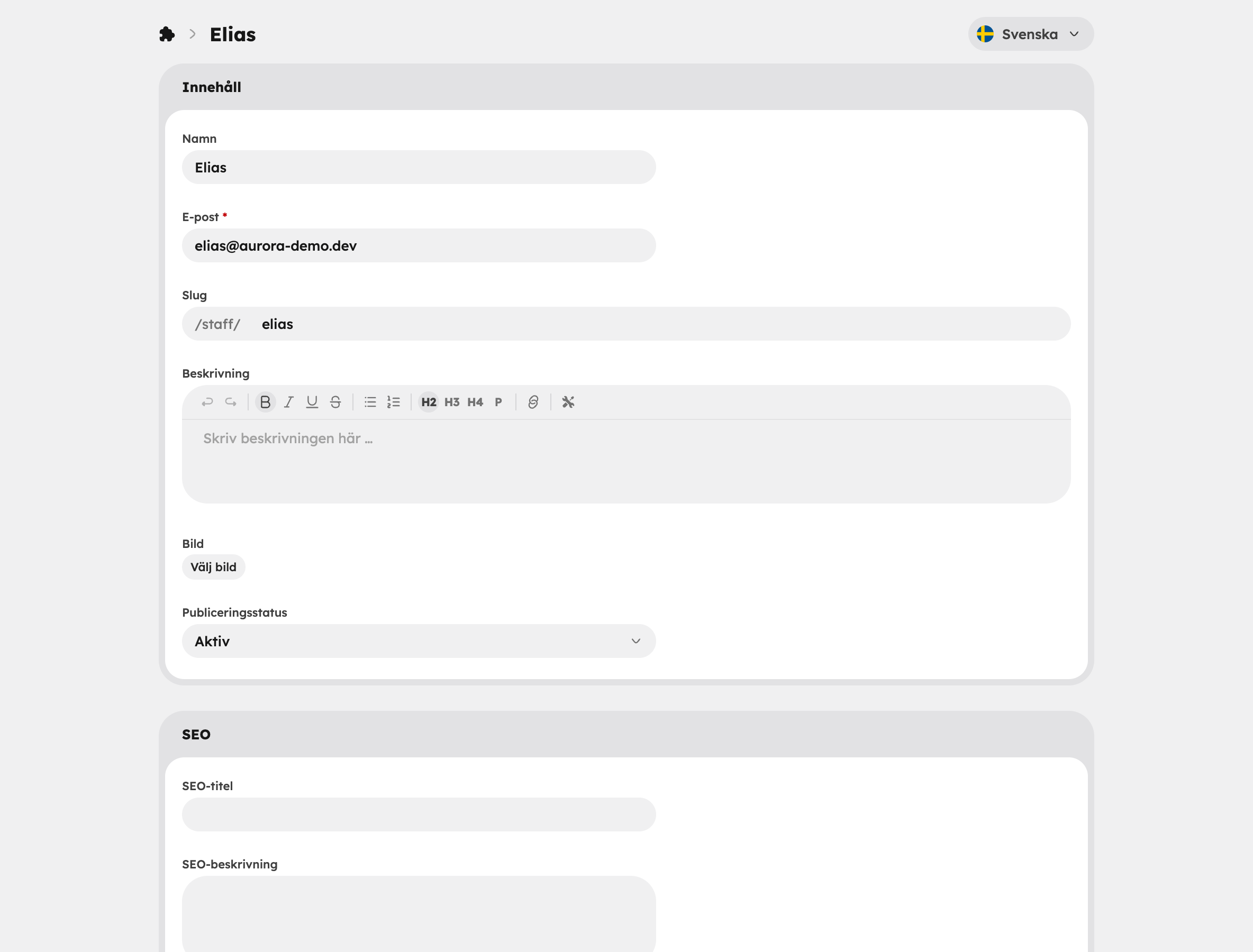
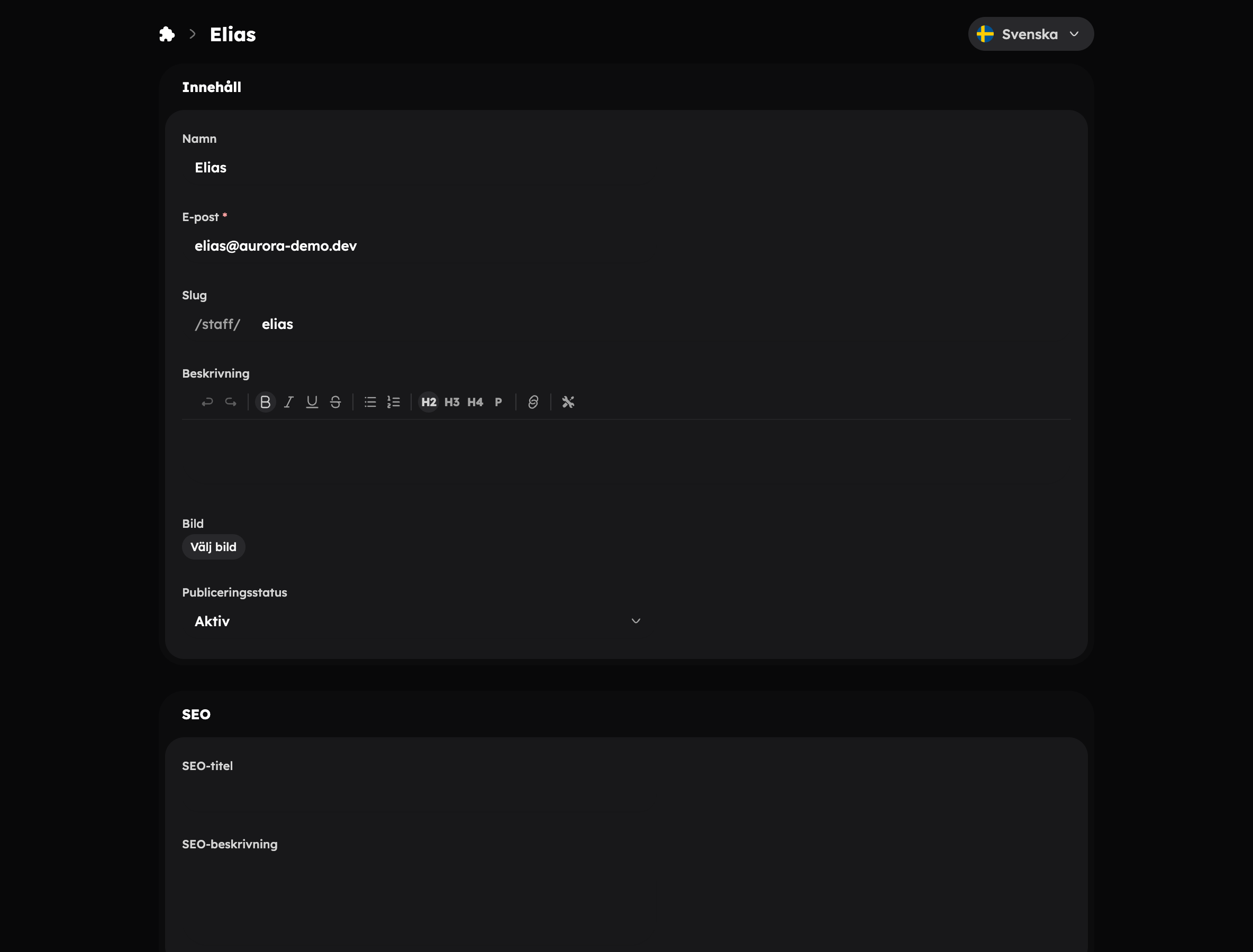
The guide's page opens. In the Content card you write a Description and can change the Name, Email, Slug and Image.
More about the guide
Add Expertise (for example "Hiking" or "Local knowledge"), Contact details and social media.
Publish
Set Publication status to Active so that the guide gets their own public page, and click Save.
You change the F-tax setting later under Settings in the menu on the guide's row in the list.
Link a guide to a time slot#
When the app is switched on, you can choose a guide when you add or edit a time slot. The guide is then shown in the calendar, in the list of dates and to guests. In the calendar you can also filter by guide.
Let customers book time with a guide#
You can let customers book time directly with a guide, for example a private guided tour or a lesson. Switch on Bookable in the Booking card on the guide's page. Awrora then automatically creates bookable times, for example "Time with Anna, 1 h", which customers book on the guide's page.
Bookable time#
Here you set what the customer chooses between:
- Hourly rate in your currency. The hourly rate must be filled in before booking can be switched on.
- The shortest and longest time, and the step between lengths, for example 1, 1.5 and 2 hours.
Working hours#
Under Working hours you set up the guide's weekly schedule — which times the guide can be booked on each day of the week. You can copy one day's times to other days.
Under Exceptions you add individual dates that differ, for example a day off or different hours than usual. Click Add date.
Available times are recalculated automatically when you save.
Experiences the guide can be booked for#
In addition to hourly booking, you can choose which of your experiences the guide can be booked for, with the duration in minutes.
Advanced#
| Setting | What it controls |
|---|---|
| Start times every (minutes) | How close together the start times are, for example every 30 minutes. |
| Break between bookings (minutes) | Time for the guide to get from one booking to the next. |
| Bookable this many days ahead | How far ahead customers can see available times. |
The times created for guide booking are locked in the experience editor. You can only change them under Booking on the guide's page.