Add-ons are things the guest can add when they book, for example wetsuit hire, a packed lunch or a photo session. They're shown at checkout and appear as separate lines on the booking.
Add-ons are part of the Upselling app. Switch it on under SettingsApps. You'll then find Upselling under Apps in the sidebar. Read more about apps.
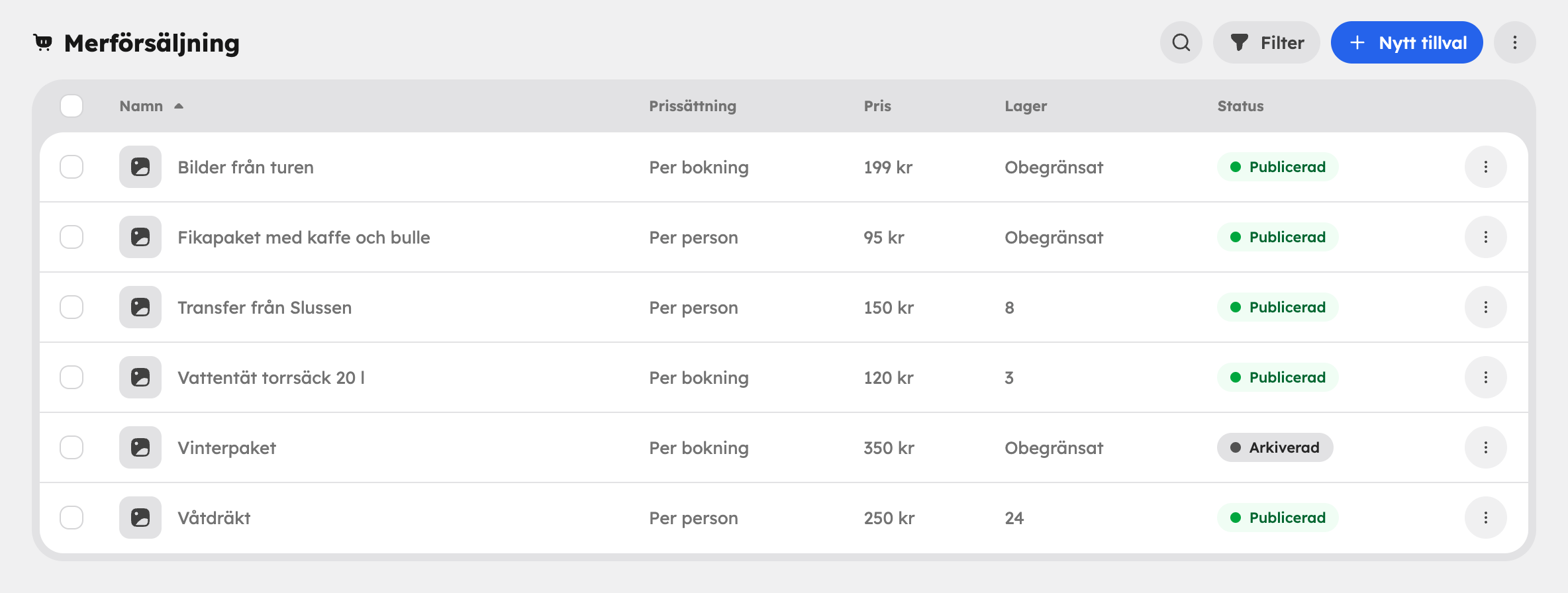
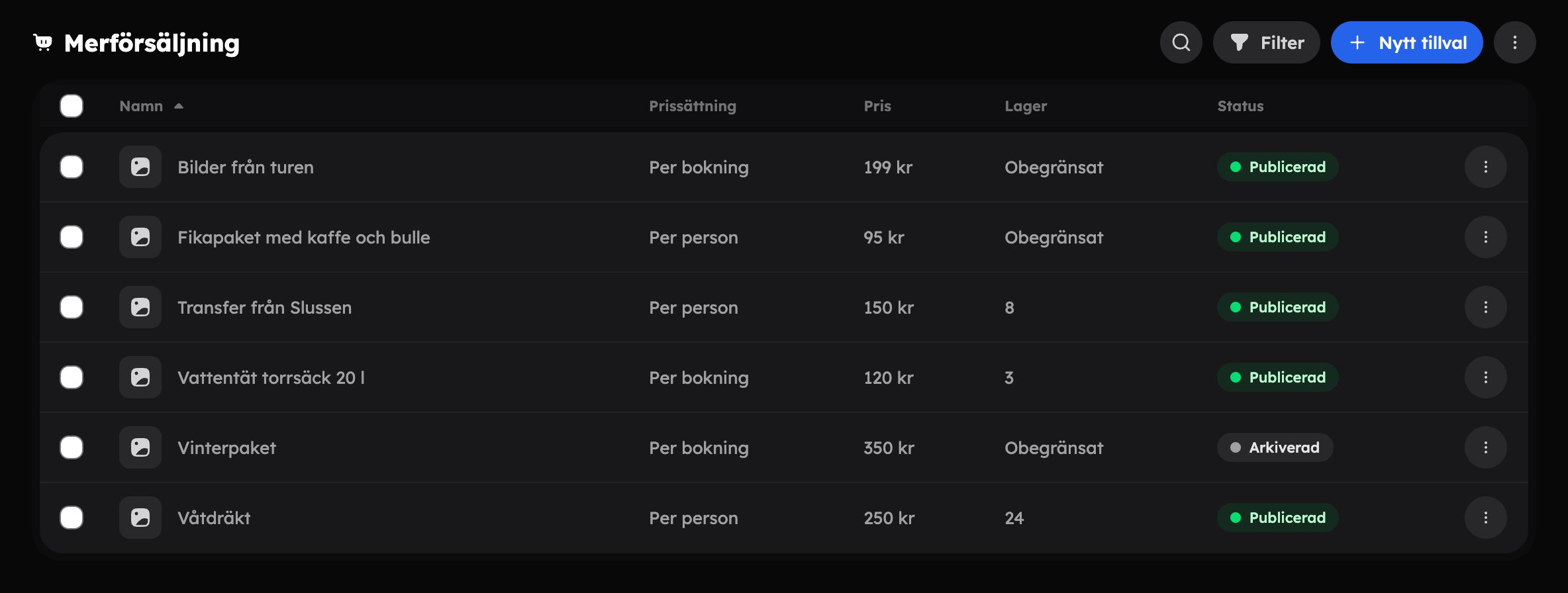
Create an add-on#
Open Upselling
Go to Upselling in the sidebar and click New add-on.
Fill in the details
Enter a Name, Description and Price, and choose an Image.
Choose pricing
Under Pricing, choose Per booking or Per person.
Stock
Fill in Stock if you only have a certain number, for example ten kayaks. Leave it empty for unlimited.
Choose experiences
Under Experiences, choose which experiences the add-on should be offered on. If you leave the field empty, the add-on applies to all published experiences.
Create
Click Create add-on.
Per booking or per person#
| Pricing | Example |
|---|---|
| Per booking | A photo package for the whole group. The price is charged once. |
| Per person | Lunch or equipment hire. The price times the number of guests. |
Link add-ons from the experience#
You can also link add-ons directly in the experience editor. When the app is on, the Upselling block appears below the prices. Click Choose to link an existing add-on to the experience, or New add-on to create a new one right there. With Remove in the menu on a row you unlink the add-on from the experience without deleting it.
Publish and archive#
An add-on is either Published or Archived. Only published add-ons are shown at checkout. Use the status filter in the list to see the archived ones.
From the menu on a row you can Edit, Publish or Archive, and Delete an add-on. If you select several rows, you can publish or archive them all in one go. Click an add-on to see its details and which experiences it applies to.
It's better to archive than delete if you think you'll want to sell the add-on again next season.
How the guest sees it#
At checkout, the add-ons that belong to the experience the guest is booking are shown. Selected add-ons are added to the total and appear as separate lines on the booking, so you can see them in the booking card.