A time slot (a departure) is a date and time when guests can book the experience. You add time slots directly in the experience editor, in the Dates block, or in the calendar.
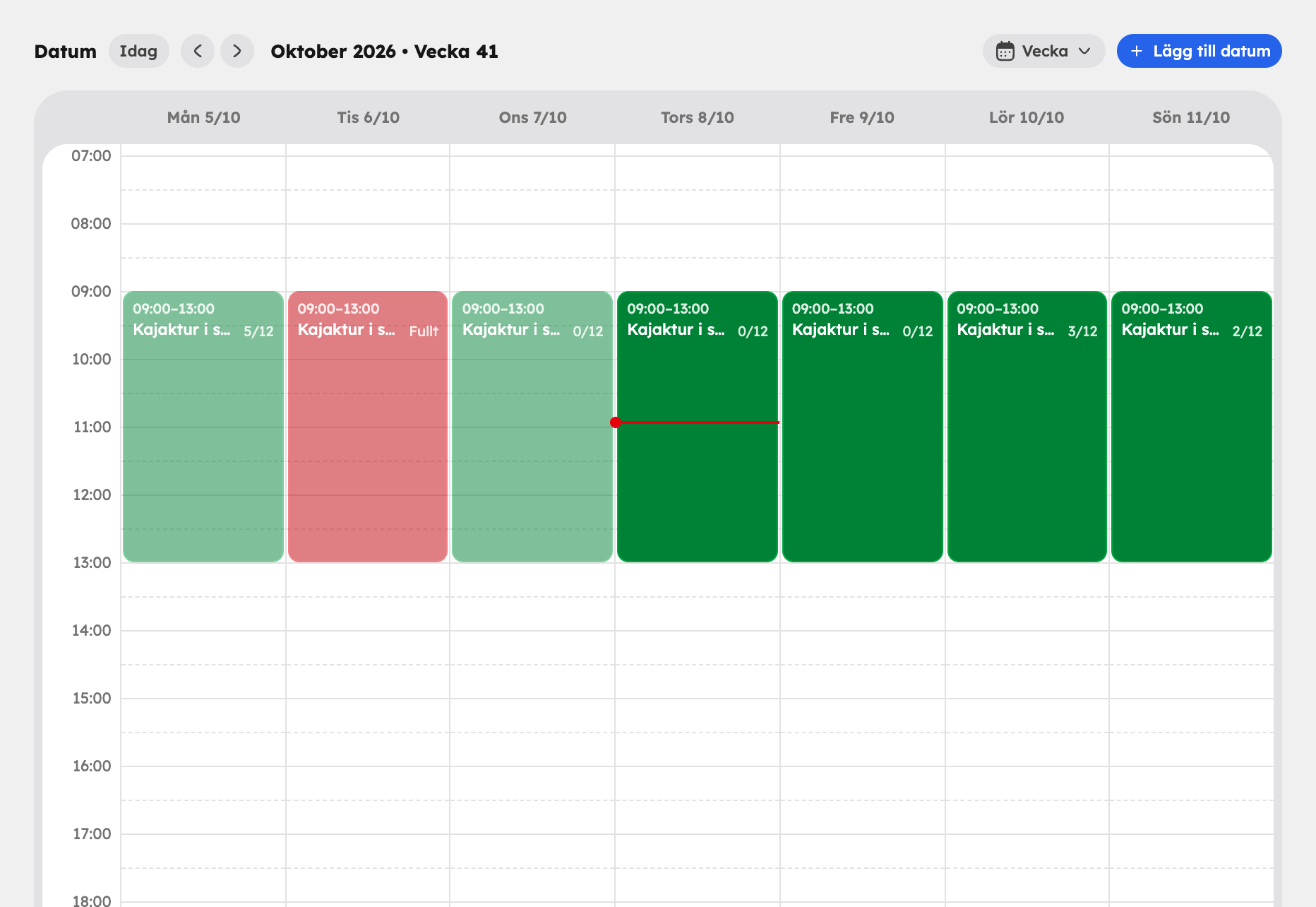
Add a time slot#
Open Dates
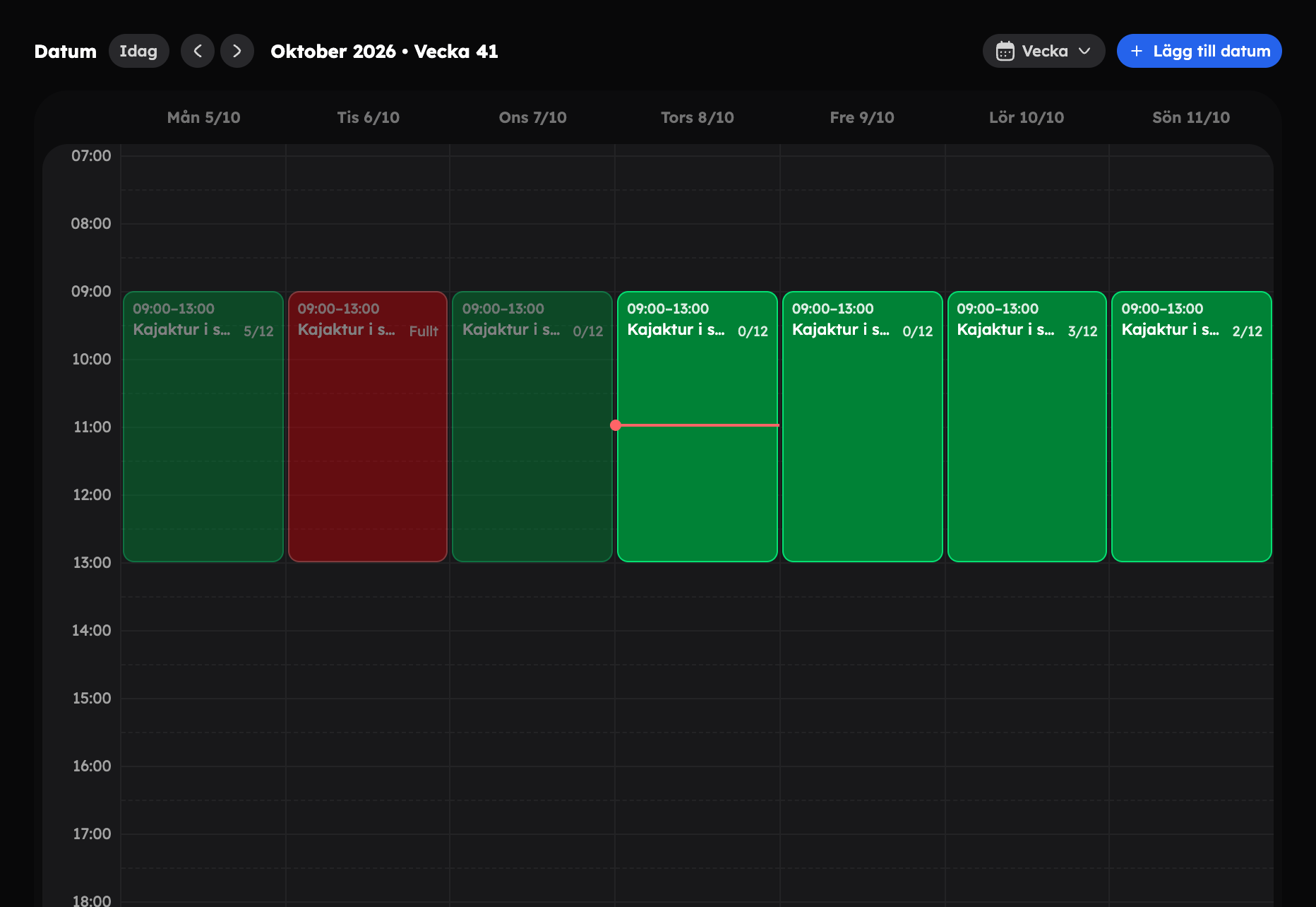
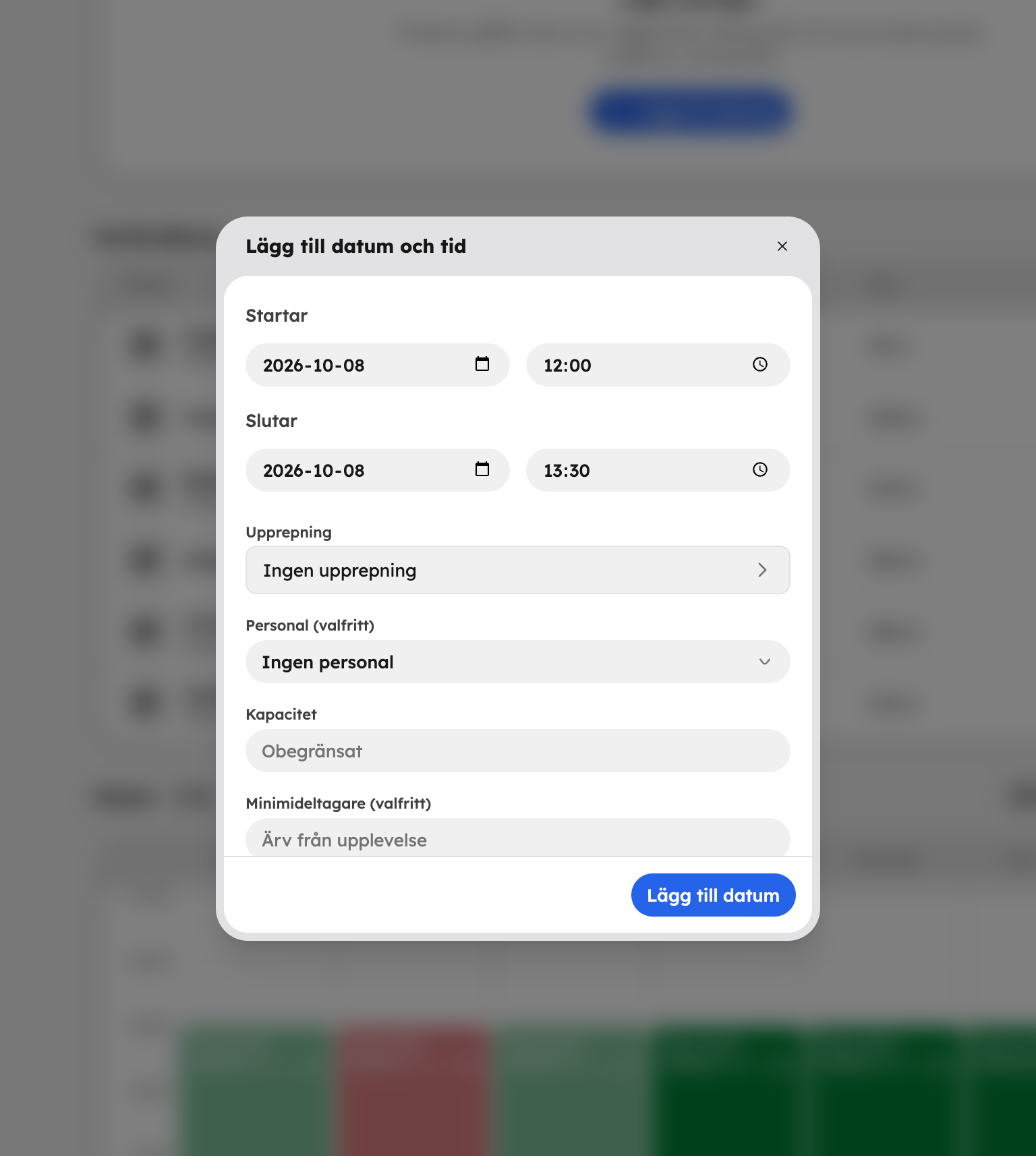
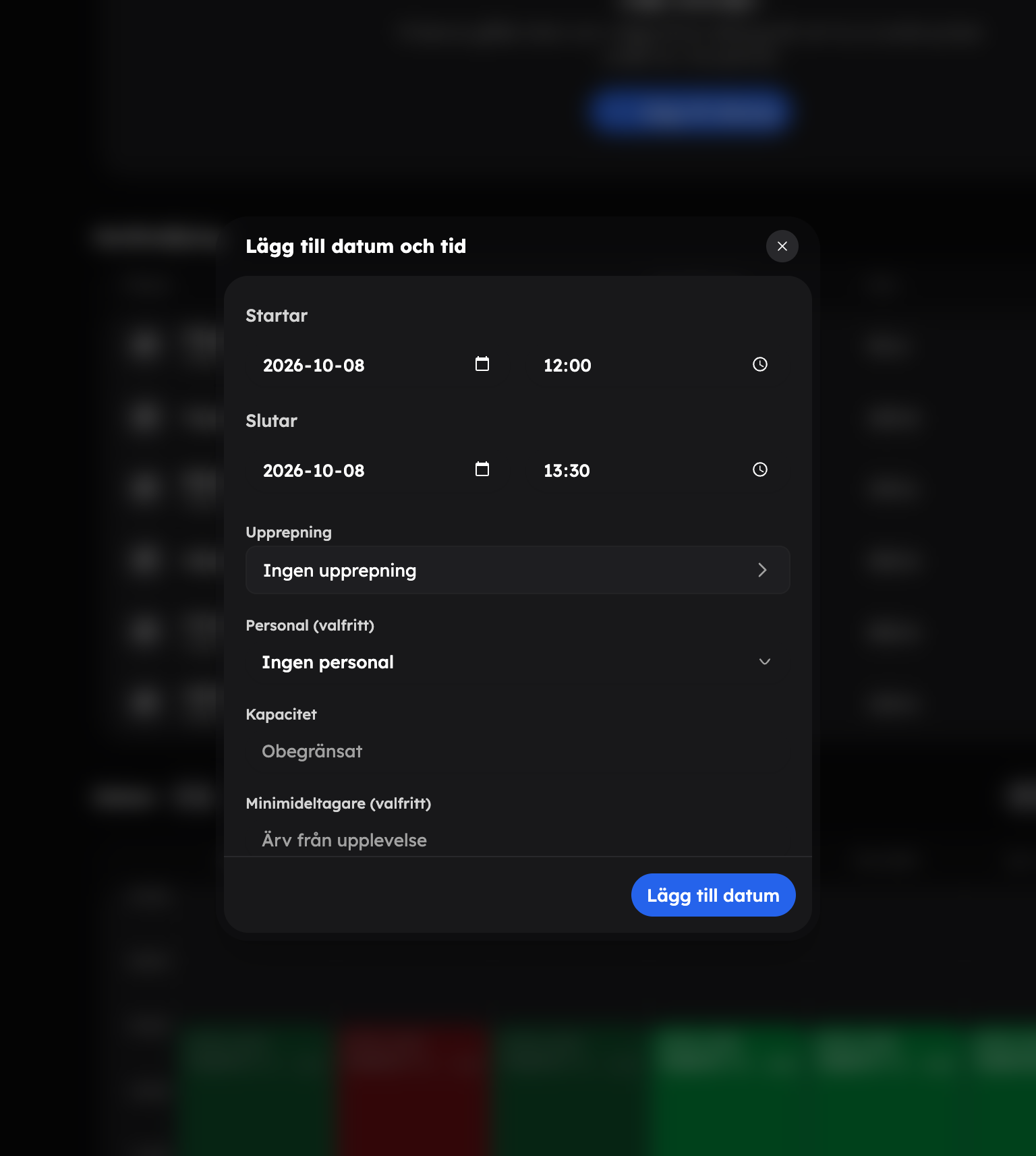
Scroll down to Dates in the experience editor and click Add date. The Add date and time dialogue opens. You can also click a free time in the calendar in the block.
Date and time
Choose the date and time under Starts and Ends. The end time is suggested from the experience's Duration (60 minutes if no duration is set).
Recurrence
Under Recurrence, choose whether the time slot should repeat, for example Weekly or Every weekday (Mon–Fri). With a recurrence you also choose an end date under Until.
Capacity and language
Fill in Capacity, Minimum participants (optional) and Language (optional).
Add
Click Add date. The time slots are saved straight away — you don't need to save the experience. With a recurrence, all the time slots in the series are created in one go.
How recurrence works in detail — weekdays, even and odd weeks, the limit on the number of time slots and how duplicates are handled — is explained under Schedule rules.
The fields#
| Field | How it works |
|---|---|
| Capacity | Number of places on the time slot. Leave empty for unlimited. |
| Minimum participants (optional) | How many people need to book for the tour to go ahead. Empty means the experience's value is used. |
| Language (optional) | Which language the tour is held in. The guest sees it when booking. |
If you have the Staff app switched on, you can also choose which guide leads the time slot. Read more under Staff.
Change a time slot#
Click a time slot in the calendar or list in the Dates block. This opens the same box of actions as in the calendar. Choose Edit to open Edit date and time, where you change the date, time, capacity, minimum participants and language. If you change the date or time of a time slot that already has bookings, Email booked guests appears, switched on — the guests then get an email about the new time. Switch it off if you don't want that.
You can also drag a time slot to a new time in the calendar. If it has bookings, you confirm the move first.
In the same box you can also, among other things, Close sales, email the guests or cancel the tour. Read more under Calendar.
Booking rules for the experience#
You set the organisation's default rules under SettingsBooking rules. For a single experience you can make exceptions under SettingsBooking rules at the bottom of the editor:
- Custom booking cut-off — how many hours before the start sales close for this particular experience.
- Custom minimum — minimum participants for all of the experience's time slots. Set 0 to turn off the minimum for this particular experience.
- Custom action when the minimum isn't reached — what happens if too few people have booked:
| Option | What happens |
|---|---|
| Show only in admin (calendar) | You see a warning in the calendar. The guest notices nothing. |
| Show guests that the tour is unconfirmed | The guest can see that the tour isn't confirmed yet. |
| Cancel and refund when booking closes | If the tour hasn't reached the minimum when sales close, it's cancelled and the guests get their money back. |
The row shows Default as long as you haven't made any exceptions.
Minimum participants on a single time slot take precedence over the experience's value. The experience's value in turn takes precedence over the organisation's default.