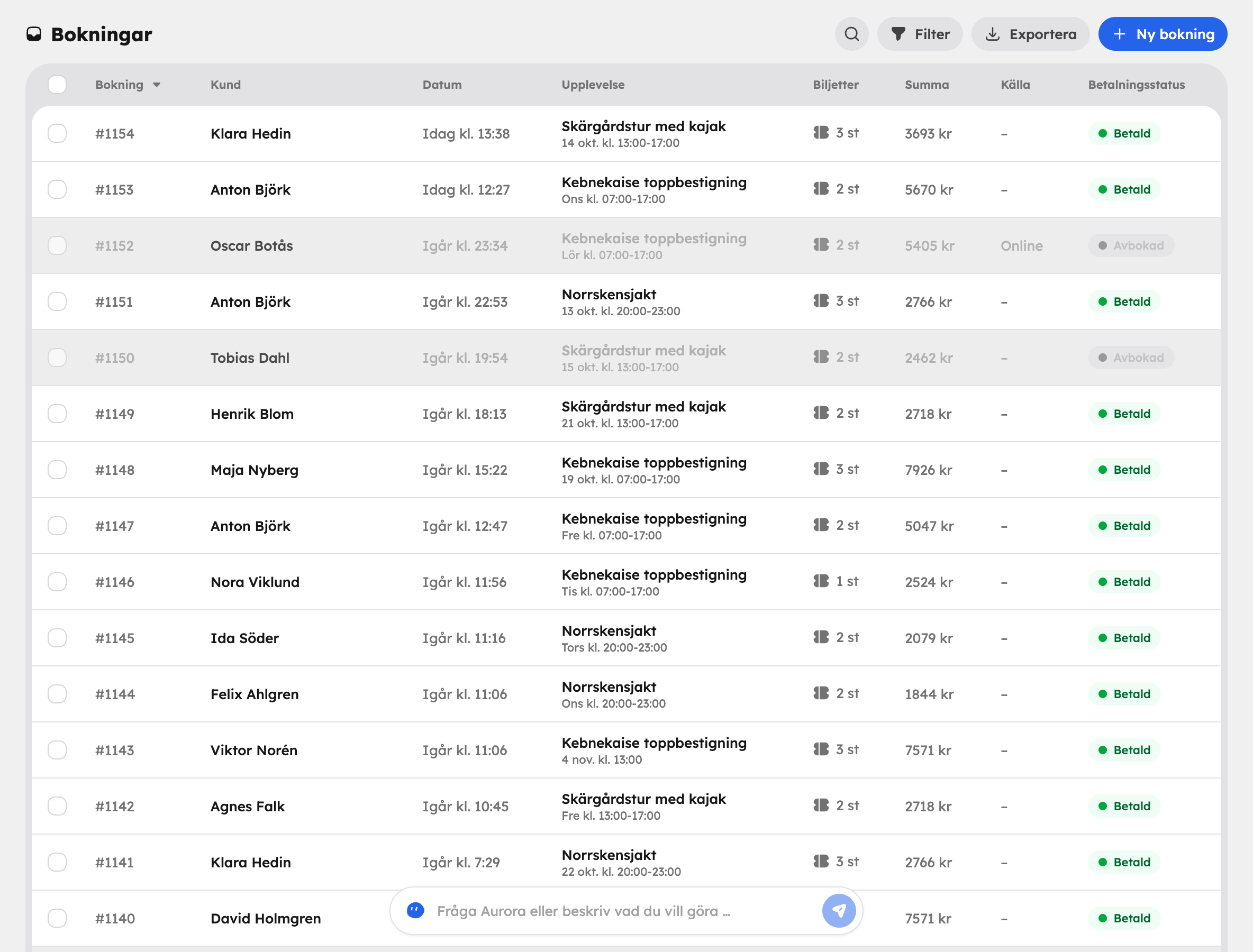
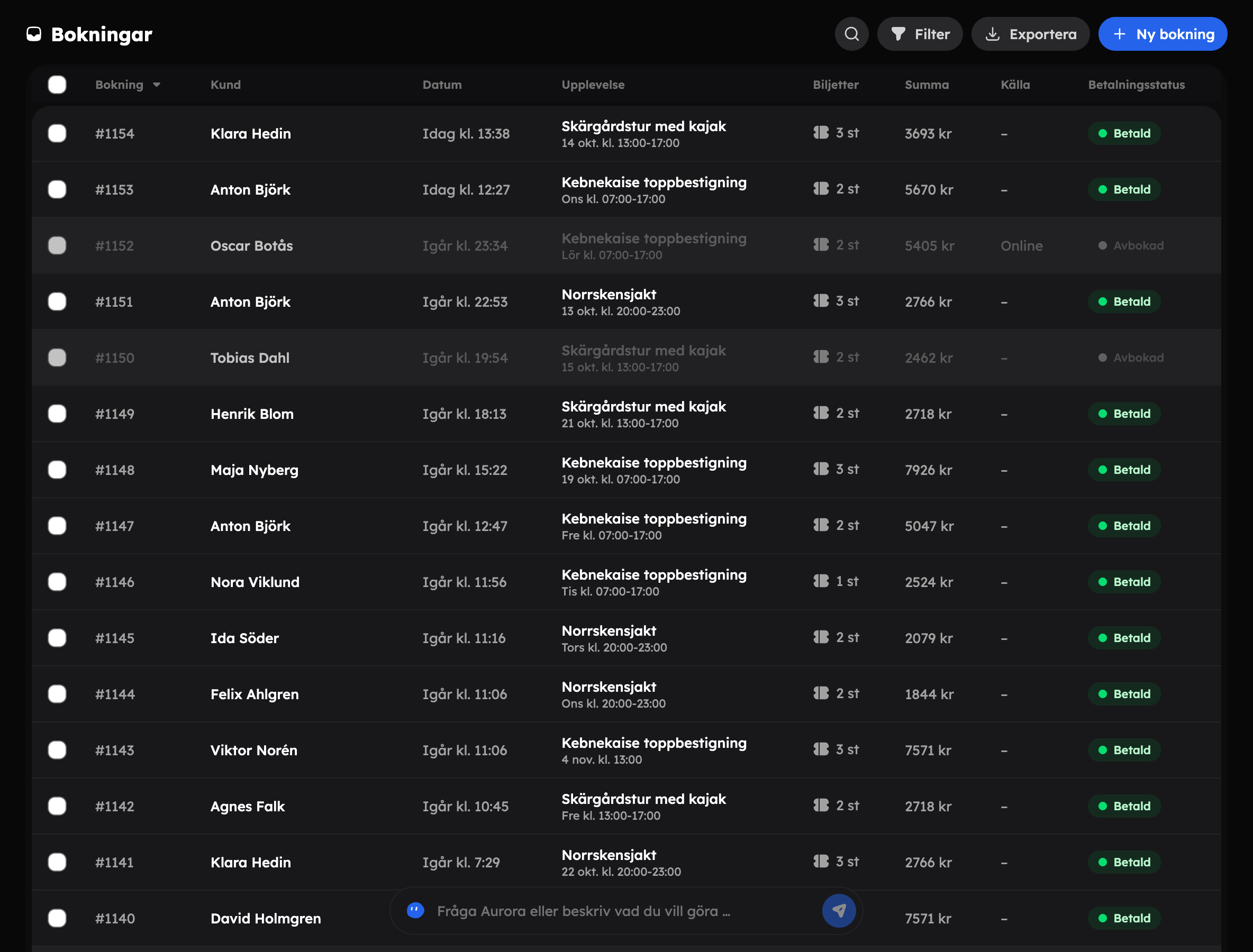
Under Bookings you'll find every booking in a table. Here you can quickly find a particular booking, see what is awaiting payment and pull out lists for your bookkeeping or for the guide.
The number next to Bookings in the menu shows how many bookings for upcoming time slots are awaiting payment.
What the table shows#
| Column | Content |
|---|---|
| Booking | The booking number. |
| Customer | The name of the person who booked. |
| Date | When the booking was made. |
| Experience | The experience and which time slot was booked. |
| Tickets | Number of tickets. |
| Total | The booking's total amount. |
| Source | Where the booking came from, for example Online, Admin, Agency, AI agent or API. |
| Payment status | For example Paid or Awaiting payment. |
Click a column heading to sort. Click a row to open the booking card. If you click the customer's name, the customer card opens instead.
Cancelled bookings stay in the list, but greyed out and struck through. That way you can see the full history.
Search and filter#
The search field looks in names, email addresses, phone numbers, booking numbers, experiences and sources. Start typing and the list is filtered as you type.
Use the filters to narrow down the list:
- Tour date — choose a date range for when the tour runs.
- Status — Upcoming, In progress or Finished.
- Payment — Paid, Awaiting payment, Invoiced later, Cancelled, Unpaid or Unknown status.
- Experiences — one or more experiences.
- Source — where the booking came from.
If you click through from a figure in the statistics, you land here with the filters already set. When the figure is about when bookings were made, the date filter is called Order date instead of Tour date.
Export#
Click Export and choose:
- Export CSV — raw data, good for Excel or your bookkeeping.
- Export PDF — a readable report with your filters as the heading.
The export contains exactly the bookings you have filtered.
Actions on several bookings#
Select bookings using the tick boxes. Then you can:
- Send email — write an email to everyone selected. If the same person has several bookings, they only get one email.
- Cancel booking — cancel all the selected bookings. Refunds follow your cancellation policy and the guests get an email. Bookings that are already cancelled are skipped.
Cancelling can't be undone. Check your selection before you confirm.
Change the payment status quickly#
You can change the payment status straight from the list without opening the booking. Click the status in the Payment status column. In the Update payment status dialogue, choose Pending, Paid or Cancelled.
If you choose Cancelled, the places are released and the refund follows your cancellation policy. You can also choose Send cancellation email to the guest. If you want to enter your own refund amount, cancel from the booking card instead.
Create a booking#
Click New booking to add a booking yourself. The button is active once you have at least one experience. See Manual booking.