A webhook is an automatic message from Awrora to another system. Every time something happens — a booking is created or cancelled, or a gift card is sold — Awrora sends the details to an address you choose. This is how you keep an accounting program, a CRM or your own app in step with your bookings without anyone having to export anything.
This guide shows you how to add a webhook in the admin. What the message looks like and how the receiver verifies the signature is covered in the technical webhook guide.
Webhooks are included from the Bas plan, and only the organisation's owner can add them. Administrators can see the webhooks, send tests and follow the deliveries. You need an address (URL) from the system that will receive the events — you'll get it from your developer or from the service you're connecting to.
Add a webhook#
Open For developers
Go to SettingsApps, scroll down to For developers and click API keys and webhooks.
Click New webhook
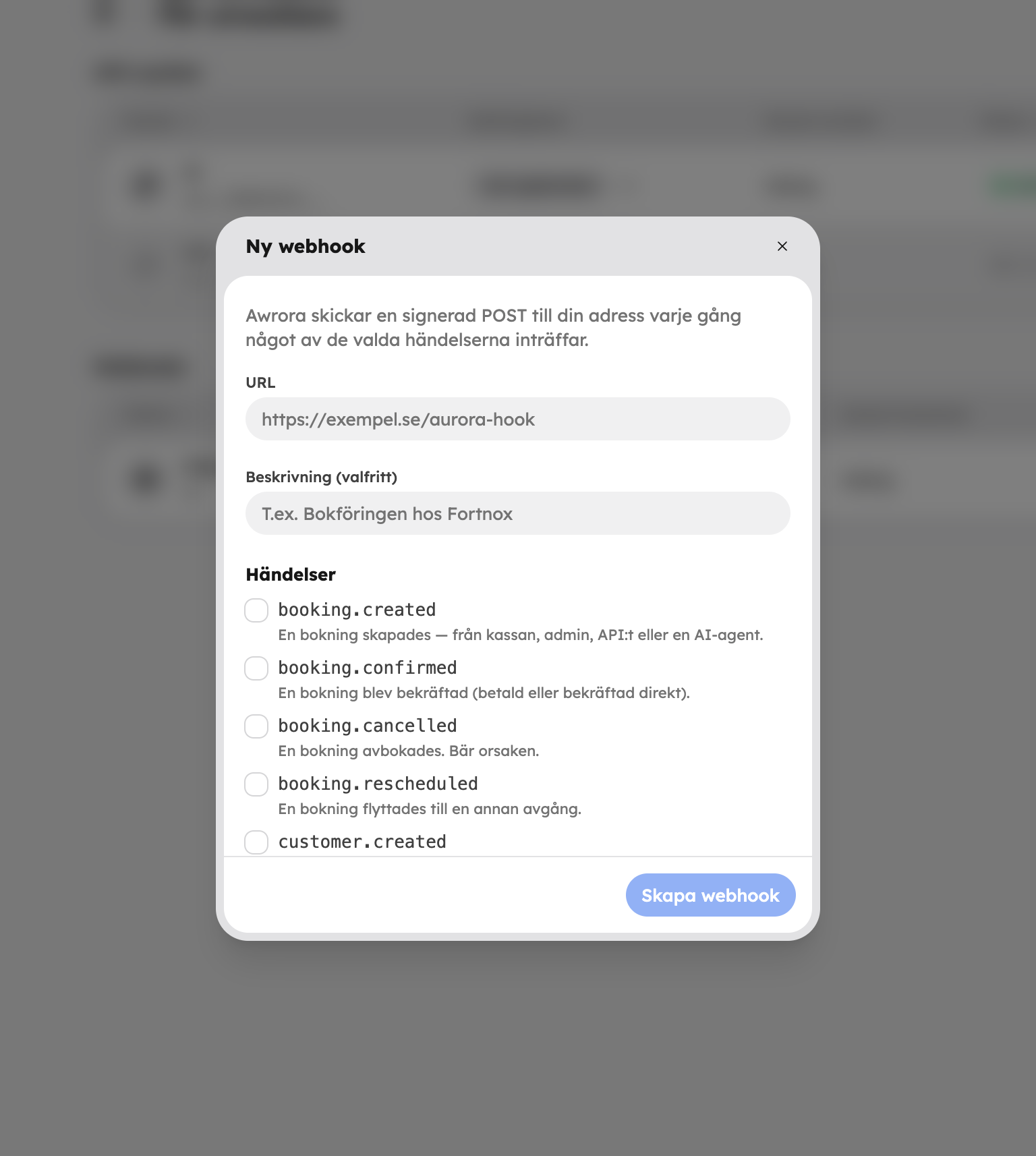
Click New webhook next to the Webhooks heading. The New webhook dialog opens.
Fill in the address
Paste the address into URL. It must start with https:// and be reachable from the internet. Under Description (optional) you can write what the webhook is for, for example "Accounting".
Choose events
Tick which Events should be sent. None are selected by default, and you must choose at least one. Only choose what the receiver needs.
Save the secret
Click Create webhook. The Your new webhook dialog shows the webhook's Secret. The receiver uses it to verify that the messages really come from Awrora. Copy it and give it to your developer.
Events you can choose#
| Event | Sent when |
|---|---|
booking.created | A booking is created — at checkout, in the admin, via the API or by an AI agent. |
booking.confirmed | A booking is confirmed, for example when it has been paid. |
booking.cancelled | A booking is cancelled. The reason is included. |
booking.rescheduled | A booking is moved to another departure. |
customer.created | A new customer is added. |
customer.updated | A customer's contact details change. |
gift_card.issued | A gift card is paid for and issued. |
gift_card.redeemed | A gift card is used to pay for a booking. |
Test that it works#
Open the menu on the webhook's row and choose Send test. A test message is sent to the address and appears in the delivery log after a second or so. Then choose Show deliveries to see how it went.
In the delivery log you'll see each message with the time, event, status, number of attempts and the receiver's response. The status can be Queued, Delivered, Failed or Given up.
If deliveries fail#
If the receiver doesn't respond, or responds with an error, Awrora tries again five times at increasing intervals — the first time after a minute and the last after eight hours, roughly ten hours in total. If it still doesn't get through, the delivery is marked Given up. Once the problem is fixed, open Show deliveries and click Try again on the row to send it again. The button appears on deliveries that are Failed or Given up.
If no delivery has succeeded for three days, Awrora switches off the webhook and it gets the status Auto-deactivated. Check that the receiver is working, then choose Activate in the row's menu.
Manage a webhook#
If you're the organisation's owner, you can also choose the following from the menu on the webhook's row:
- Show secret — show the secret again. You confirm first, and the fact that it was shown is recorded in the activity log.
- Rotate secret — create a new secret. The old one stops working immediately, so update the receiver at the same time. Deliveries rejected in the meantime are retried and get through once the receiver has the new secret.
- Deactivate — pause sending without deleting the webhook. Choose Activate to start it again.
- Delete — delete the webhook completely. The delivery log is deleted with it.
The list only shows webhooks that you have added yourselves. Webhooks that an app, such as Zapier, creates for its connection are managed by the app and aren't shown here.
Treat the secret like a password. Anyone who has it can send fake messages that appear to come from Awrora.
Want to connect Awrora to other services without anyone receiving the messages themselves? See Zapier.