If you already have a website you want to keep, you can embed Awrora booking there. The guest chooses a date and books directly on your site, without first being sent somewhere else.
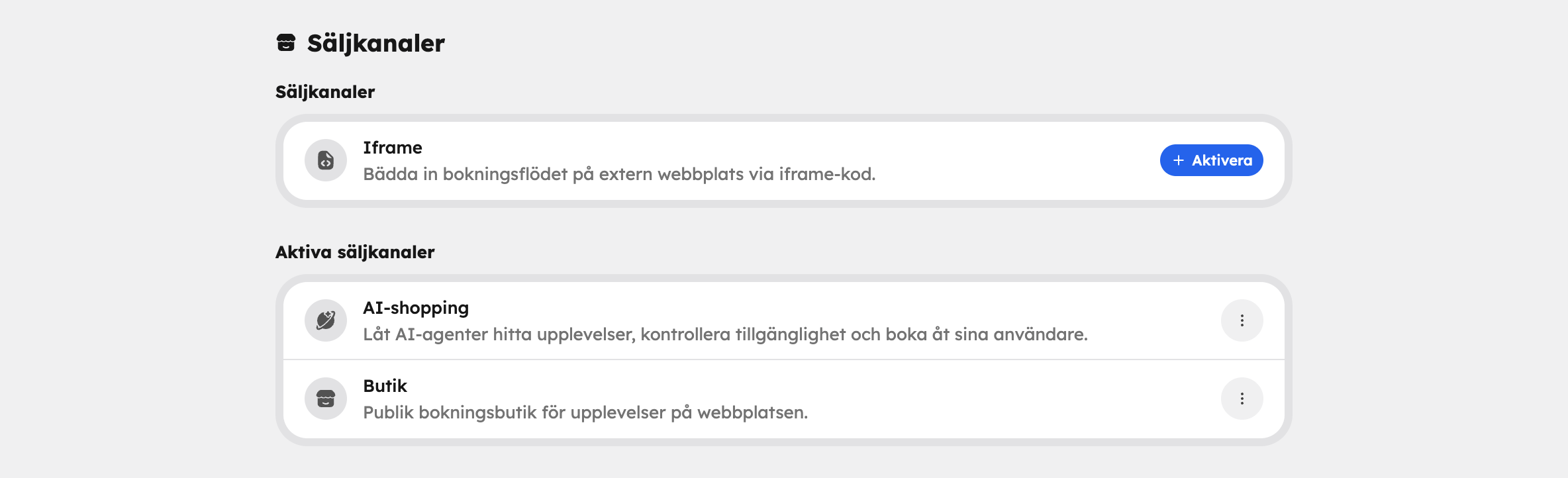
Embedding is handled by the Iframe sales channel. It's switched on from the start and appears under Sales channels in the side menu. If you can't see it, activate it under SettingsSales channels.
Create your embed code#
Go to Sales channelsIframe.
Choose what to show
Under Embed code, first choose under Show All experiences or A specific experience. If you choose a specific experience, select which one under Experience. Only published experiences can be selected.
Choose a layout
Under Appearance, choose Monthly calendar or Upcoming times.
Check the preview
Next to the options you can see what the booking box looks like with your choices.
Copy the code
Copy the code snippet in the Iframe code field and paste it into the HTML of your website, where the booking should appear.
The code differs depending on what you've chosen. Check your choices before copying. If you change them later, you'll need to copy a new code.
If you're unsure where the code should go on your website, ask whoever looks after the website for help. Most website builders have a block for custom HTML or embedded code.
How it works for the guest#
The booking box shows the whole booking flow: date, tickets, add-ons and payment. It's shown without the shop's header and footer, so it blends in with your website. Bookings end up in your booking list just as usual.
Design the booking box#
The booking box uses the shop's colours and fonts from Appearance. It can't be rebuilt in the web editor — if you change the shop's appearance, the booking box follows automatically, without you having to copy a new code.
If you've password-protected the shop, the booking box still works. Read more in Domains and SEO.