Reviews build trust with new visitors. Awrora collects reviews from guests who have actually booked, and you decide which ones are shown.
Switch on the Reviews app under SettingsApps. Reviews then appears under Apps in the sidebar. Read more about apps.
How reviews are collected#
After the visit, the guest receives a personal link to a review form, via the review button in the Thanks for visiting email. The link belongs to a confirmed booking, so each booking can produce one review. This means only real guests can leave reviews.
The guest gives a rating from 1 to 5 and can write a comment.
You can read how to switch on and word the email under Email and notifications.
A new review gets the status Pending. It isn't shown in the shop until you have published it.
Moderate and publish#
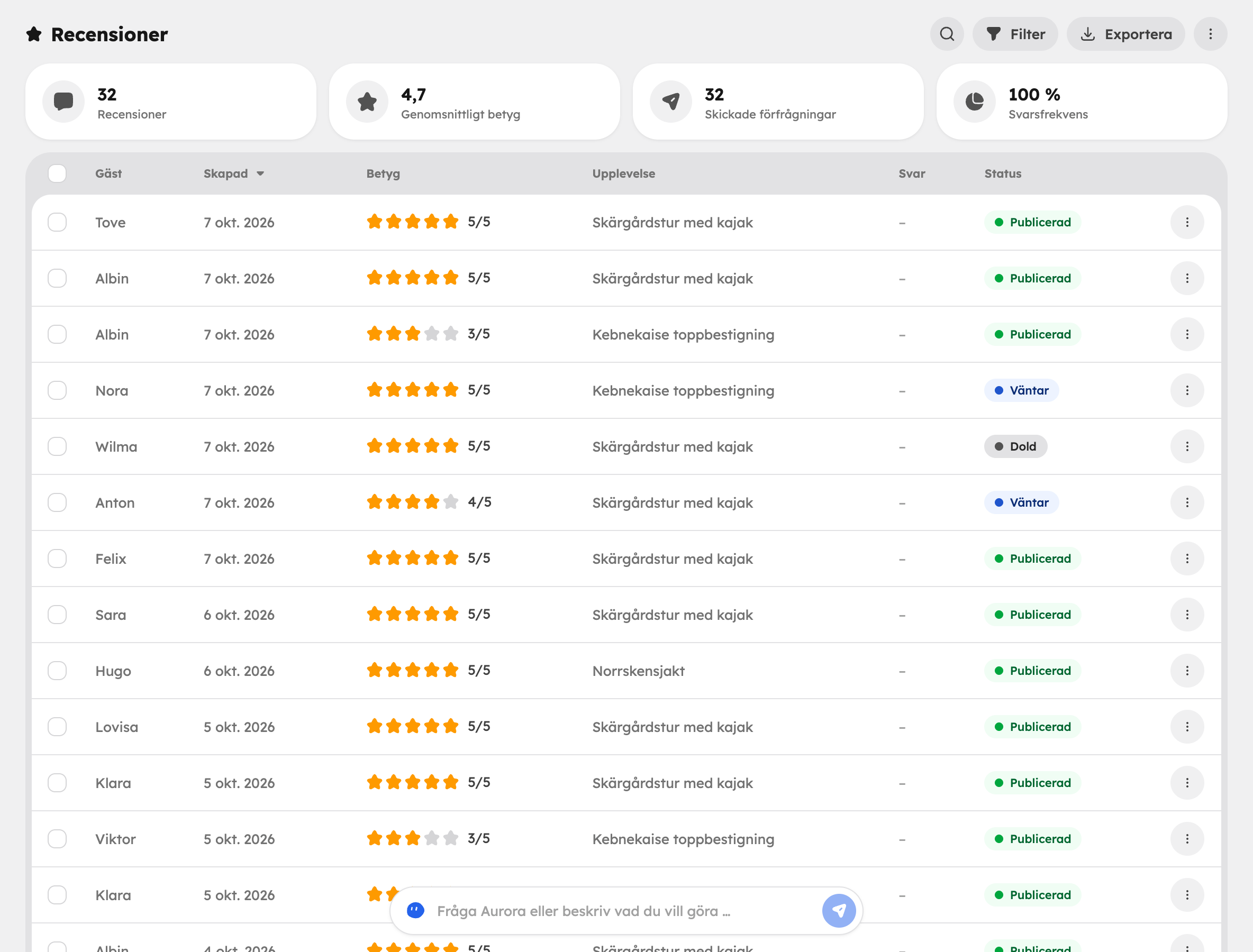
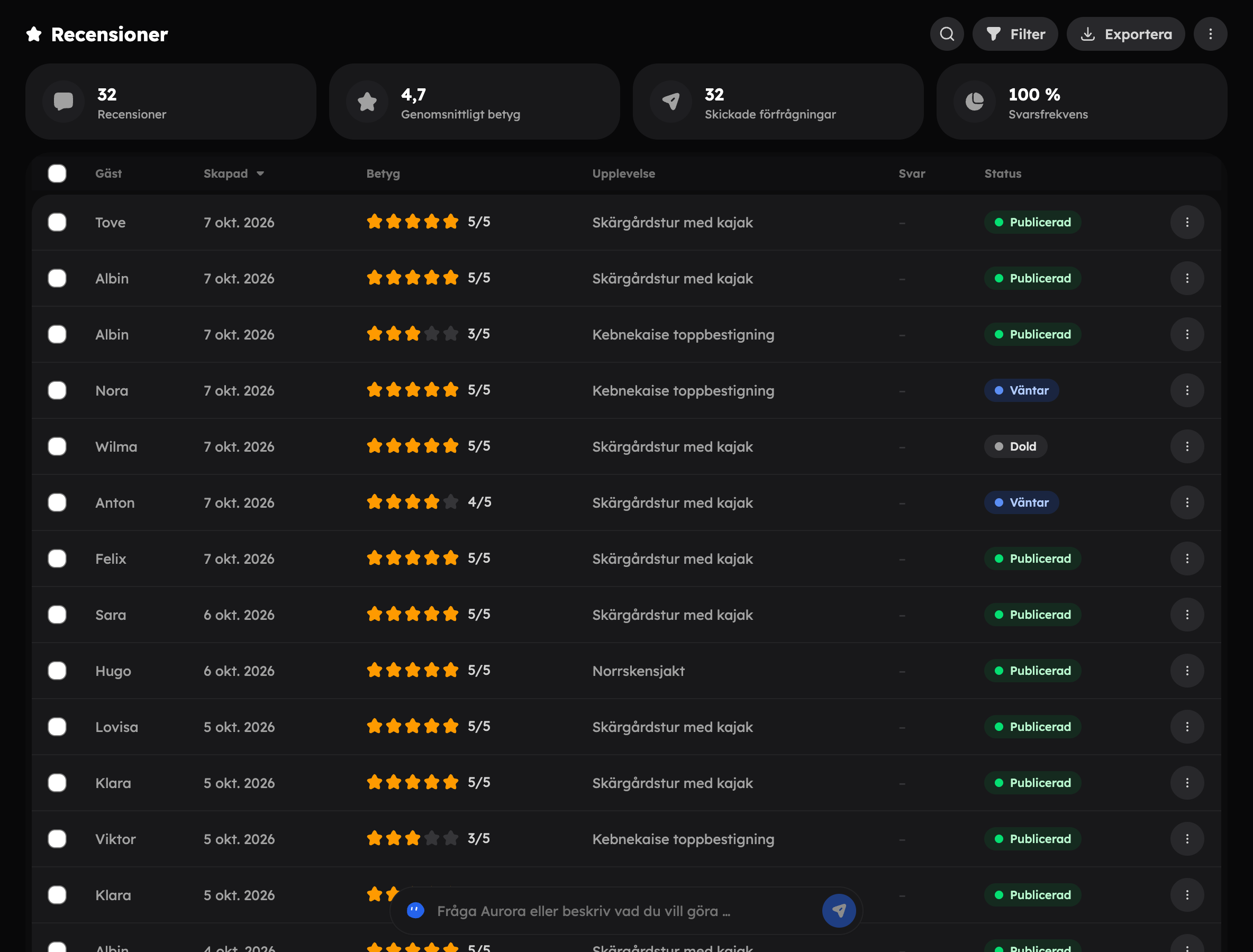
Under Reviews you'll see the key figures Reviews, Average rating, Requests sent and Response rate at the top. In the list you'll see the guest, date, rating, experience, whether you've replied, and the status. Filter by status (Pending, Published, Hidden) or by rating.
For each review you can:
- Publish — the review is shown on the public experience page.
- Unpublish — the review gets the status Hidden. It isn't shown publicly but stays with you.
- Reply — write a reply that is shown publicly below the review. You change the reply later with Edit reply, and if you empty the field and save, the reply is removed.
If you select several reviews, you can publish or unpublish them all in one go.
The review page#
Click a review to see the full picture:
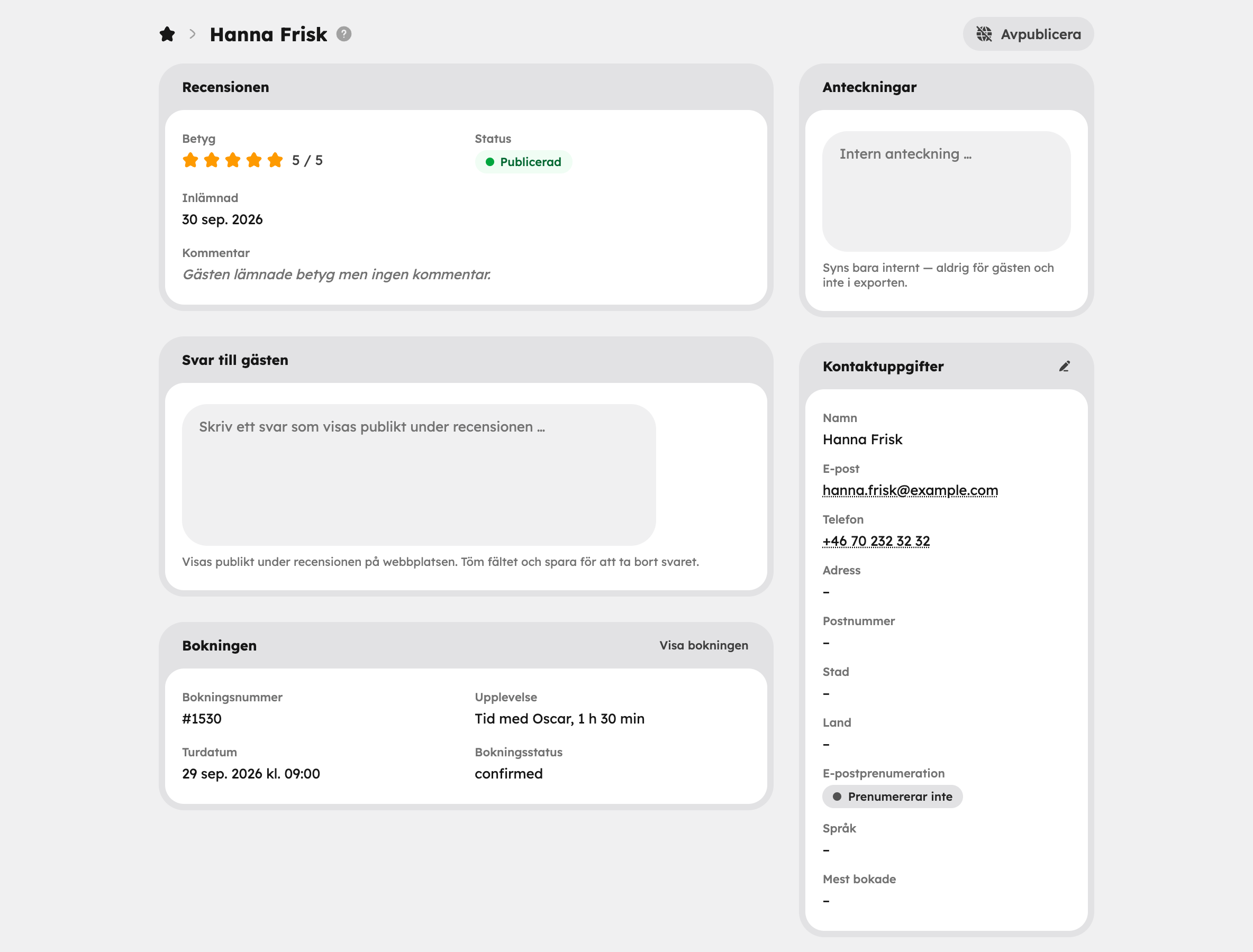
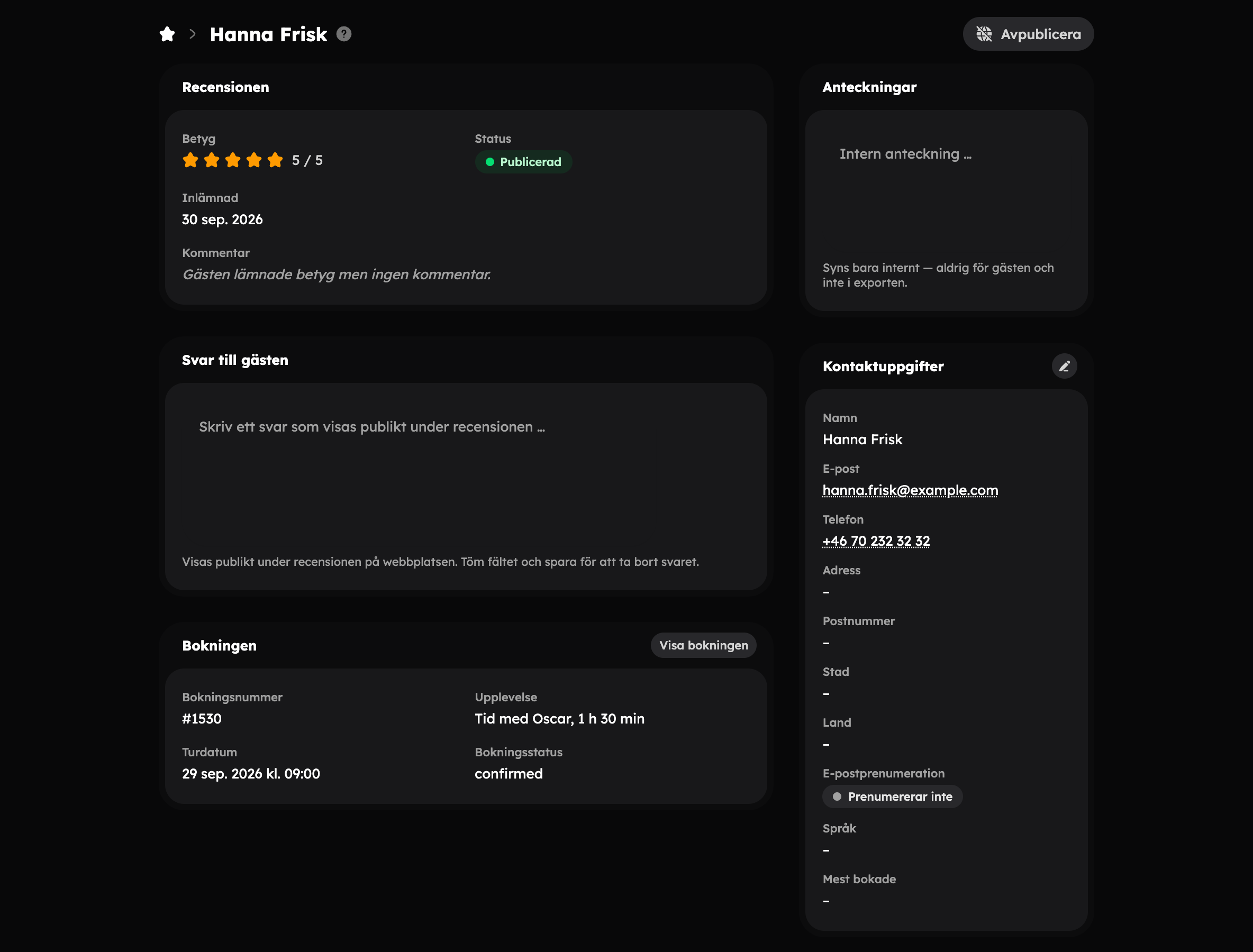
- Review — rating, comment, status and when it was submitted.
- Reply to the guest — your public reply.
- Booking — booking number, experience, tour date and booking status.
- Guest — name, email and phone.
- Notes — internal notes that only staff can see.
Export#
Click Export in the list to download the reviews as a CSV file, for example to analyse them in a spreadsheet.
Reviews in the shop#
Published reviews are shown on the experience pages together with a summary of the ratings. If you want to show reviews on other pages, add a reviews section in the web editor. Under Source you choose:
| Source | What is shown |
|---|---|
| Reviews app | Your own published reviews. On an experience page, only that experience's reviews. |
| Reviews of your business on Google. | |
| Manual | Reviews that you enter yourself in the section. |
Google reviews#
Choose Google as the source and fill in the Google Place ID for your business. The ID starts with ChIJ and you can find it with Google's Place ID Finder tool.