With a discount code, the guest can get a lower price at checkout. You decide how big the discount is, when it applies, for which experiences and how many times it can be used.
You'll find your discount codes under Discounts in the side menu.
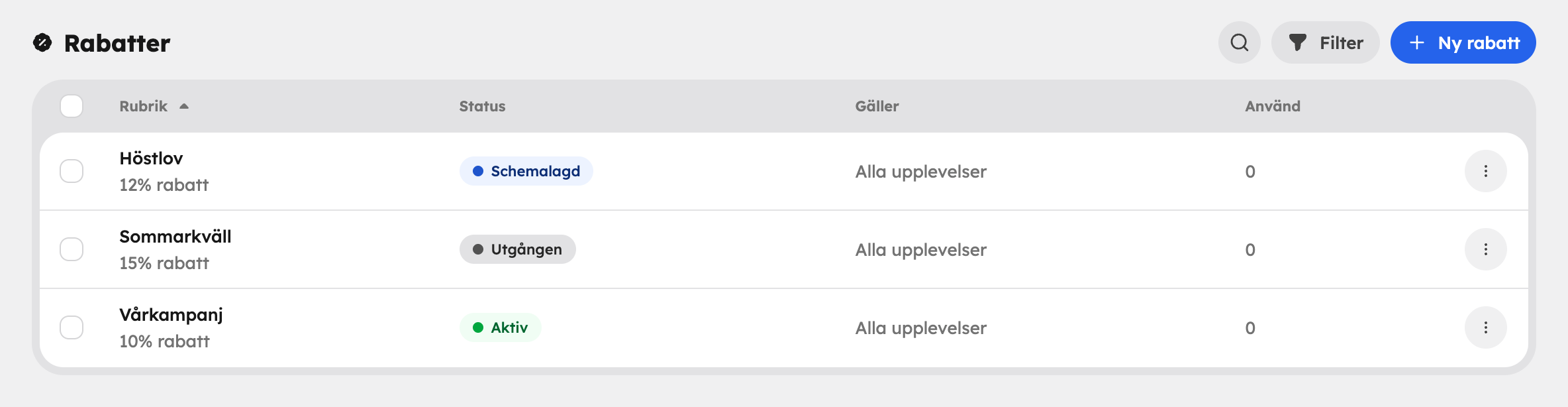
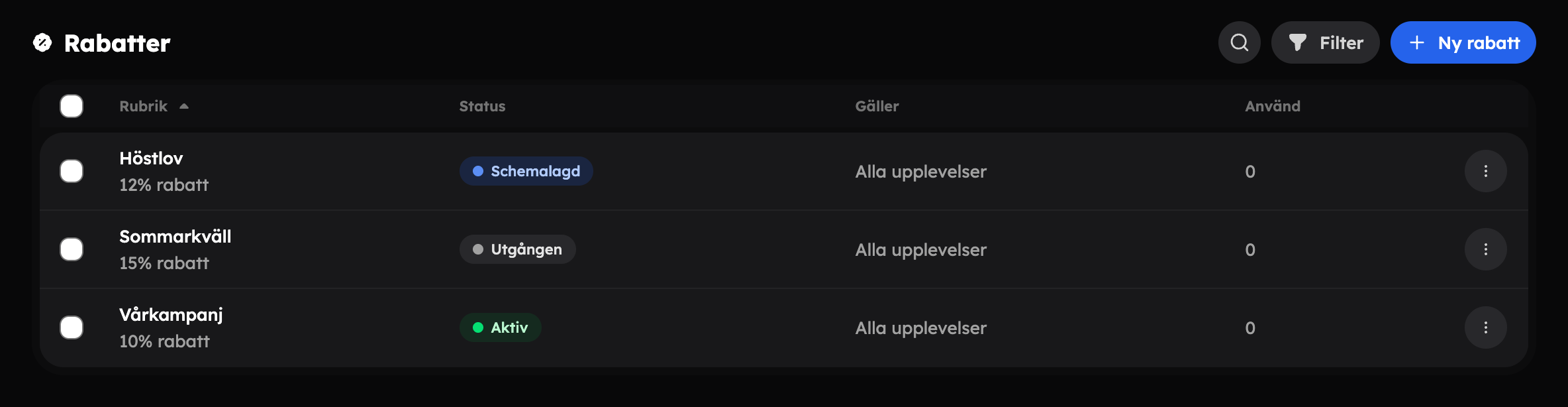
Create a discount code#
Open Discounts
Go to Discounts and click New discount.
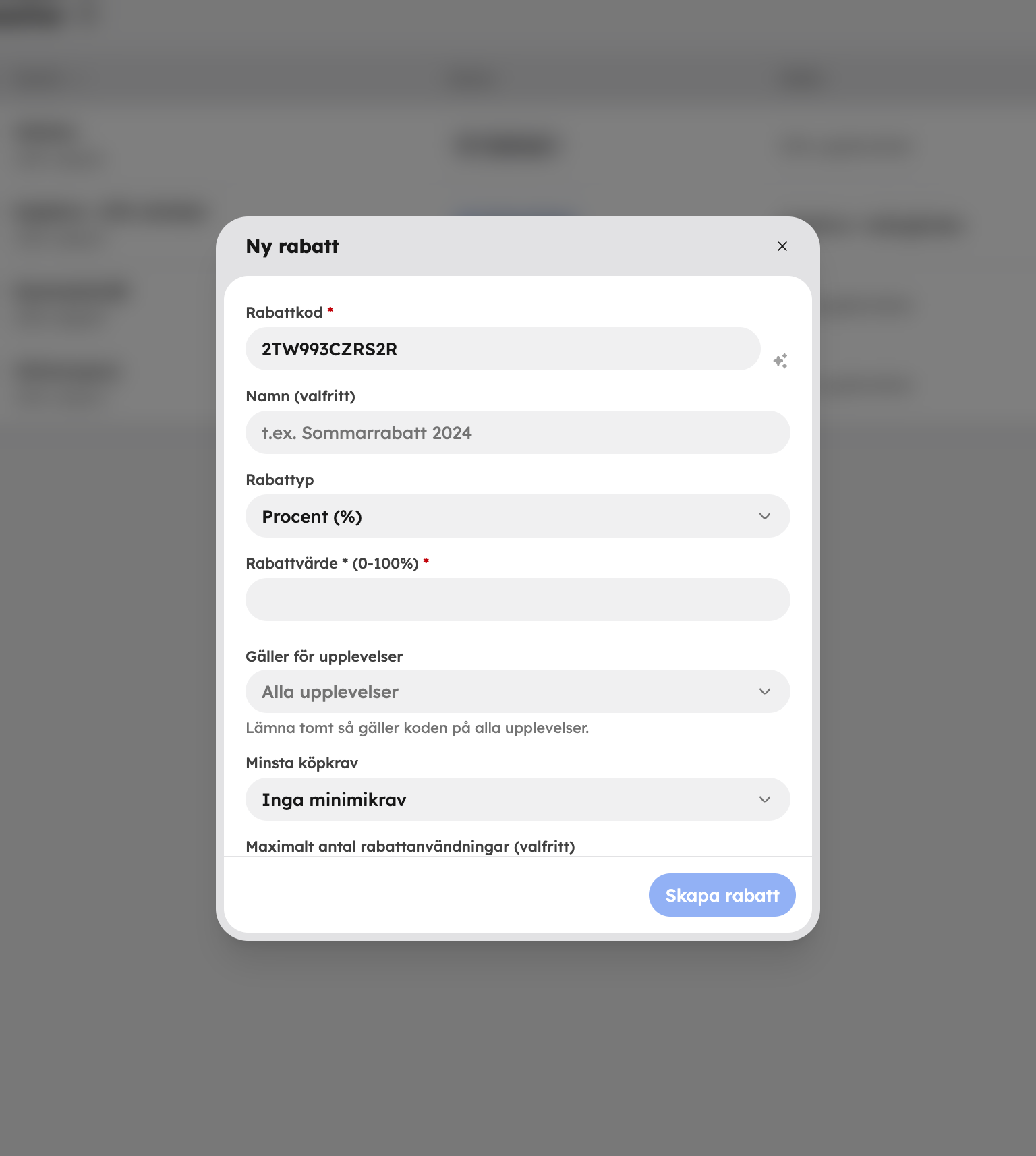
Code and name
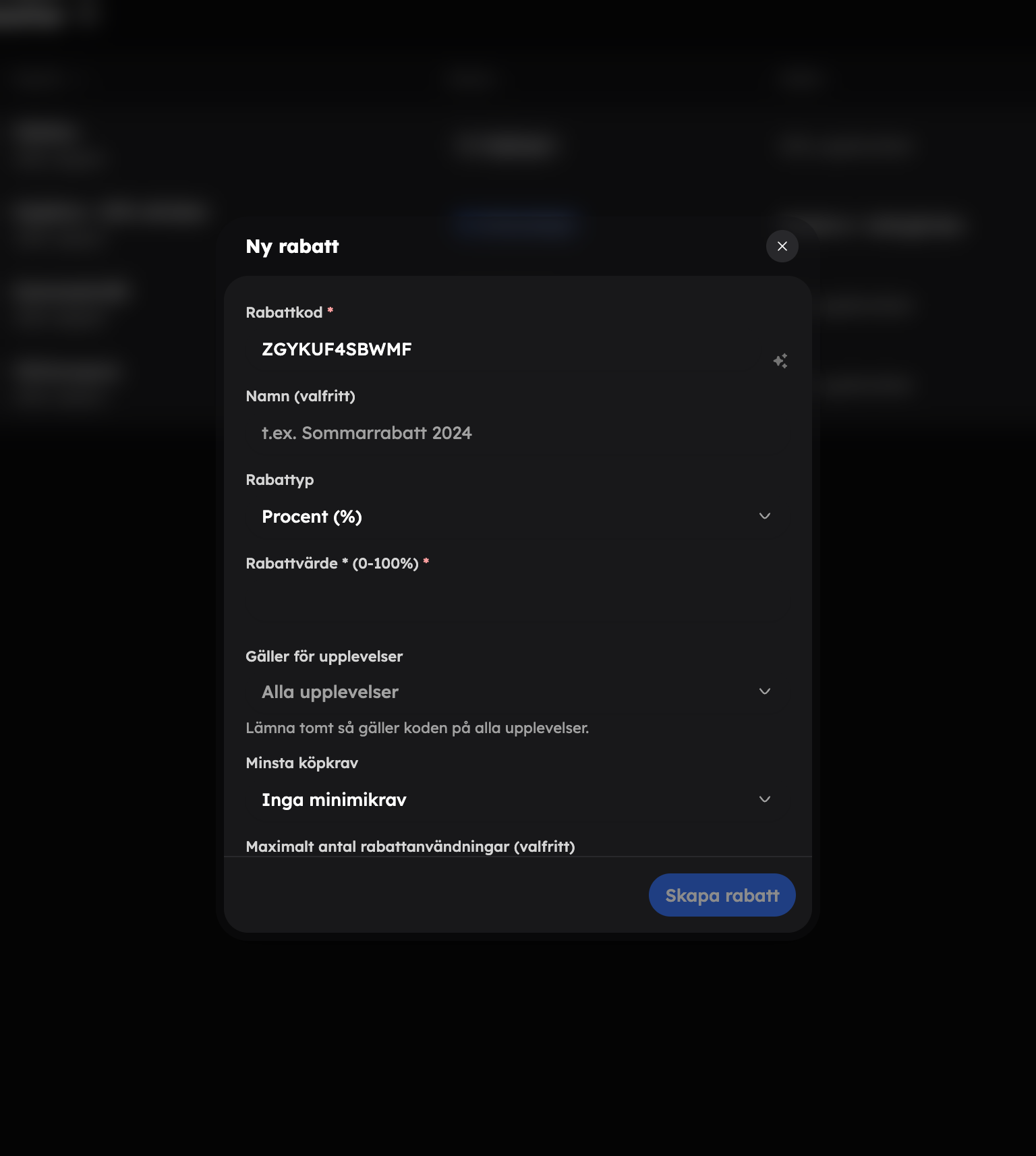
Enter a Discount code, for example SOMMAR25, or click Generate new code. Name (optional) is an internal name that only you see.
Type and value
Choose a Discount type — Percentage (%) or Fixed amount (kr) — and fill in the Discount value.
Validity
Choose a Start date and, if needed, an End date (optional).
Conditions
Set the experiences, minimum purchase requirement and limits (see below).
Create
Check that Active is switched on and click Create discount.
Conditions and limits#
| Setting | How it works |
|---|---|
| Applies to experiences | Leave it empty for the code to apply to all experiences, or choose the experiences it should apply to. |
| Minimum purchase requirement | No minimum requirements, Minimum purchase amount or Minimum number of people. |
| Maximum number of discount uses (optional) | How many times the code can be used in total. Empty means unlimited. |
| Maximum per customer (optional) | How many times the same customer can use the code. Empty means unlimited. |
| Can be combined with other discounts | Yes: the code can be used together with other discounts. No: only this discount is used. |
Start and end dates#
Both dates are inclusive, and they follow your organisation's time zone. A code that is valid up to and including 31 August therefore works for the whole of that day.
Active works independently of the dates. If you switch a code off, it stops applying immediately, even if the end date hasn't passed. This is handy if you want to pause a campaign.
Follow up#
In the list, the Used column shows how many times each code has been used, and Applies to shows which experiences the code applies to.
Delete and restore#
From the menu on a row you can Edit or Delete a code. Deleted codes stop applying and end up in the Bin, which you choose in the status filter. From there you choose Restore or Delete permanently — one at a time or several at once.
Customer discount for companies#
Would you like a particular company customer to always get a discount, without a code? Open the company in the list under Customers, choose Edit and fill in Customer discount (%). The discount is applied automatically at checkout when the customer is logged in with the company's email address. Read more about the customer list.
If you sell through resellers with an agreement and net prices, use the Agency app instead. See Resellers.