Everyone who books with you ends up in the customer list automatically. Here you can see who your customers are, how much they have booked and whether they want to receive your mailings.
You'll find the list under Customers in the side menu. Private individuals and companies are in the same list — you can recognise companies by the briefcase icon.
What the list shows#
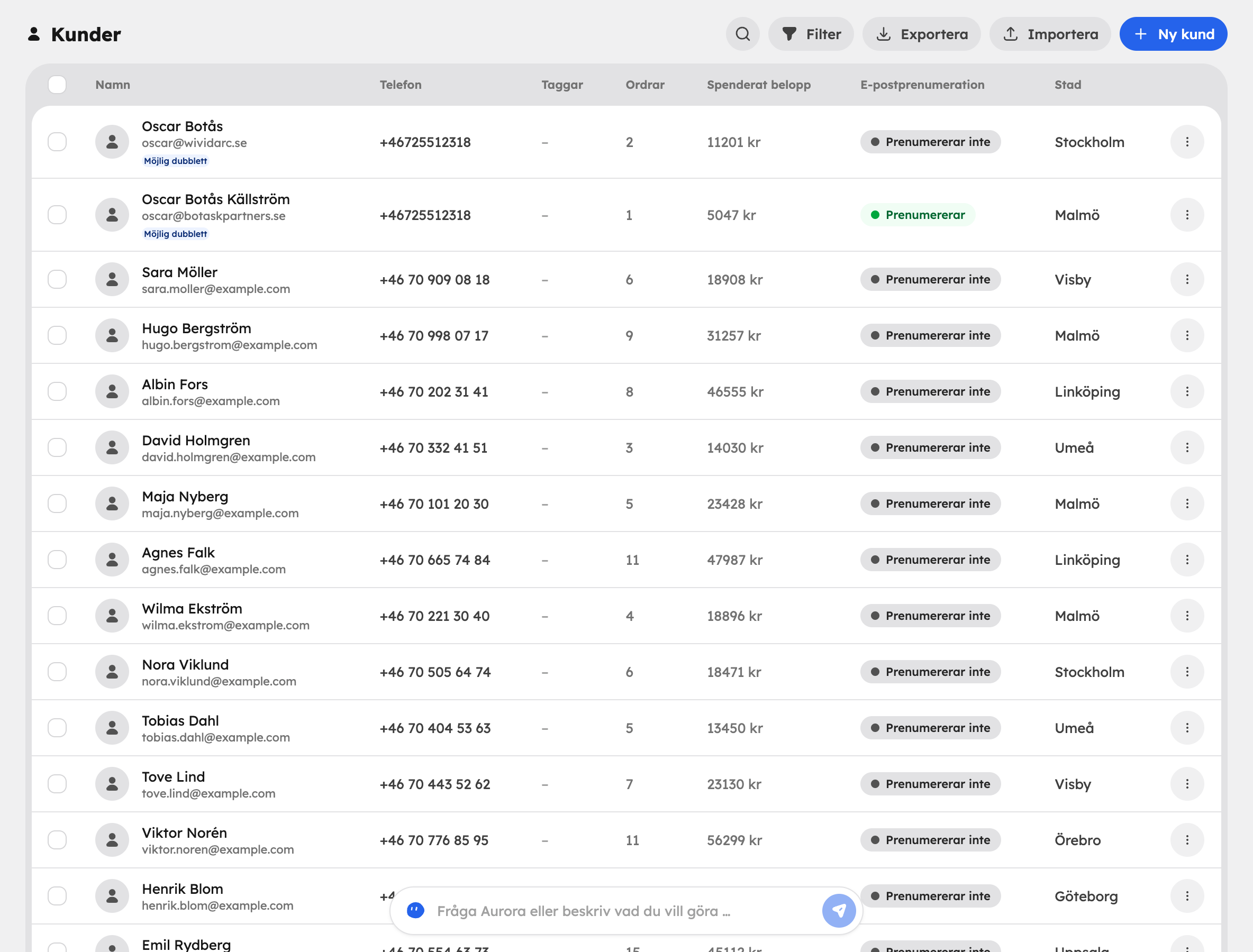
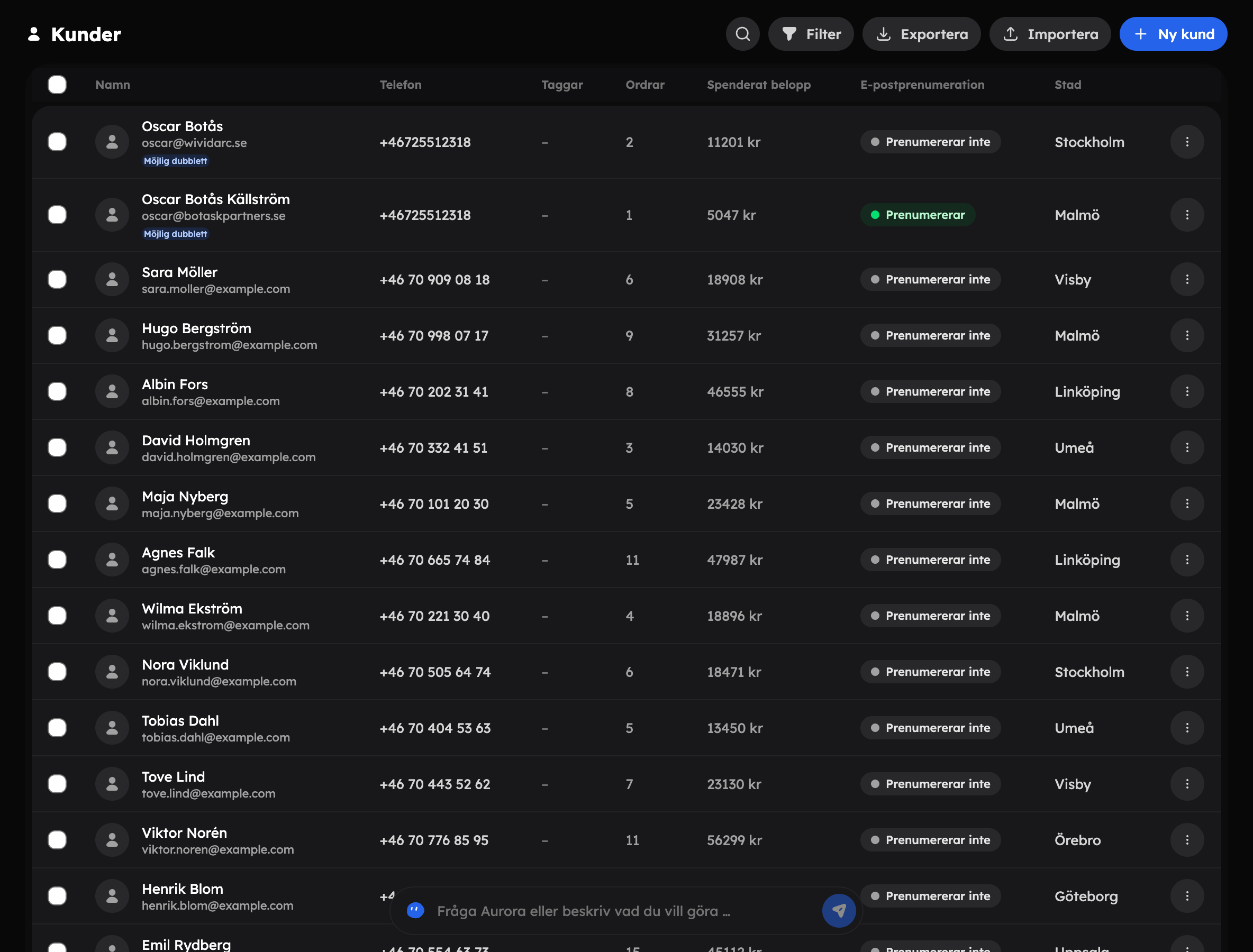
The columns are Name (with the email address underneath), Phone, Tags, Orders, Amount spent, Email subscription and City. Click a customer to open the customer card.
If you click a company, the company's page opens. There you can see the contact person, Customer discount, first and latest booking and total amount spent, and Show history opens the company's bookings. If the Resellers app is switched on, you also get the Invoice profile — including whether the company can pay by invoice and its payment terms — and the company's invoices.
Companies don't have tags, experiences or upcoming trips linked to them, so they disappear from the list when you filter on any of those. The duplicates filter only shows private individuals.
Filter#
Use the filters to find the right group quickly:
| Filter | Options |
|---|---|
| Subscription | Subscribed or Not subscribed. |
| Upcoming | Has an upcoming trip. |
| Activity | Inactive 6 months. |
| Spent | ≥ SEK 1,000 or ≥ SEK 5,000. |
| Experience | Customers who have booked a particular experience. |
| Tag | Customers with a particular tag, for example "vip". |
| Duplicates | Show duplicates — customers who are probably the same person. |
Awrora looks for customers who are probably the same person, for example when someone has booked twice with different spellings. They're marked Possible duplicate. Click the badge, or choose Merge customer in the row's menu, to gather everything on one customer.
Add a customer#
Click New customer
Switch on Company if the customer is a company, for example for booking against an invoice.
Fill in the details
For a private individual: Name, Email, Phone and Email subscription. For a company you also fill in Company name, Company registration number or VAT number (at least one of them) and, if needed, Reference / PO, and the name becomes the Contact person.
Create
Click Create customer (or Create company). You add the address and language on the customer card afterwards.
Company customers can have their own customer discount that is applied automatically at checkout. See Discount codes.
Import customers#
Click Import and choose a CSV file. If the customer list is empty, you can instead choose to import data from another platform.
The CSV file must have the columns name and email. You can also include phone and email_subscription. Swedish column names such as namn, e-post and telefon work too. A file can have up to 500 rows and be at most 2 MB. Customers and companies whose email address already exists are skipped. When the import is finished you can see how many were created and how many were skipped.
Export#
Click Export and choose Export CSV or Export PDF to export the whole list. If you only want to export certain customers, select them first.
Actions on several customers#
Select customers in the list to:
- Export them as CSV or PDF.
- Change them to Subscribed or Not subscribed.
- Send email to them.
- Delete them.
These actions apply to private individuals. Selected companies are archived instead of deleted.
In the row's menu you can also Edit and Delete the customer, and Merge customer when the customer is a possible duplicate. For a company it says Archive instead of Delete.
A deleted customer doesn't go to a bin and can't be restored. The bookings are kept.