The shop is your website in Awrora. This is where your experiences are shown, customers choose dates and tickets, and payment happens straight away. You design everything yourself in the web editor — no code needed.
The shop is a sales channel that is switched on from the start. If you uninstall it under SettingsSales channels, the shop's menu items disappear from the admin.
The overview#
You'll find the shop under ShopOverview in the side menu. There you'll see a live thumbnail of the home page, your primary domain labelled Secure or Not secure, whether the shop is Open or Password protected, and when it was last saved. From here you can View shop, go on to the editor with Edit shop and, in the ⋯ menu, Copy link. The overview also shows the shop's scores for performance, accessibility, best practices and SEO.
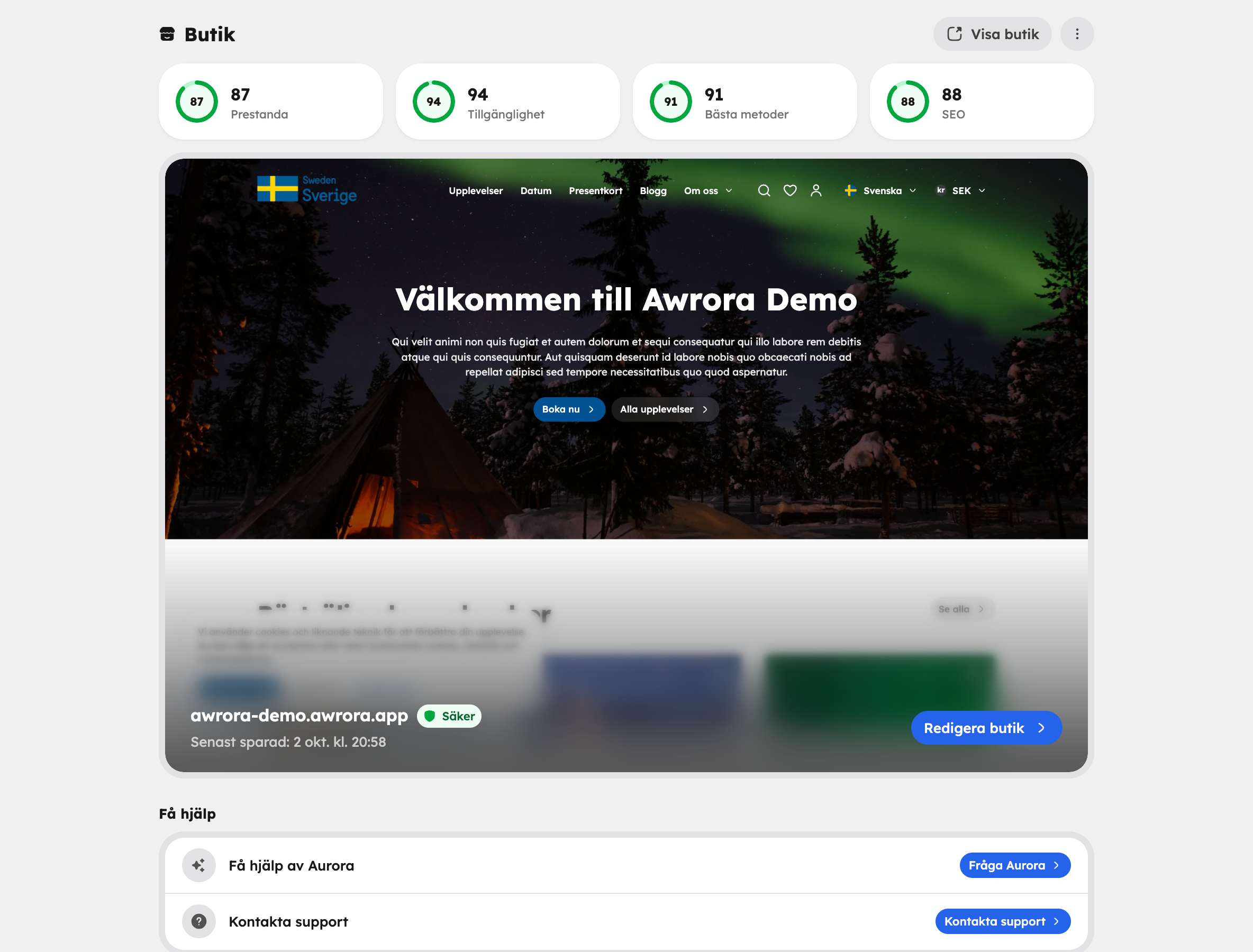
If your shop is new, there are three options under Get help:
- Ask Aurora: tell her about your business and the AI assistant Aurora will build a first draft for you.
- Move site (beta): Aurora fetches text, images and colours from your current website.
- Contact support: we'll help you get going.
What your customers see#
- The experience page with images, description, ratings and reviews, the meeting point on a map and a booking box.
- Dates and tickets: a monthly calendar or a list of upcoming times. The customer chooses ticket types and quantities, and availability is checked in real time.
- Place reservation: when the customer goes to checkout, their places are held for a while — 15 minutes by default. You change the time under SettingsCheckout.
- Checkout with contact details, add-ons, discount code, gift card and order summary. Businesses can enter a company name, company registration number, billing address and reference.
- Payment with the payment methods you've switched on — see Payments.
- Confirmation with a booking number, a printable receipt and a button for adding the booking to their calendar.
- Customer account without a password: the customer logs in with a link or code sent by email and sees their upcoming and past bookings. They can also cancel there in line with your cancellation policy.
- Search, wishlist, gift card purchases, enquiries and contact forms, depending on which apps you use.
Guides in this section
Web editorBuild and change your pages visually. | |
Pages and sectionsWhich pages and building blocks are available. | |
AppearanceColours, fonts, corners and logo. | |
Media libraryImages, video and alt text. | |
Menus, blog and pagesNavigation and your own content. | |
FormsContact and interest forms. | |
Domains and SEOCustom domain, redirects and search engines. | |
EmbeddingBooking on another website. | |
Languages and currenciesMultiple languages and currencies. |