You don't have to run the business on your own in Awrora. Invite colleagues and guides, and give each of them a role that suits what they'll be doing.
Roles#
Each person has a role in the organisation:
| Role | Can |
|---|---|
| Admin | Everything, except what only the owner is allowed to do (see below). |
| Editor | Handle day-to-day operations: bookings including cancellations and refunds, customers and exports, experiences, the shop and its content, SEO, languages, files, reviews, staff, resellers and statistics. |
| Viewer | Look, but not change. |
Editor is the default when you invite someone. The settings, for example users, notifications and billing, are open to Admin.
The role applies everywhere — including in the AI assistant, which can only do what your role allows.
Invite a colleague#
Open Users
Go to SettingsUsers.
Click Invite user
Click Invite user at the top of the page. A box with the same name opens.
Fill in email and permission
Enter the person's Email address and choose a role under Permission. Click Send invite.
The person receives an email with a link that is valid for 7 days. The link can only be used once, and only by the address you invited. Until the person accepts, the invitation is shown in the list, where you can choose Resend or Revoke invitation.
You need to have confirmed your own email address before you can invite anyone. If you haven't yet, the box shows a warning with the Resend link button.
Manage users#
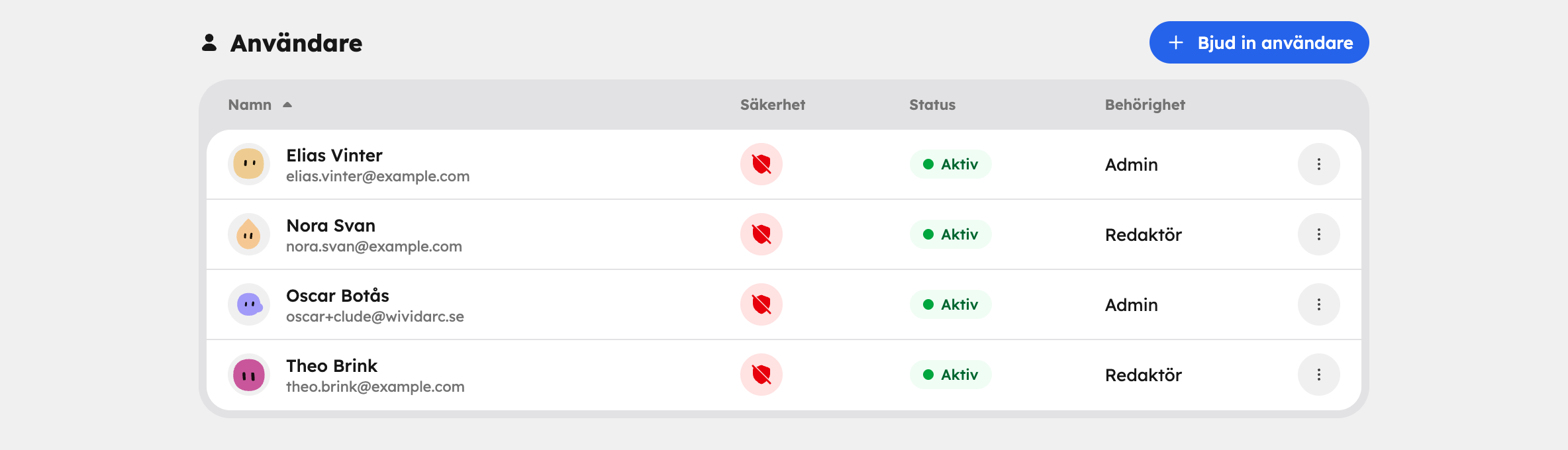
The list shows each person's permission, whether two-step verification is on and when they last signed in. In the menu on a row you can:
- Settings — change the role under Role on the site.
- Reset password — send a link to set a new password.
- Magic link — send a sign-in link by email.
- Remove from site — remove the person's access. The account remains, but can no longer access the organisation.
You can't remove or change yourself, and nobody can remove or demote the owner.
Ownership#
Every organisation has an owner. Ownership is separate from the role: the owner is also an Admin, but is additionally allowed to do the things that affect money and the organisation's existence.
Only the owner can:
- choose and change plan, cancel and resume the subscription,
- manage payment cards and turn on extra AI usage,
- connect Stripe to accept payments,
- create API keys, webhooks and calendar links and connect Zapier,
- transfer ownership and delete the organisation.
Administrators can see most of this, but not change it.
Transfer ownership#
Open Danger zone
Go to SettingsOrganisation and click Danger zone at the bottom. That's where you'll find Transfer ownership.
Choose a new owner
Choose an existing member under New owner.
Confirm
Type the organisation's name to confirm. Both you and the new owner receive an email.
You remain an Admin, but can't take ownership back yourself.
Delete the organisation#
Under Danger zone on SettingsOrganisation you'll also find Delete organisation. You confirm by typing the organisation's name. The shop is closed and the subscription is cancelled immediately, and all data is permanently deleted after 30 days. If you change your mind before then, support can restore the organisation.