Here we cover three things that belong together: the menus visitors use to navigate, the blog and your own pages. You'll find all of them under Shop in the side menu.
Menus#
Go to ShopMenus. You can have several menus, for example a main menu for the header and a smaller menu for the footer.
Create a menu
Click New menu and give it a name, for example "Main menu".
Add menu items
A menu item is either a Link or a Dropdown. A dropdown expands and can contain up to 30 sub-links and dividers. A menu can have up to 40 items.
Choose where the link goes
The link picker searches your pages, blog posts, experiences, staff and the shop's fixed pages. If you later change the address (slug) of a page, the link follows automatically.
Sort
Drag the items into the order you want.
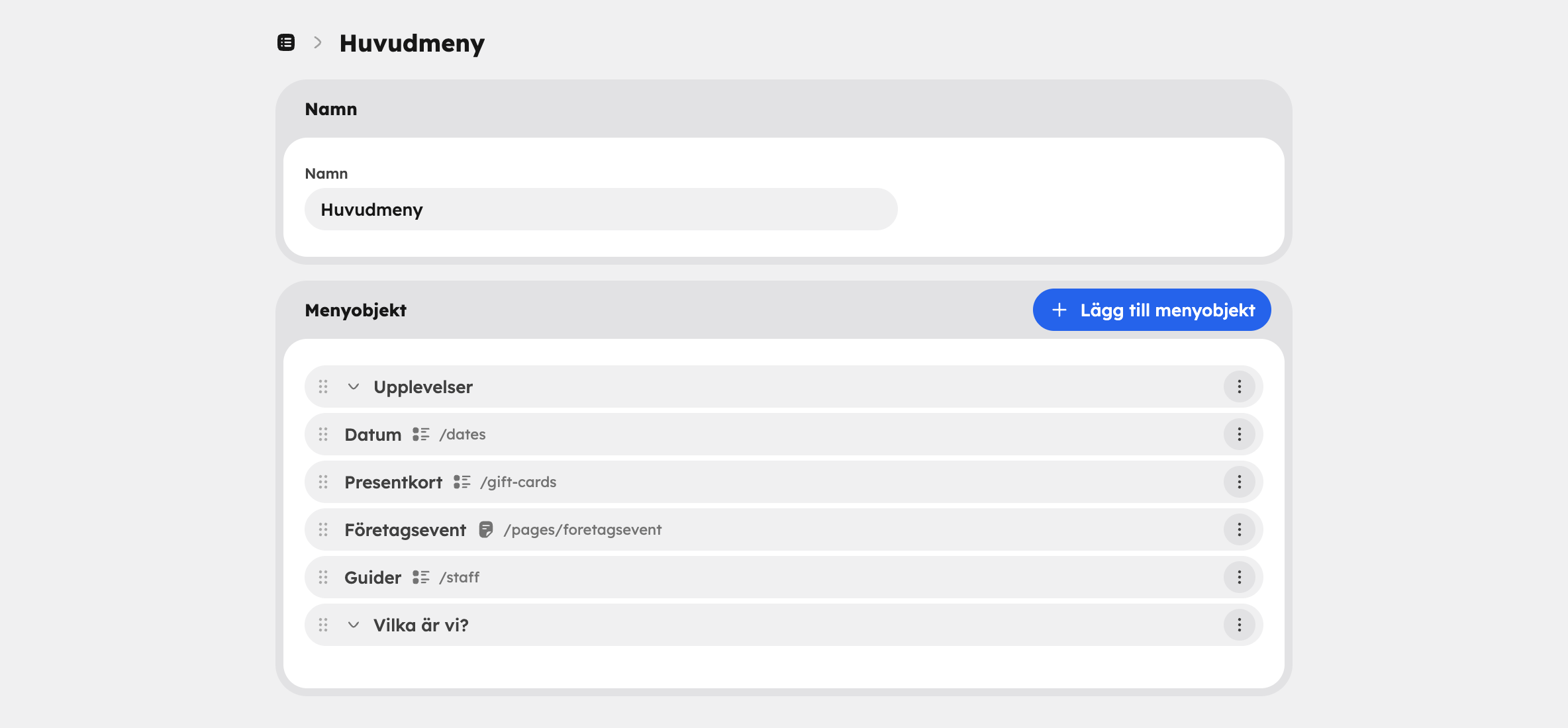
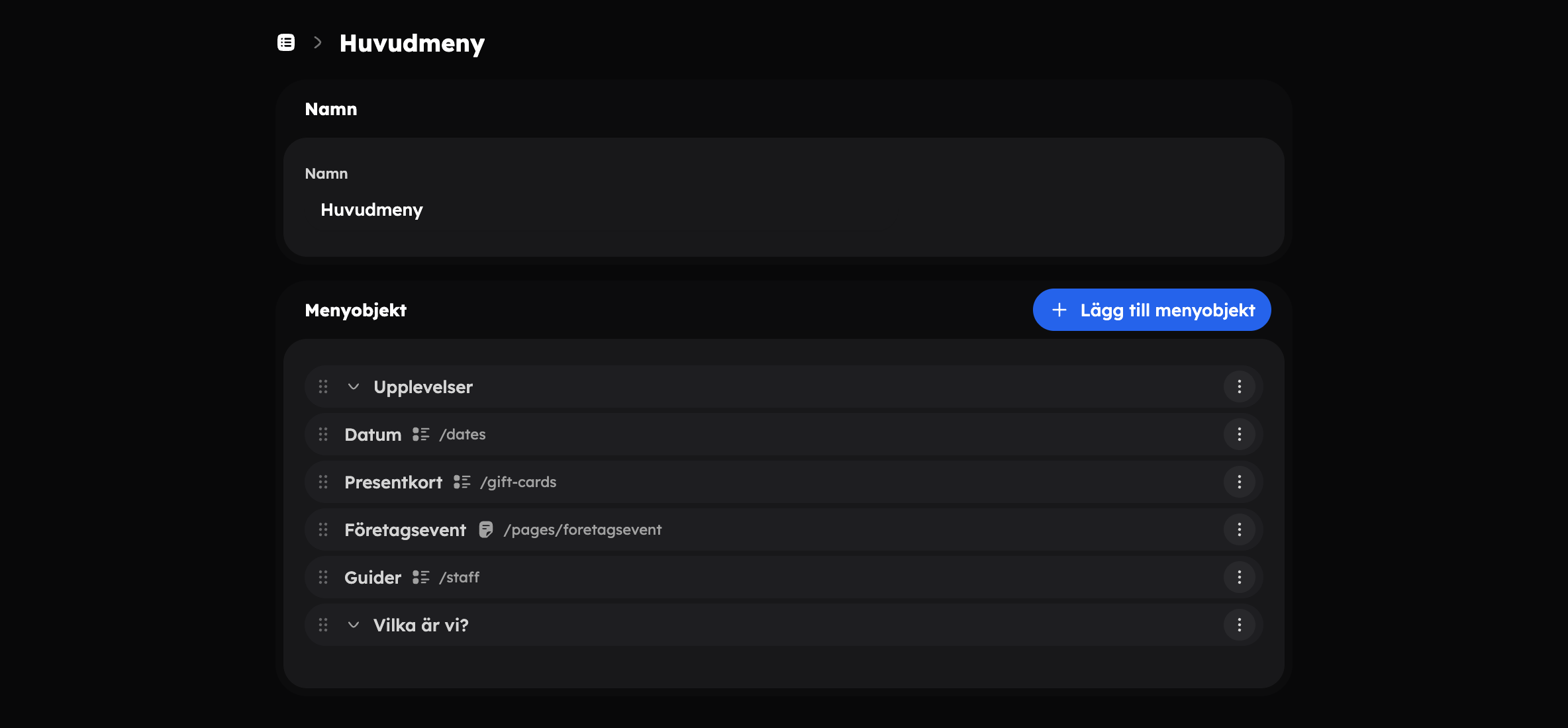
Place the menu#
You choose which menu appears in the header and footer in the web editor, under Header and Footer. In the menu list you can see which menus are Active and which are Not placed.
Blog#
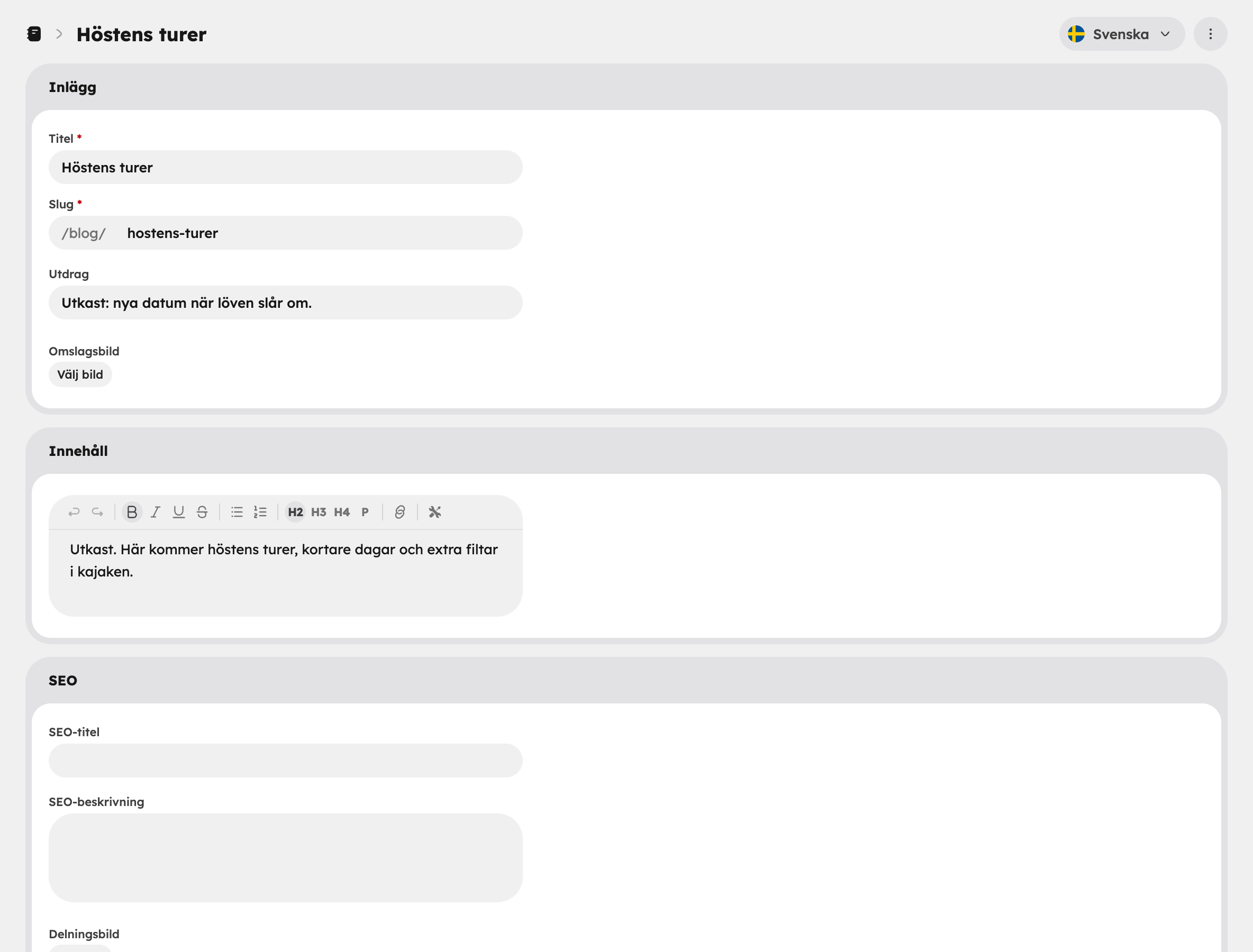
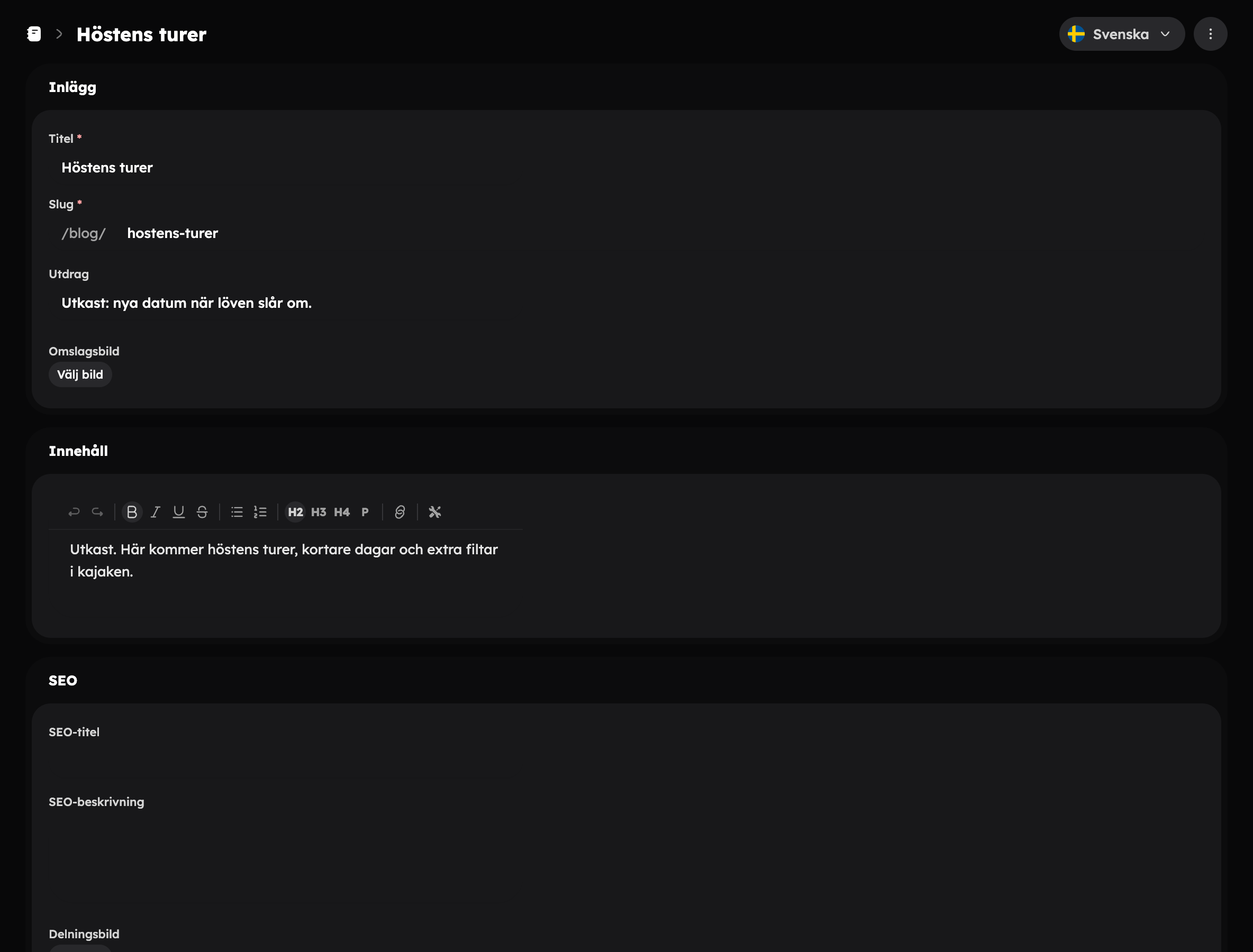
Go to ShopBlog and click New post. A blog post has:
- A Title and slug, i.e. the address under
/blog/…. - An Excerpt shown in the blog list (optional).
- A Cover image.
- Body text that you write in a standard text editor.
- Published under Publishing: switch on when the post should appear in the shop. Until then it's a draft.
- SEO: a custom SEO title, SEO description and Share image, and Hide from search engines if the post shouldn't be indexed. Empty fields use the post's title, excerpt and cover image.
You design how the blog list and the posts look in the editor, on the Blog and Blog post page types.
Your own pages#
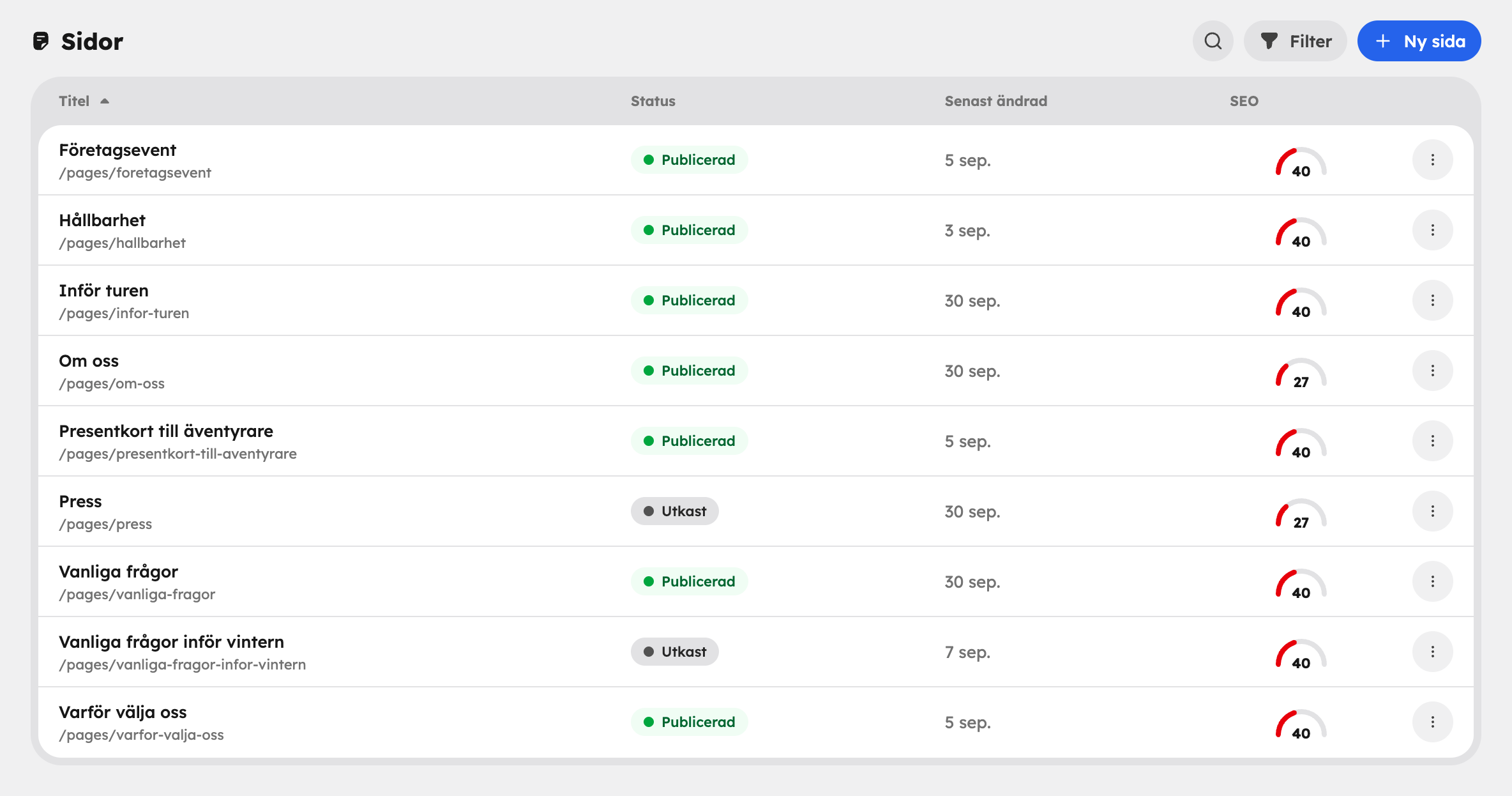
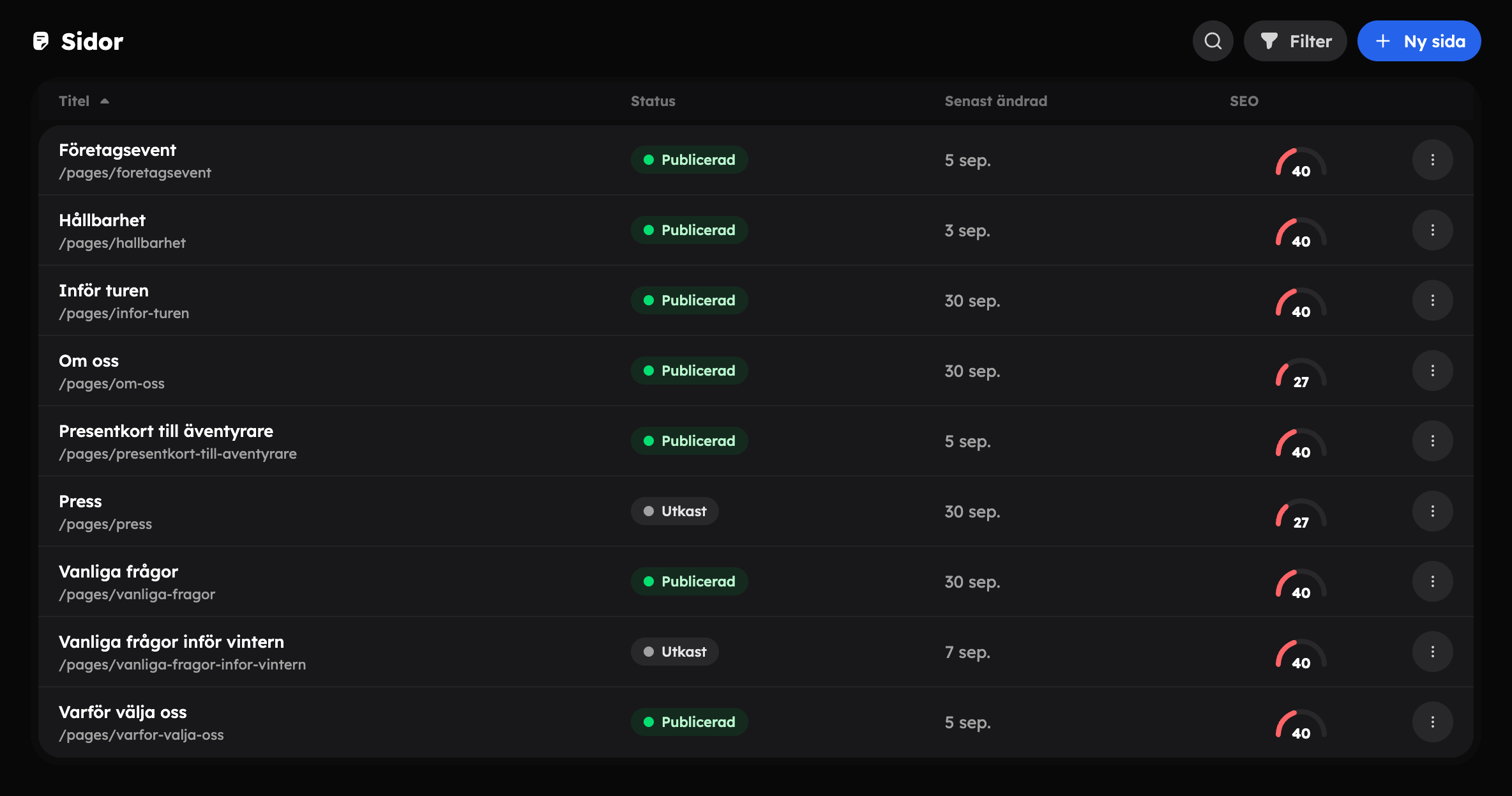
Go to ShopPages and click New page, for example for "About us" or "Getting here". The page ends up at /pages/din-slug.
Your own page opens directly in the web editor, both when you create it and when you click it in the list. There you build the content with sections, just like the home page. You set the title, slug, whether the page is Published or a Draft, and the page's SEO under Page settings in the editor's toolbar. The page appears in the shop once it's published.
Don't forget to add the new page to a menu, otherwise visitors won't find it.
Lists and translation#
The lists of pages and posts have search and a status filter (Published and Unpublished). You also open and delete them from there.
If you change the slug of a page or post, a redirect from the old address is created automatically.
If you have several languages, you translate a blog post in the Translation card in the editing view, and your own page by switching language in the editor. Read more in Languages and currencies.