The media library is the home for all the images and videos you use in the shop and on your experiences. Images are optimised automatically so that pages load quickly, and every image automatically gets alt text written by AI.
Go to Files in the side menu.
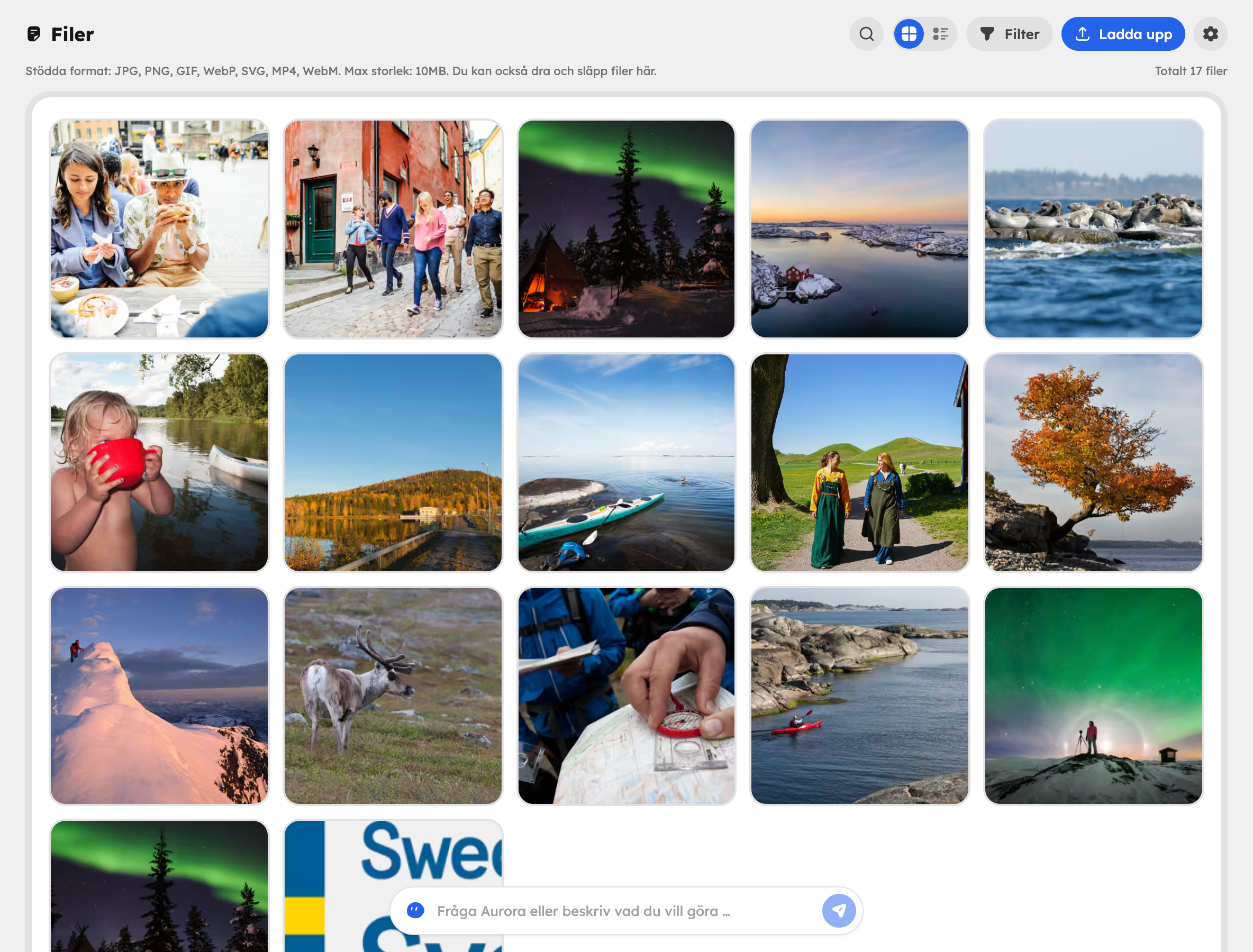
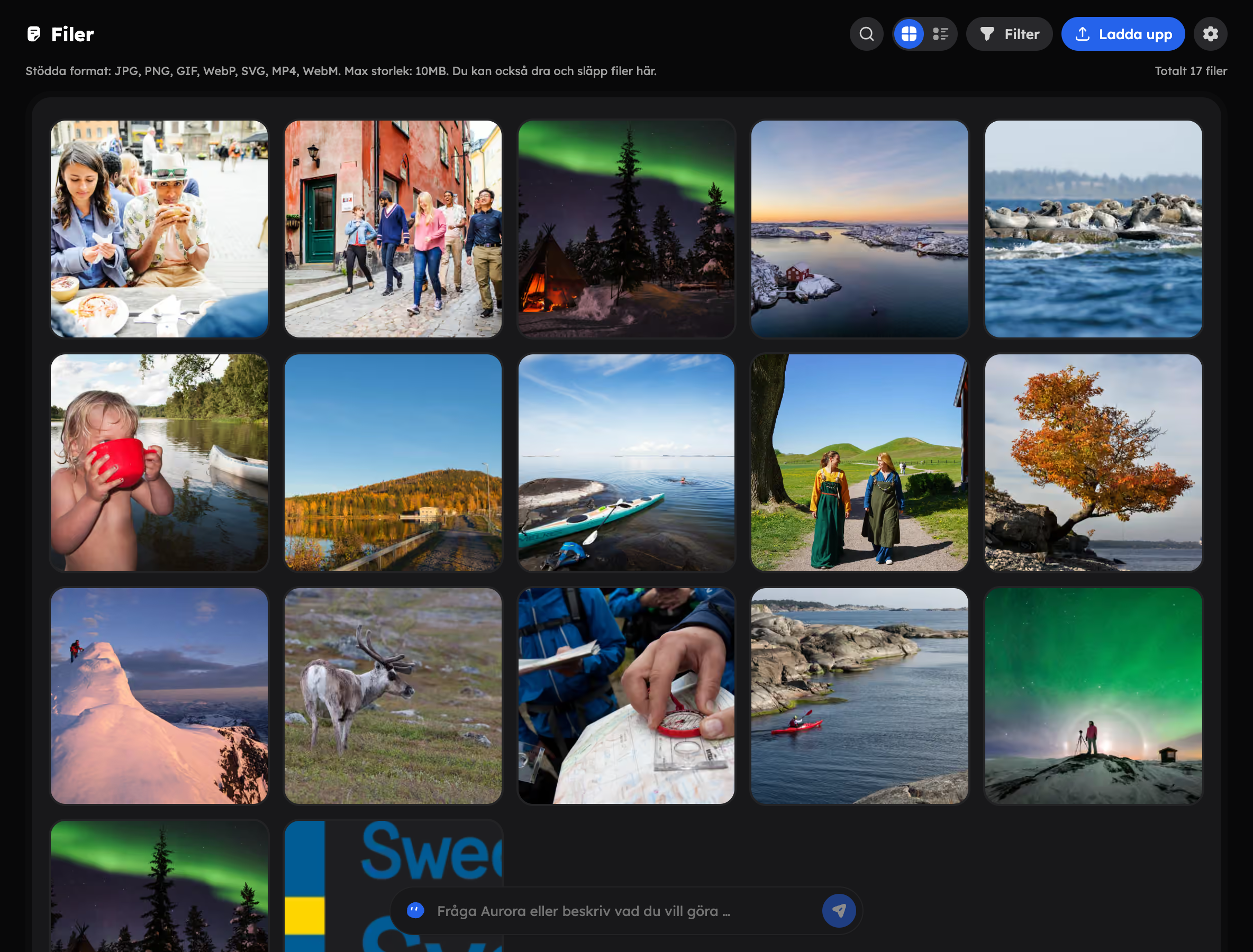
Upload files#
Click Upload or drag and drop the files straight onto the page.
- Formats: JPG, PNG, GIF, WebP, SVG, MP4 and WebM.
- Maximum file size: 10 MB, for both images and videos.
You can also choose and upload images directly from the image fields in the web editor, and fill in the alt text in the same place.
Find and manage files#
- Switch between Library (a grid of thumbnails) and List with the buttons next to the search field.
- Search with Search media files… and filter by File type.
- Click a file to view it, copy its address (URL), edit the alt text or Delete it. The alt text is saved straight away as you type.
A deleted file doesn't go to a bin and can't be restored.
Automatic optimisation#
Images are converted to WebP, scaled down to at most 1920 pixels wide and compressed when you upload them. The files get smaller and the shop gets faster. Videos are not affected.
Under Settings in the media library you control this:
- Upload: Optimise images automatically on upload is on from the start. Switch it off if you want to upload images exactly as they are.
- Compression: click Compress to compress all the images you've already uploaded. You can compress a single image from its preview.
If a page in the shop has no share image of its own, and the shop has no default image, Awrora creates one automatically, so that links on social media still get a preview.
Alt text#
Alt text describes the image for people using screen readers and helps search engines understand the image. Every image has its own alt text.
Every image you upload gets alt text automatically, written by AI. It takes a moment after the upload, and it doesn't count towards your AI usage.
For one image
Open the image and write the alt text yourself, or click the sparkle button Generate alt text with AI for a new suggestion.
For all images without alt text
Under Settings → Alt text, click Generate alt text for all images. Only images without a description are affected, for example ones you uploaded before the feature existed.
Read through the AI's alt text now and then. It's usually good, but you know your images best — for example which place or which tour they show.