With Workflow you build your own flows: when something happens, for example a booking is confirmed, Awrora does what you've decided — sends an email, tags the customer or alerts the team. Everything runs in Awrora, with no account at any other service.
The app works on every plan. Switch on Workflow under SettingsApps. Workflow then appears under Apps in the sidebar. Read more about apps.
Admins create, change, turn on and test flows. Everyone in the team can see them and their runs.
How a flow is built#
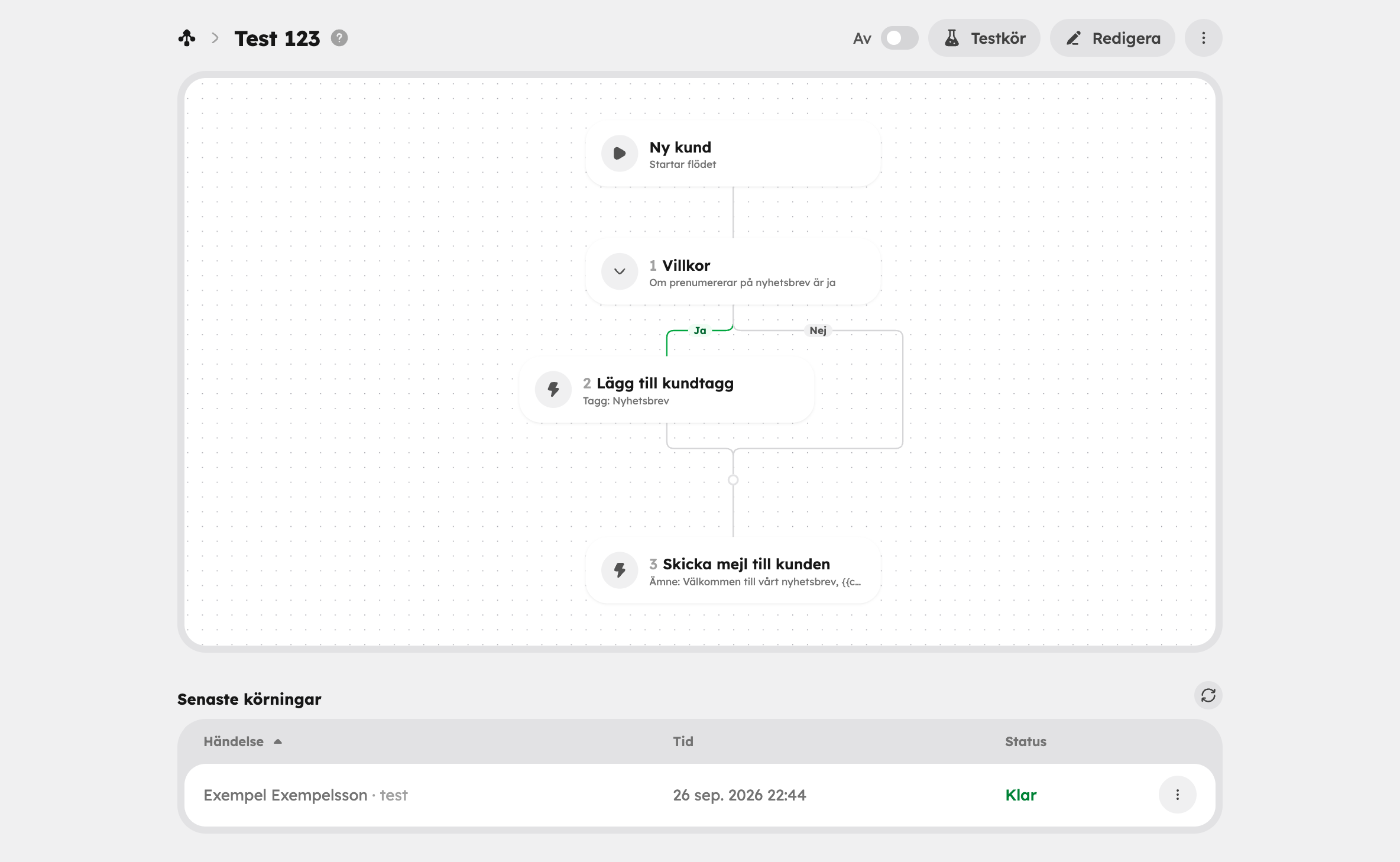
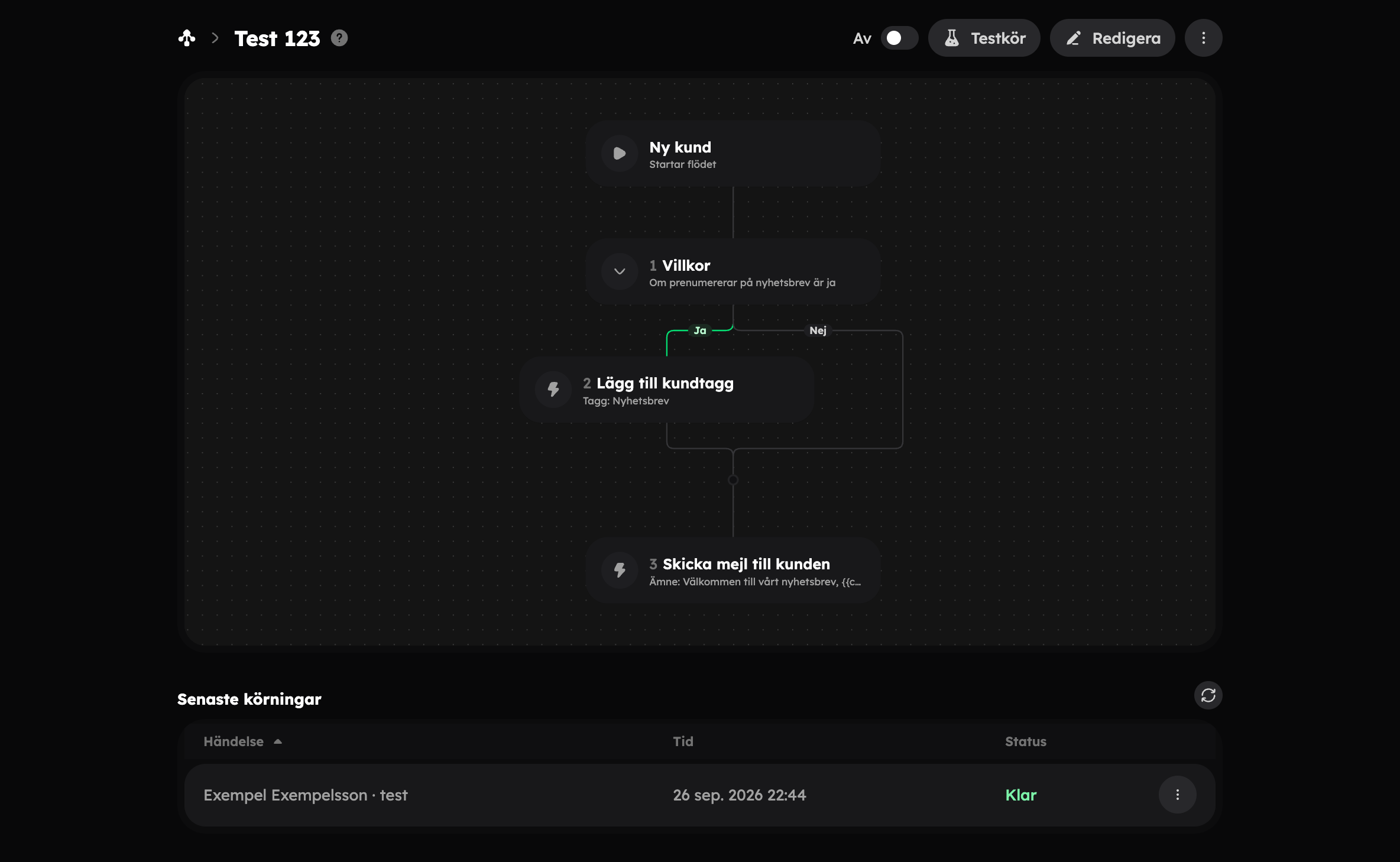
A flow consists of a trigger and one or more steps:
- The trigger is the event that starts the flow.
- Actions are what actually gets done.
- Logic steers the path: Condition (if… else…) splits the flow into a Yes and a No branch, Wait pauses for a while before the next step, and End the flow stops it.
Triggers#
| Group | Triggers |
|---|---|
| Bookings | Booking created, Booking confirmed, Booking cancelled, Booking rescheduled, Booking refunded, Time around a booking |
| Customers | New customer, Customer updated, Customer tag added, Customer tag removed |
| Shop and marketing | New review, Form submitted, New enquiry, Registration of interest |
| Experiences and departures | Experience published, Experience unpublished, Departure cancelled |
| Gift cards | Gift card issued, Gift card redeemed |
Time around a booking starts the flow a set time before or after a confirmed booking starts, ends or was made — for example a reminder the day before or a thank-you the day after. Cancelled bookings are skipped, and if a booking is moved, the time moves with it. You can choose at most 90 days.
For triggers that concern an experience, for example bookings, you can choose under Experiences whether the flow applies to All experiences or just some.
Actions#
| Action | What it does |
|---|---|
| Send email to customer | An email in the organisation's look to the customer the event concerns. |
| Send email to staff | An internal email to a person in the team or to the organisation's contact address. |
| Create notification in Awrora | A notification in the bell at the top right, for everyone in the team. |
| Add customer tag / Remove customer tag | Sets or removes a tag on the customer in the customer register. |
| Comment on the customer's timeline | A note on the customer card. |
| Create unique discount code | A code that can only be used once, and only by the customer when there is one. The code can be sent in an email further down the flow. |
In emails and texts, click Insert variable to bring in details from the event, for example the customer's name, the experience or the departure's start. The Preview tab shows the email filled in with the latest event or with sample data.
If Awrora already sends a corresponding email automatically, for example a reminder, the editor shows a warning. Turn that email off under Email and notifications if the flow should replace it, otherwise the guest gets two emails.
Create a flow#
New flow
Go to Workflow and click New flow. Give the flow a name and click Create flow. The editor opens.
Choose a trigger
Click the top card and choose what should start the flow.
Add steps
Click the plus sign in the map to add a step, and click a step to fill it in. Drag the steps to change the order.
Save
Click Save in the bar that appears when you have unsaved changes.
Test
Click Test and choose an event to test on, or sample data. A test sends no emails, sets no tags and creates no codes, but shows exactly what the flow would have done. Wait steps are skipped.
Turn on
Turn on the switch next to the flow's name. If the flow has problems that need fixing, they're shown in the map, and the switch can't be turned on until they're solved.
Ask Aurora to build the flow for you, for example "email the guest a reminder the day before the tour" or "tag the customer as VIP when a booking over SEK 5,000 is confirmed". She has ready-made templates for the most common flows, and the flow is created as a draft that isn't turned on automatically.
Existing bookings#
When you turn on a flow with Time around a booking, you choose which bookings it should apply to: Only new bookings or Include existing upcoming bookings. Times that have already passed are never run.
If the flow sends emails, you need to have confirmed your email address before you can turn it on or publish it. Read more in Sign-in and security.
Change a flow that is on#
Changes to a flow that is on are saved as a draft. The published version keeps running until you click Publish — new runs then use the changes. If you don't want to keep the changes, choose Discard draft in the menu.
If the flow is off, the changes apply as soon as you save, and take effect when you turn it on.
Every turn-on and publish is saved in Version history. There you can view an older version in the map and restore it.
The trigger can't be changed while the flow is on. Pause the flow first. When you pause it, runs that are waiting are cancelled.
Follow the runs#


In the list you'll see each flow's Status (On, Paused or Draft), Trigger, Last run and how many runs succeeded or failed in the last 30 days. If a flow that is on has had failed runs in the past week, a warning is shown at the top.
When you open a flow, you'll see the map and Latest runs. Choose View log to see step by step what happened. You can Rerun a failed or cancelled run while the flow is on — the steps are then carried out for real again.
On a booking, the Workflow card shows which flows have run for that particular booking. It's the answer to "why did the guest get this email?".
If you switch off the app#
If you uninstall Workflow, no more steps run, not even in runs that are waiting. The flows are kept, so if you install the app again, they're still there.