In the web editor you design your shop's pages. Each page is made up of sections — for example a page banner, a text block or a list of experiences — that you add, sort and set up. The preview updates instantly while you work.
The editor requires a computer or tablet. It can't be used on a mobile phone.
Open the editor#
Go to ShopOverview and click Edit shop. The editor opens on the home page.
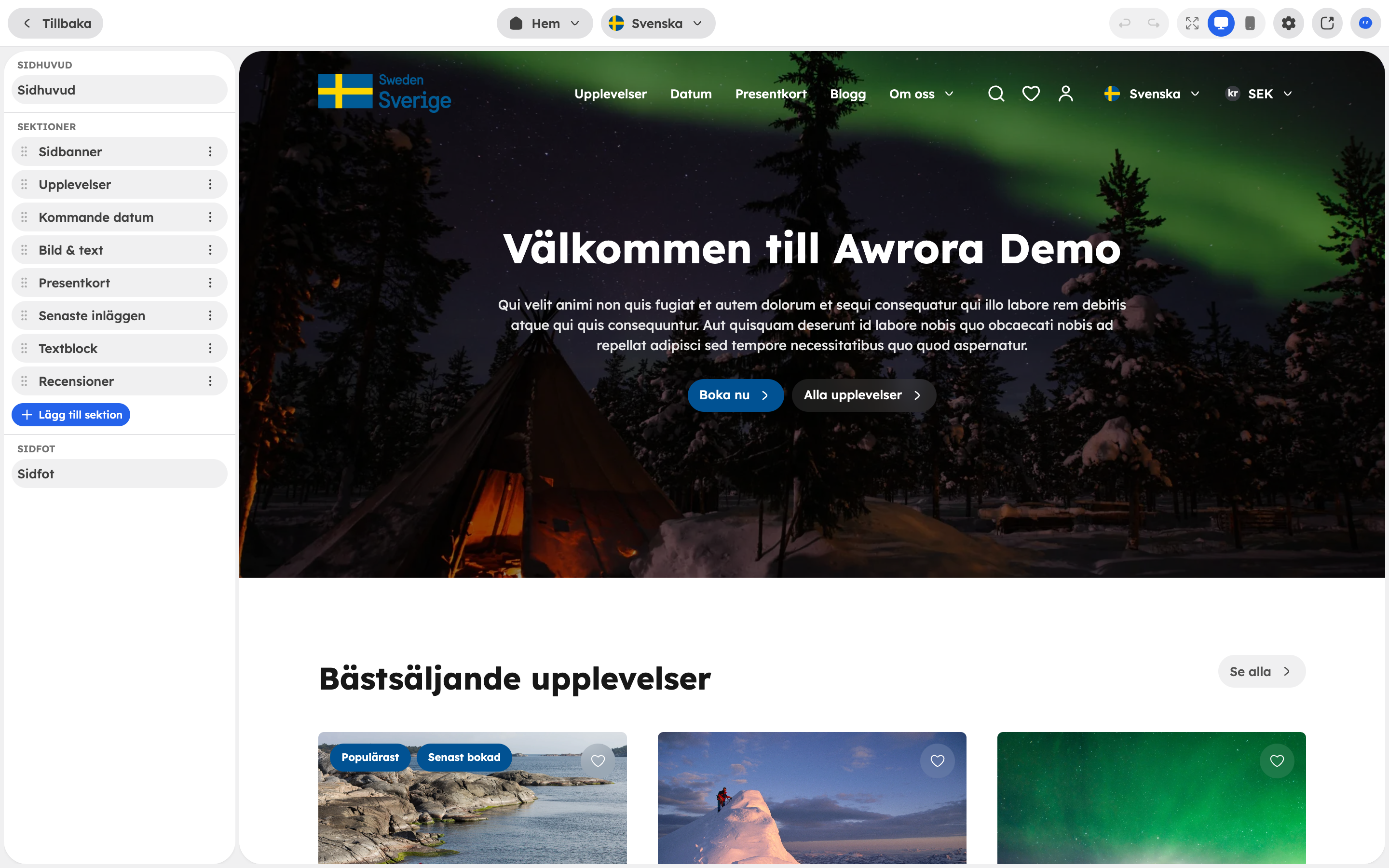
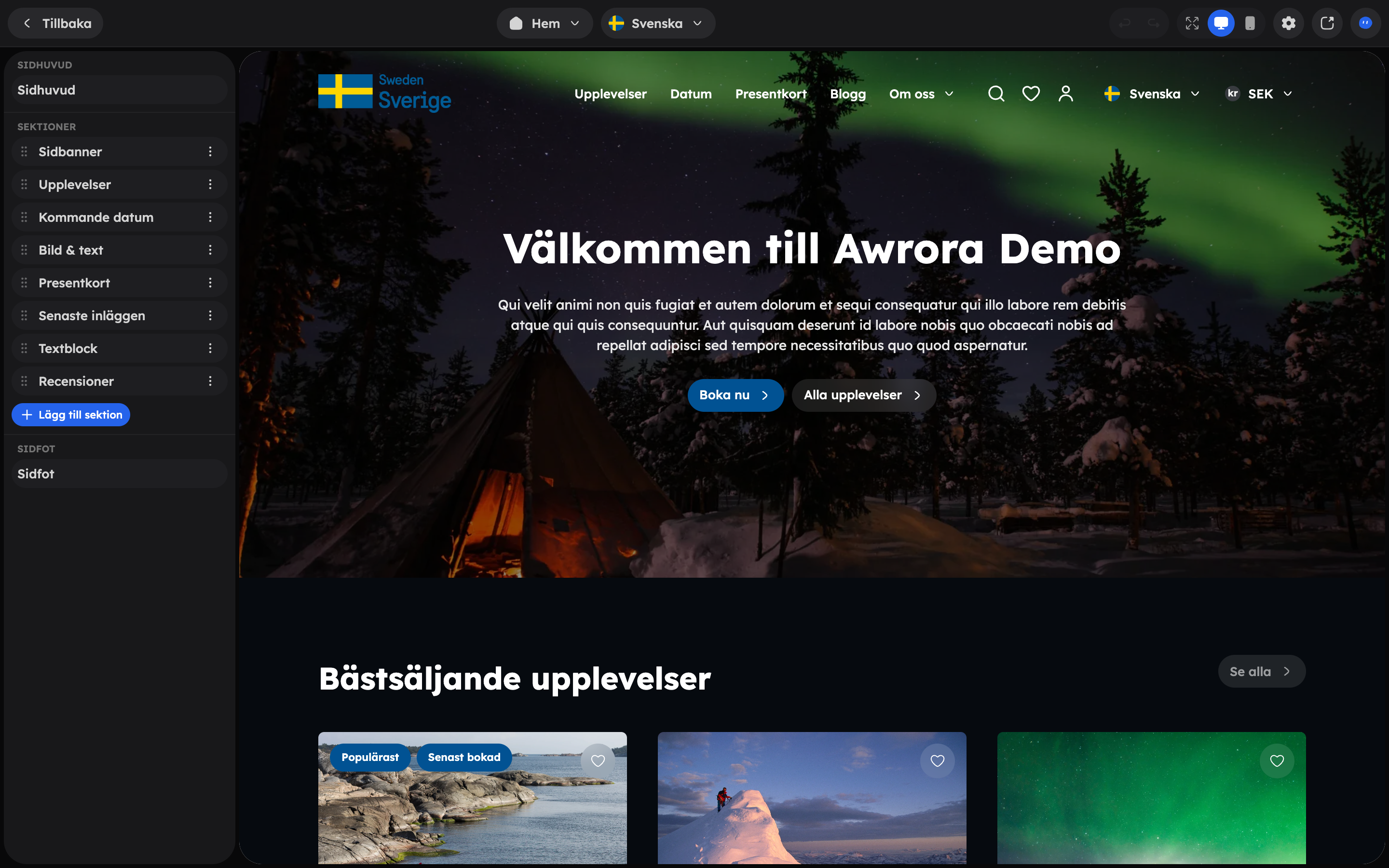
The editor has three parts:
- The section list on the left, with the page's sections plus Header and Footer.
- The preview in the middle. If you click something in the preview, the right section is selected.
- The settings for the section you've selected.
Working with sections#
Add
Click Add section and choose a type. Which sections you can choose depends on the page — see Pages and sections.
Sort
Drag the sections in the list to change the order.
Set up
Select the section and change the text, images, buttons and appearance in the settings.
Save
Click Save in the You have unsaved changes bar. Your changes are then published straight to the shop.
From the section's menu you can also Duplicate, Copy, Paste, Hide and Remove. A hidden section stays in the editor but isn't shown in the shop — handy when you want to save something for later.
Sections with lists, such as an FAQ or icon points, have a separate level for each item. You can duplicate, hide and remove individual questions, points or images.
Some sections are required on a page type, for example the checkout on the checkout page. They can't be removed, so a page can never break.
Undo, redo and devices#
- Undo and Redo are in the toolbar and keep a full history for each page.
- Switch the preview between desktop, tablet and mobile to see how the page looks on different screens.
- If you leave the editor with unsaved changes, you'll get a warning.
Switch page#
With the page picker at the top you jump between the pages in the shop, for example the home page, the experience page, checkout or one of your own pages. You can also create a New page there. Unsaved changes on a page are kept when you switch, and everything is saved together.
In the toolbar, open Page settings for the page's title, address and SEO, and Visit page to see the published page in the shop.
On templates that show a particular item — an experience, a staff member, a blog post or a policy — you choose which item the preview should show. The template then applies to all items of the same kind.
Pages you've never changed use Awrora's default template.
Translate in the editor#
If you have several languages, you can switch language in the editor and translate field by field. You'll see the source text next to the translation, and with Auto-translate page you can let AI translate all the texts at once. In translation mode the page's structure is locked — you add, remove and sort sections in the default language. Read more in Languages and currencies.
The AI assistant in the editor#
Click Chat in the toolbar to ask the AI assistant Aurora to build or change sections for you, for example "add an FAQ about what to bring". Read more in The AI assistant.
When several people are editing#
The editor doesn't lock a page while someone is working on it. If two people on the team edit the same page at the same time, whoever saves last wins, so agree on who changes what.