You set prices in the Prices block in the experience editor. You can have as many price rows as you like, for example Adult, Child and Student, and charge different prices in high season.
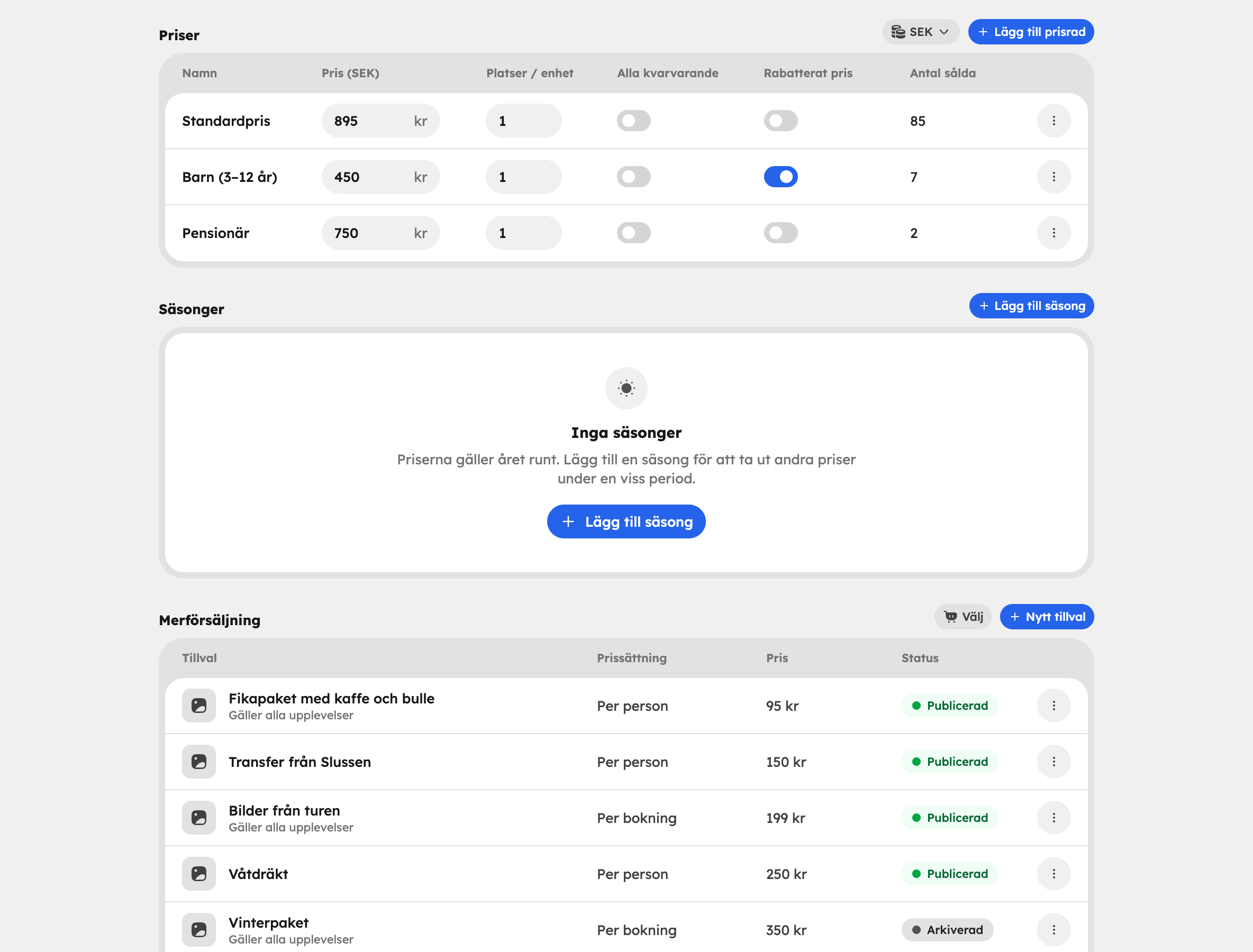
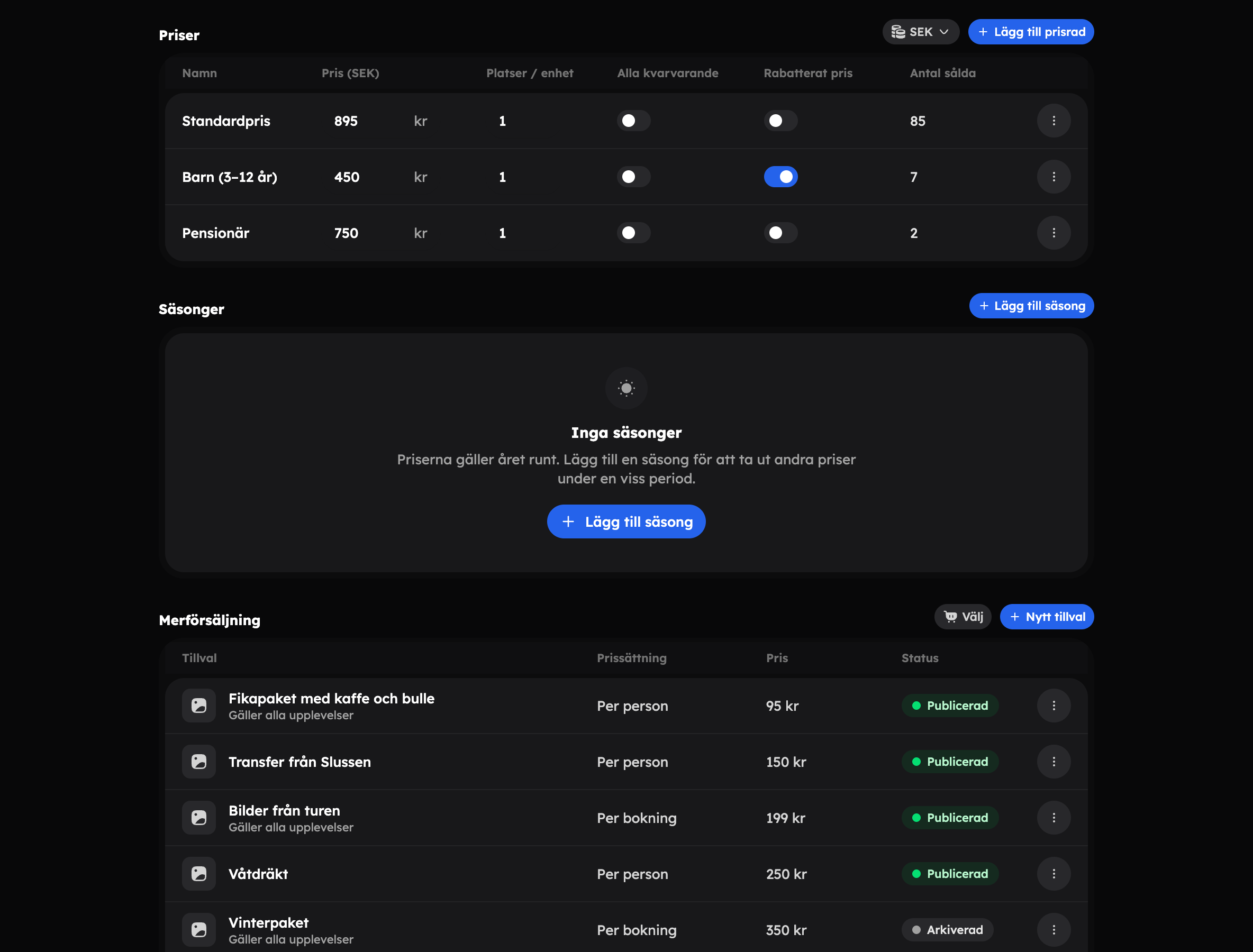
Price rows#
Each price row is a ticket type the guest can choose at checkout.
Add a row
Click Add price row in the Prices block. The Add price row box opens.
Name and price
Enter a Name, for example "Child", and a Price, then click Add price row. The name is shown under "Who's coming along?" when the guest books.
Choose extra settings
If needed, set Spots / unit, All remaining or Discounted price directly in the row in the table (see below).
Save the experience
Click Save. The price rows are saved together with the rest of the editor.
Group tickets and family tickets#
With Spots / unit you decide how many places one ticket takes. For a family ticket for four people, set it to 4. One ticket bought then takes four places from the time slot's capacity.
Private tour — all remaining places#
Switch on All remaining if the row should take all the places left on the time slot. This suits a private tour where the group books the whole departure. Only one row per experience can have this setting — if you switch it on for one row, it's switched off for the others.
Discounted price#
Switch on Discounted price for rows that are cheaper for a reason, for example a child ticket. The row isn't included in the "From …" price shown on the experience, and it's marked as discounted when booking.
Rename or remove a row#
Open the row's actions menu and choose Rename or Remove. The Standard price row can't be removed.
The Sold column shows how many tickets have already been sold for each row. The editor doesn't ask before the row is removed, so check the column first.
Multiple currencies#
If you sell in several currencies, you enter an amount per currency and price row. Switch currency with the currency picker in the block. The default currency must always have a price, and missing amounts in other currencies are marked so that you can see what's left to do.
You can add a new currency directly from here: choose Add currency at the bottom of the currency picker and enter a Currency code, for example EUR. The currency is added for the whole site straight away. Read more about currencies under Languages and currencies.
Seasonal prices#
Without seasons, prices apply all year round. Add a season if you want to charge different prices during a particular period.
Add season
Click Add season in the Seasons block and give it a Name, for example "High season".
Choose the period
Switch on Recurs every year and choose the start and end month and day if the season should cover the same period every year. Otherwise, choose a Start date and End date.
Set the season's prices
Expand the season in the list. In the During … column, enter a new price for the price rows that should cost something different during the season — empty fields inherit the standard price, and Reset to default removes a different price. With Add a row that only applies during … you add your own rows that only exist during the season.
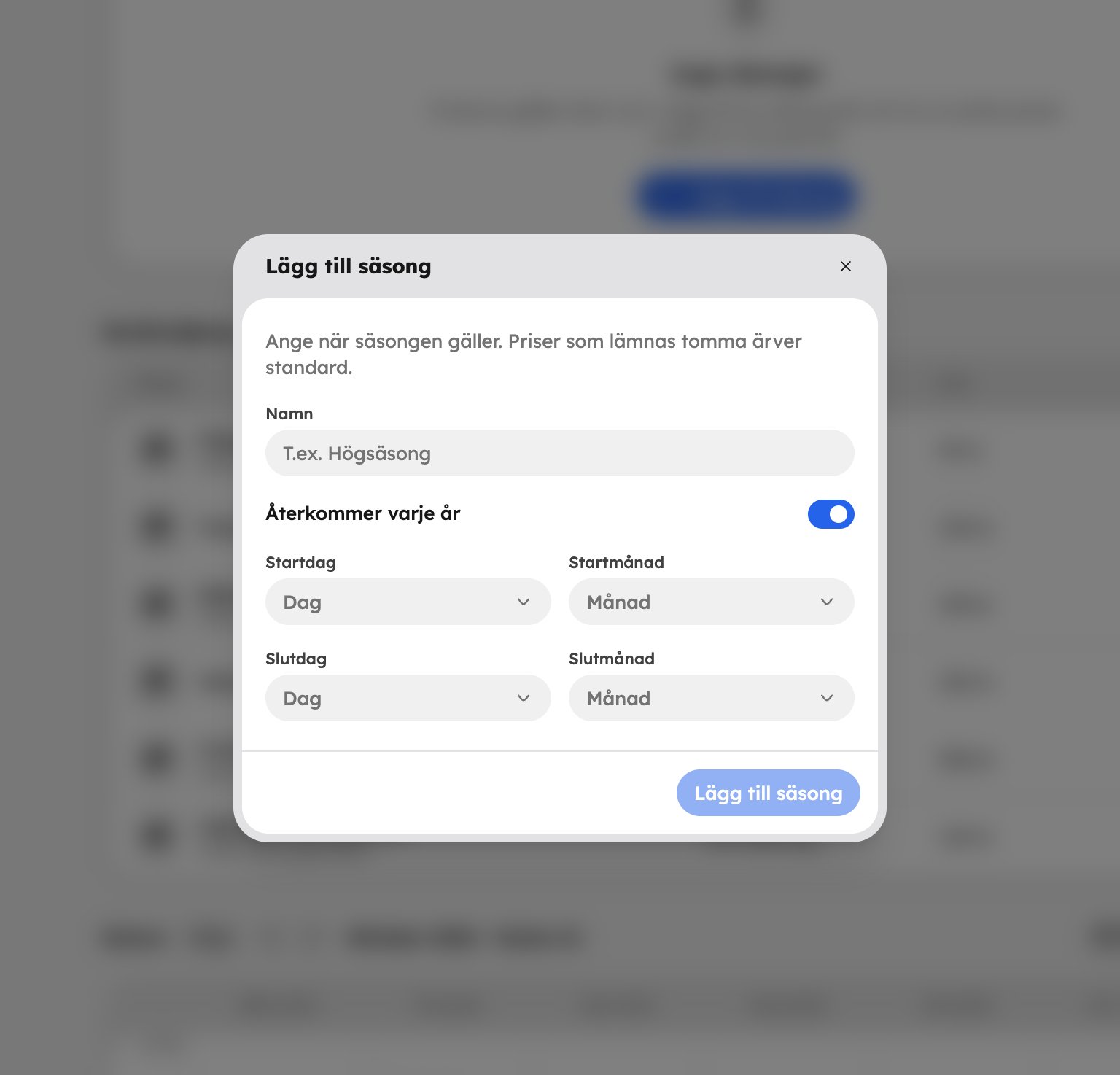
Seasons can't overlap. The year strip in the block shows which weeks have a seasonal price and which have the standard price (grey).
The right season is chosen automatically — at checkout, in the admin calendar and when you make a manual booking.
VAT and booking fee#
You set the VAT rate for tours, and whether the guest pays the booking fee, for the whole organisation under SettingsCheckoutPrices and fees. You set guest cancellation and refunds under SettingsBooking rules.
Want to give a discount with a code instead of a lower price? Read about discount codes.