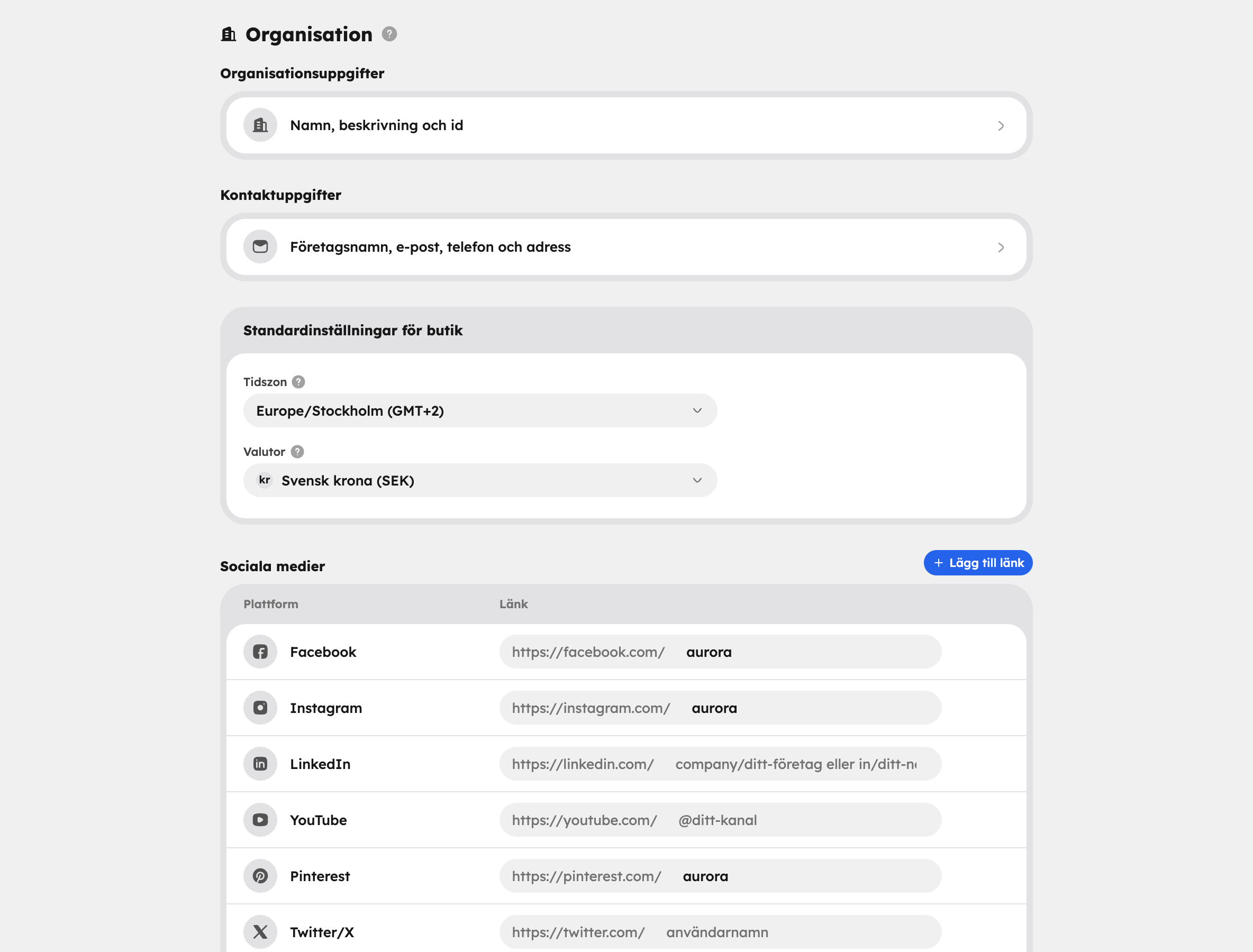
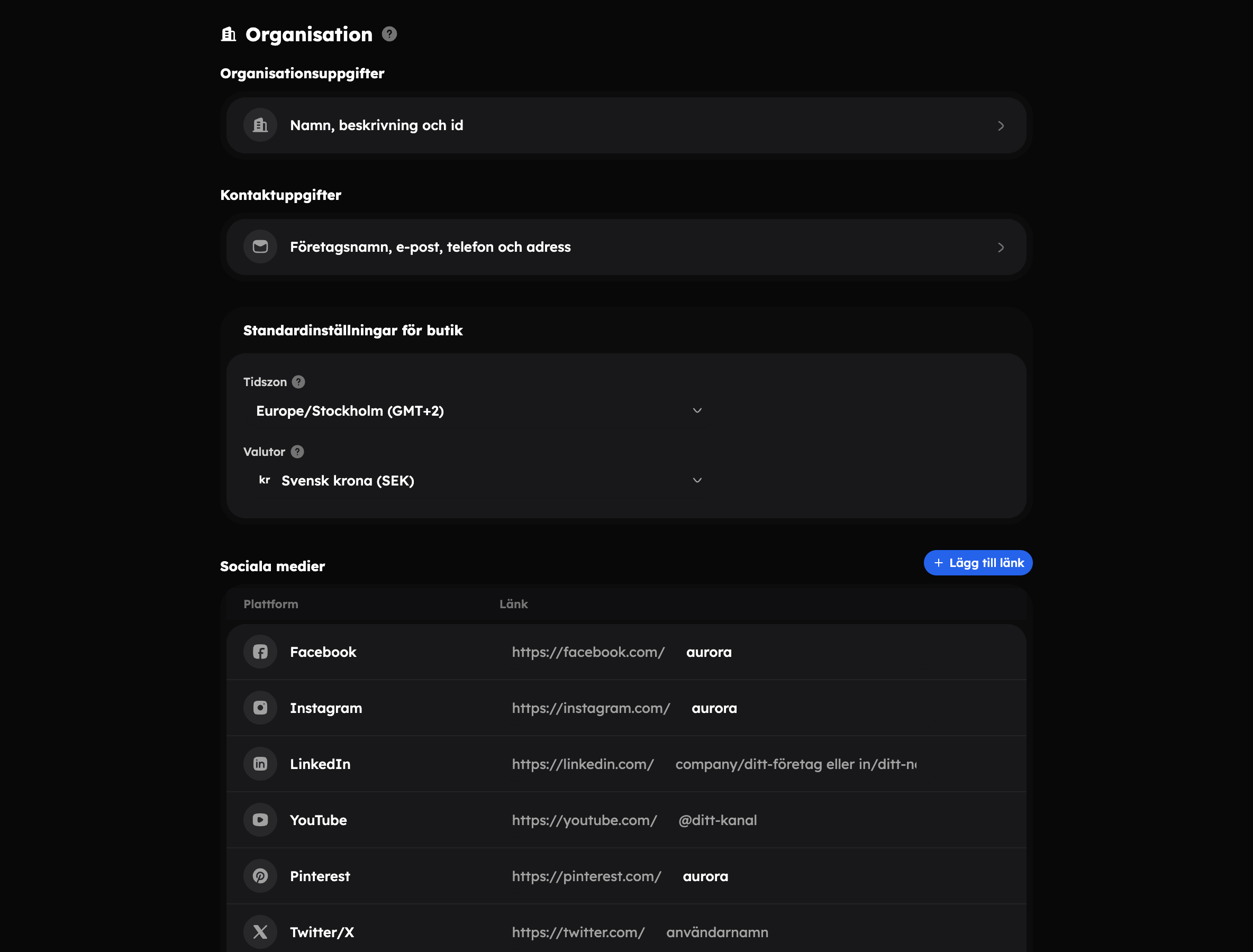
Under SettingsOrganisation you'll find the details about your business: what it's called, how guests reach you and which defaults the shop uses. At the bottom, the owner finds Danger zone, where the organisation can be transferred or deleted.
Settings are open to administrators. Changes are saved when you click Save in the You have unsaved changes bar.
Organization details#
Click the row under Organization details to open the page.
- Organization name — the name shown in admin. If you haven't filled in Company name, it's also used on the receipt and in emails to guests. It's the name you type to confirm a transfer or deletion.
- Organization slug — the short identifier in the organisation's Awrora address. Copy it with the button next to the field. You change the address under Domains and SEO.
- Organization ID — the organisation's unique ID. You sometimes need it when you connect integrations, see API keys.
Contact details#
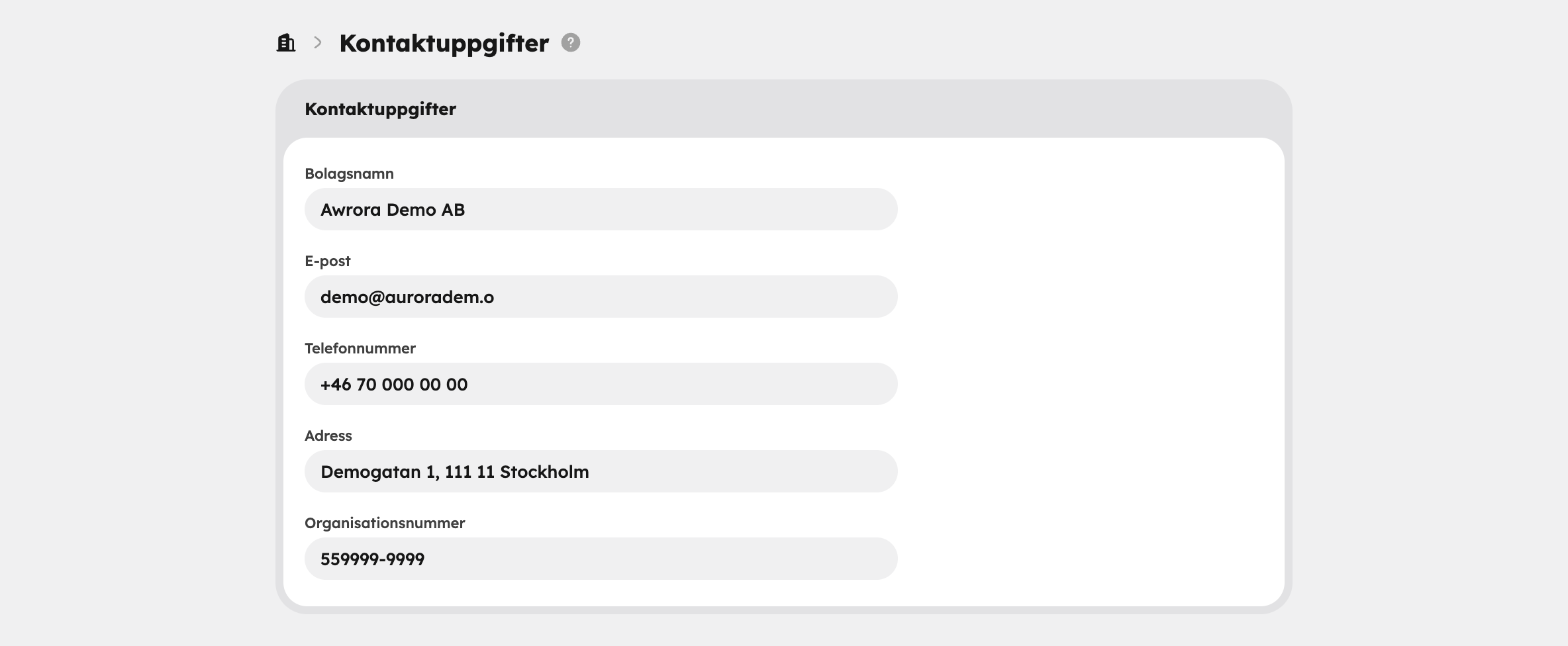
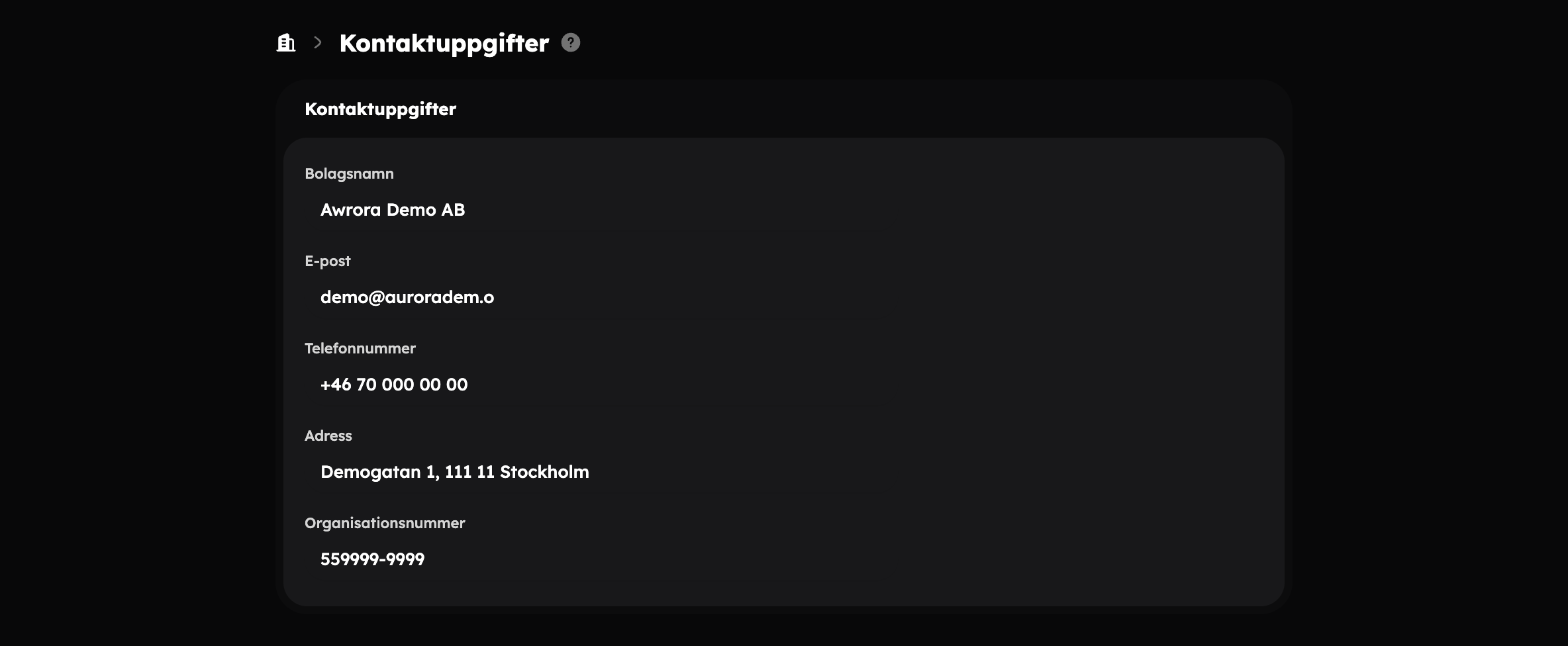
Click the row under Contact details to fill in how guests reach you:
| Field | Shown here |
|---|---|
| Company name | Heading in the shop footer, the footer of emails to guests and the receipt. |
| The shop footer. When a guest replies to an email, the reply comes here. | |
| Phone number | The shop footer. |
| Address | The shop footer, the footer of emails and the receipt. |
| Organization number | The shop footer, the footer of emails, the receipt and the policy templates under Legal. |
Empty fields aren't shown. At least fill in Email — otherwise guests' replies won't get through. Read more in Email and notifications.
Store defaults#
Directly on the Organisation page you choose:
- Time zone — dates and times in the shop and the booking flow use this time zone.
- Currencies — which currencies the shop shows prices in. Read more in Languages and currencies.
Social media#
Under Social media you add links to the company's accounts, for example Facebook, Instagram, LinkedIn, YouTube, Pinterest and TikTok. Click Add link to add a platform that isn't in the list. If you enter your Instagram username, the shop can show your posts in an Instagram feed.
Danger zone#
Danger zone is only visible to the organisation's owner. Go to SettingsOrganisation and click the Transfer or delete the organisation row at the bottom.
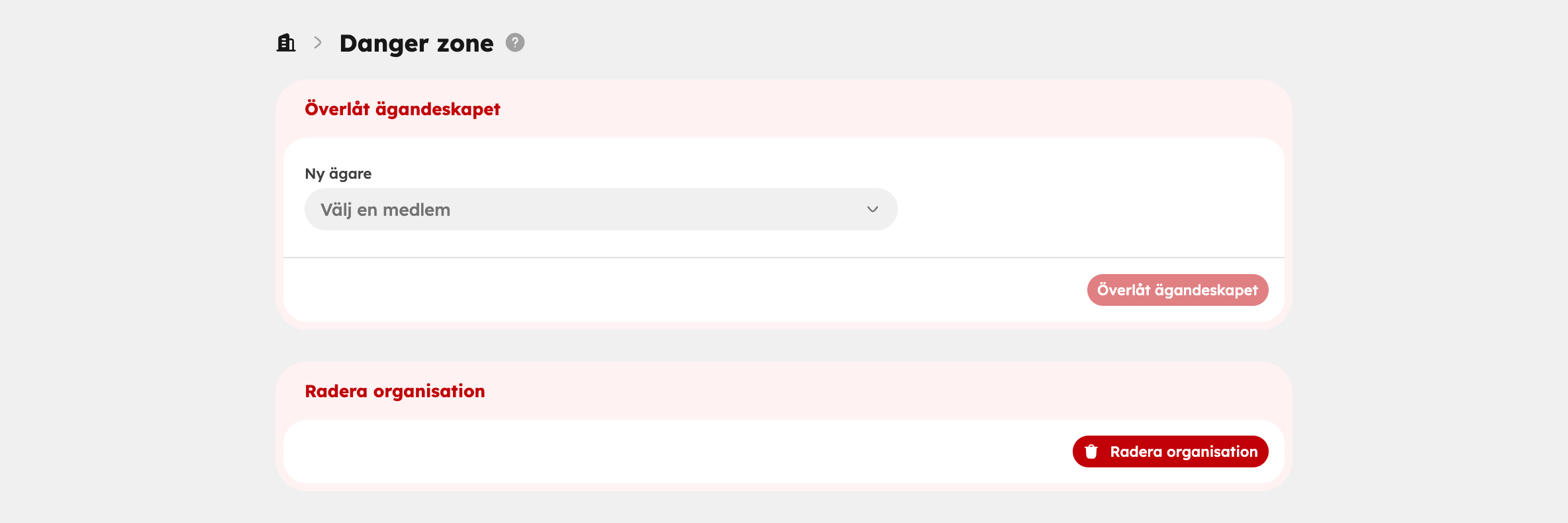
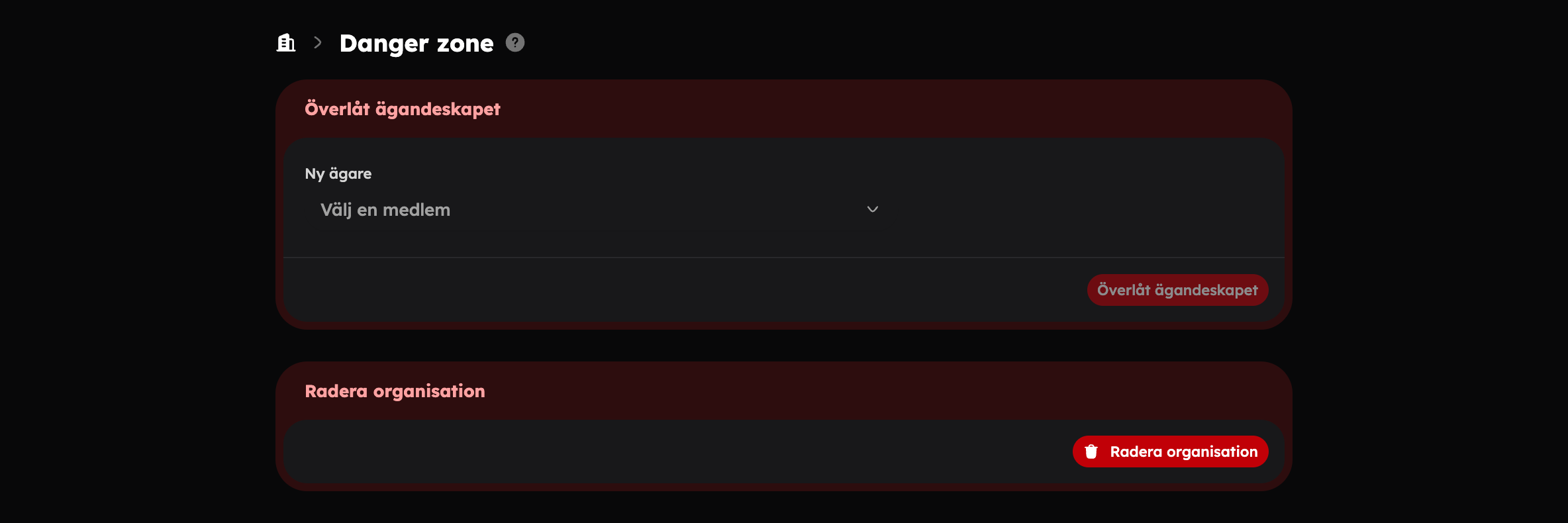
Transfer ownership#
Choose a new owner
Under Transfer ownership, choose a member in New owner. It has to be someone who has already accepted their invitation.
Click Transfer ownership
A box shows what will happen.
Confirm with the name
Type the organisation's name and confirm.
The new owner takes over the plan, payment and the right to delete the organisation, and becomes an Admin if they weren't already. You remain an Admin, but can't take ownership back yourself. Both you and the new owner receive an email. API keys you have created keep working — the new owner is told which they are and can replace them.
Delete the organisation#
Click Delete organisation
The button is below the transfer.
Confirm with the name
Type the organisation's name and click Delete organisation.
This is what happens:
- The shop is closed and the subscription is cancelled immediately.
- All data is permanently deleted after 30 days.
- If you change your mind before then, support can restore the organisation.
Is someone else going to run the business? Transfer ownership instead of deleting — that way bookings, customers and the shop are kept.
Who can do what#
| Owner | Admin | Editor and Viewer | |
|---|---|---|---|
| See and change details, time zone and social media | Yes | Yes | — |
| Transfer ownership and delete the organisation | Yes | — | — |
Read more about roles in Team and roles.
Aurora#
Aurora can read and change the organisation's details for you, for example "add our organisation number 556677-8899". She can never transfer or delete the organisation, though. Read more in AI assistant.