With a calendar link you see your departures directly in the calendar you already use — on your computer and on your phone. Each departure becomes an event with the time, location, number booked and the guests' names and phone numbers. So you and your guides can run the day's tour from your phones without logging in to Awrora.
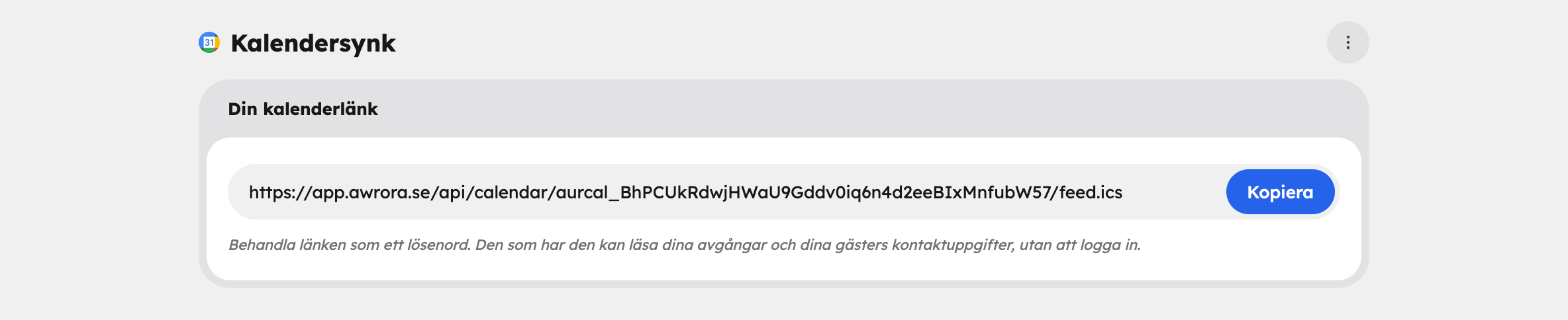
The calendar link is in the Calendar app. Install it under SettingsApps. The app's page is called Calendar sync and is under Apps in the sidebar. You can also reach it with the Calendar sync button at the top of the calendar.
The link only works one way: from Awrora to your calendar. Changes you make in your calendar app don't affect Awrora.
Get the link#
Open Calendar sync
Go to Calendar sync under Apps in the sidebar, or choose Open next to Calendar under Active apps in SettingsApps.
Copy the link
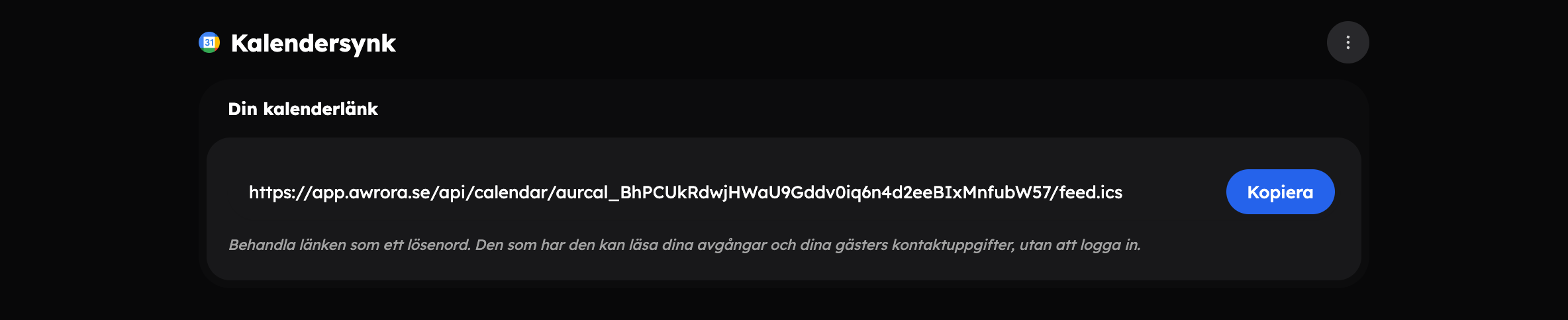
The link is created automatically the first time the page is opened. Click Copy in the field under Your calendar link. The same link works in Google, Apple and Microsoft Calendar.
Add it to your calendar#
- Click the + next to "Other calendars" in the left-hand column.
- Choose "From URL" and paste in the link.
- Click "Add calendar".
Google decides for itself how often the calendar is updated. Allow up to a day before a change appears.
Good to know#
Changes don't show up straight away. The calendar fetches the link at regular intervals. For last-minute changes, the calendar in Awrora is always the one that counts. If you need an event in Google Calendar within seconds, you can use Zapier.
Guest details are included. Names and phone numbers go into the description of each departure, and so end up with the calendar service and on the devices where you read your calendar.
The calendar shows a window of time. The link contains departures from 60 days back to one year ahead.
Split up the calendar#
If you only want to see certain departures, add a filter to the end of the link:
?experience=slug— only one or more experiences.?guide=id— only departures for one or more guides.
Separate multiple values with a comma. You can subscribe to several such links, for example one per guide, and give them different colours in your calendar.
If the link ends up in the wrong hands#
Anyone who has the link can read your departures and your guests' contact details without logging in.
Has the link been shared with the wrong person? Open the menu at the top right of the Calendar sync page and choose Rotate link. Only the organisation's owner can rotate the link. The old link stops working immediately, and you'll need to add the new one to every calendar that should keep updating.