Your Awrora account gives access to bookings, customer details and money, so signing in is designed to be secure without being complicated. Here we go through how you sign in, how two-step verification works and what you can set up yourself.
Sign in#
You sign in with email and password or with Continue with Google.
- Tick Remember me to stay signed in for 30 days. Don't use it on a shared computer.
- Without Remember me, you're signed out automatically after 30 minutes of inactivity.
- If you've forgotten your password, click Forgot password? and you'll get a link by email.
- After five incorrect attempts within 15 minutes, signing in is temporarily locked, to stop anyone trying to guess the password.
When you create an account, we send an email to confirm your email address. Until the address is confirmed, you can't invite others, send your own emails to customers (single, bulk or messages to the guests on a date) or publish flows that send email. You can send the confirmation again with Resend link on your profile. Read more in Create an account.
Two-step verification#
With two-step verification you confirm that it's you when you sign in, in addition to your password. It's optional but strongly recommended, as your account gives access to customer details and money.
If you haven't switched on any method, Awrora shows the Protect your account box two days after the account was created. Enable now takes you to the Security page, and Remind me later postpones the reminder for seven days.
You can use these methods:
| Method | How it works |
|---|---|
| Biometric verification / passkey | Touch ID, Face ID, Windows Hello or a security key on the device. |
| Authenticator app | A six-digit code from, for example, Google Authenticator or Authy. |
| Email code | A six-digit code sent to your email each time you sign in. The code is valid for about 10 minutes. |
You can have several methods active at the same time and choose which one to use when you sign in. It's wise to have at least two, so that you can still get in if you lose your phone.
Add a method#
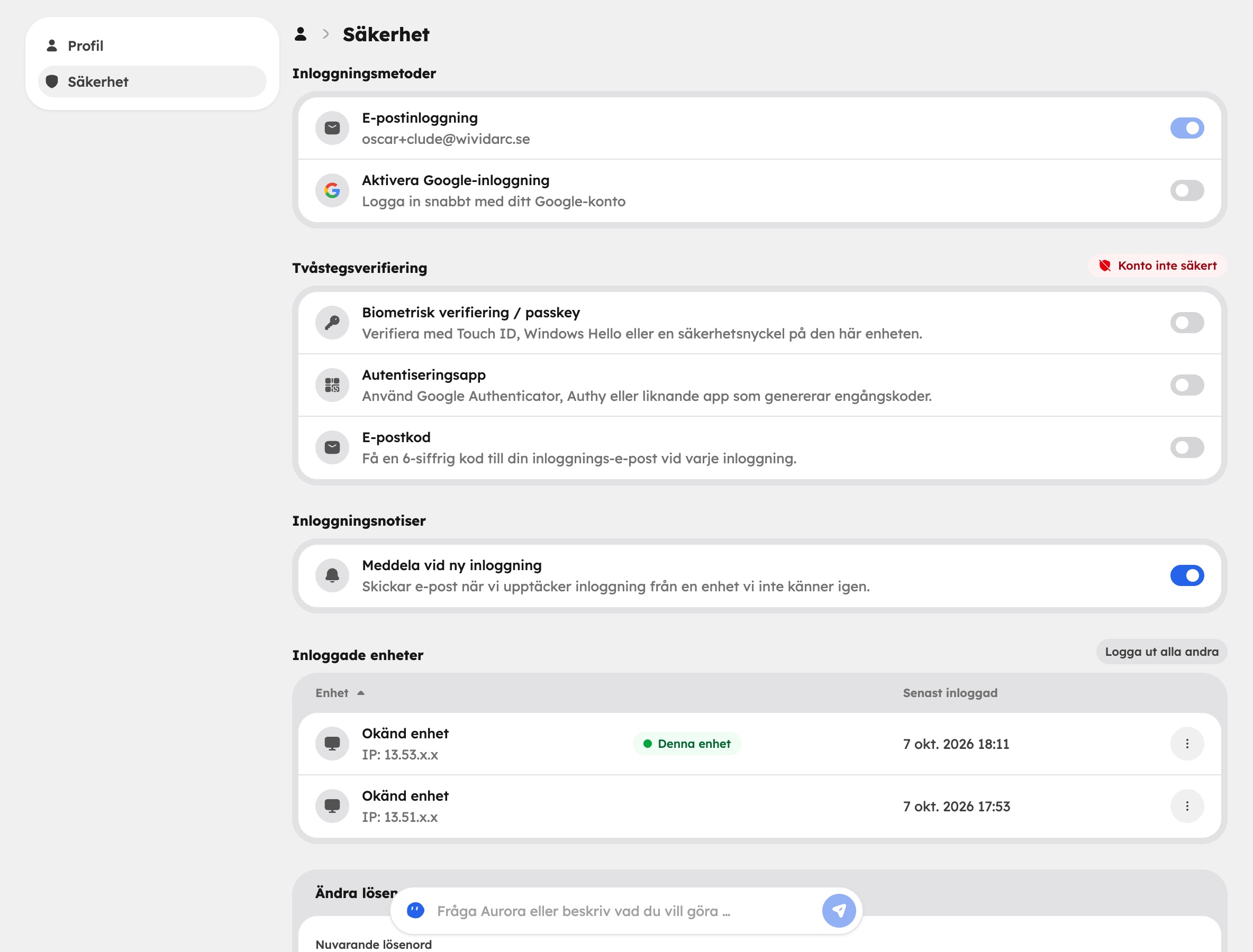
Open Security
Open your profile menu in the sidebar and choose Security.
Switch the method on
Under Two-Factor Authentication, switch on the toggle next to the method you want to use.
Follow the instructions
For an authenticator app, scan the QR code, enter the code shown and click Verify and enable. For an email code, click Send code and enter the code from the email. For a passkey, follow your browser's instructions.
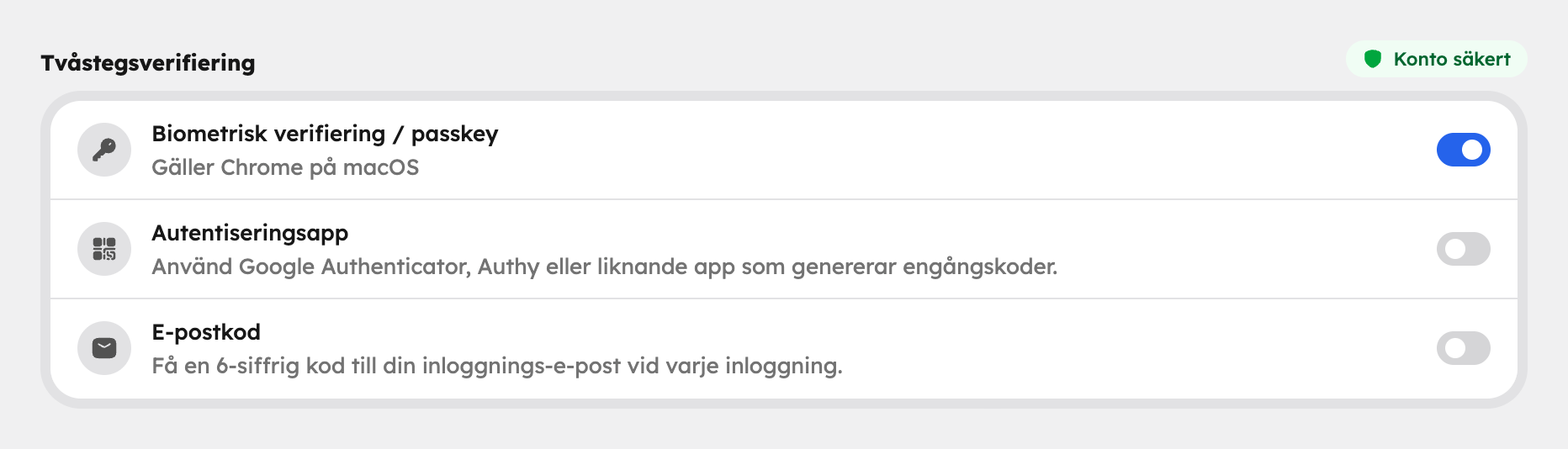
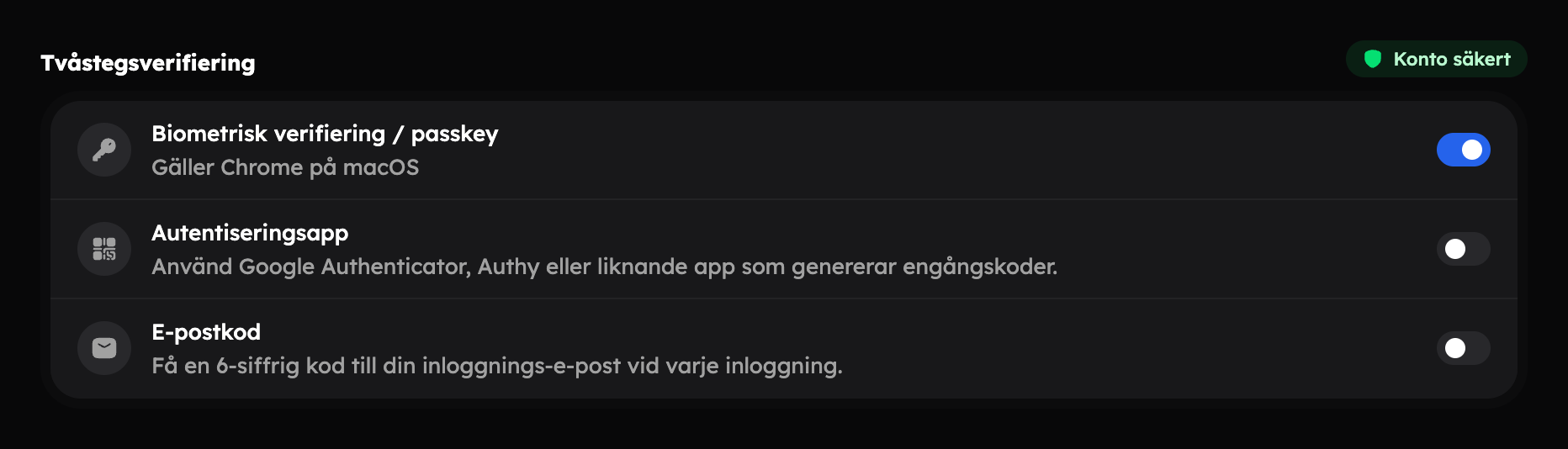
If you switch a method off again, you confirm with Disable 2FA.
Everything on the Security page#
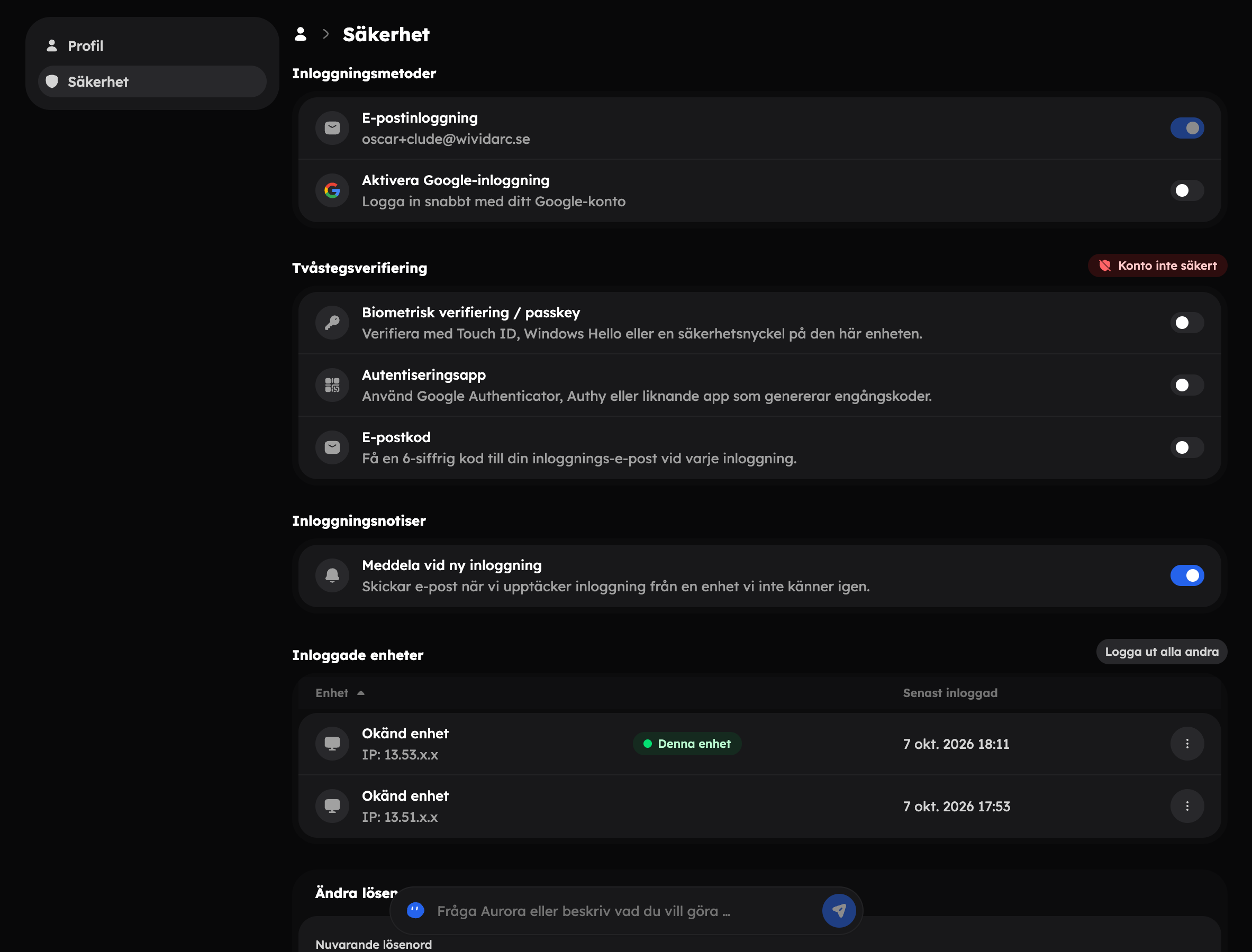
- Login Methods — connect or disconnect your Google account. Signing in with email and password is always active.
- Change Password — enter your current password and a new one of at least 10 characters with lowercase, uppercase and digits, and click Update password.
- Logged-in devices — see where and when you're signed in. Click Sign out on a device you don't recognise, or Sign out all others.
- Login notifications — turn on Notify on new sign-in to get an email when someone signs in from a device we don't recognise.
Sign out all other devices, change your password and check your two-step verification methods.
Your profile#
Under Profile in the profile menu you'll see your email address and your user ID. You change your name with Rename and your avatar with New random avatar, both in the menu at the top of the page. Under Settings you choose your phone number, Default Theme and Language for the admin. Your email address is used for signing in and can't be changed there — contact support if you need to change it.
Delete your account#
Under Danger zone at the bottom of the profile page you'll find Delete account. The account and all your access are permanently deleted, and this can't be undone.
You can't delete your account if you own an organisation or are its only administrator. In that case, transfer ownership or delete the organisation, and give someone else the Admin role first.