The customer card gathers everything you know about a customer: what they have booked, what has happened and what your staff have noted. Open it by clicking a customer in the customer list.
Only administrators can open the customer card. Other roles can view and search the customer list. Read more under Team and roles.
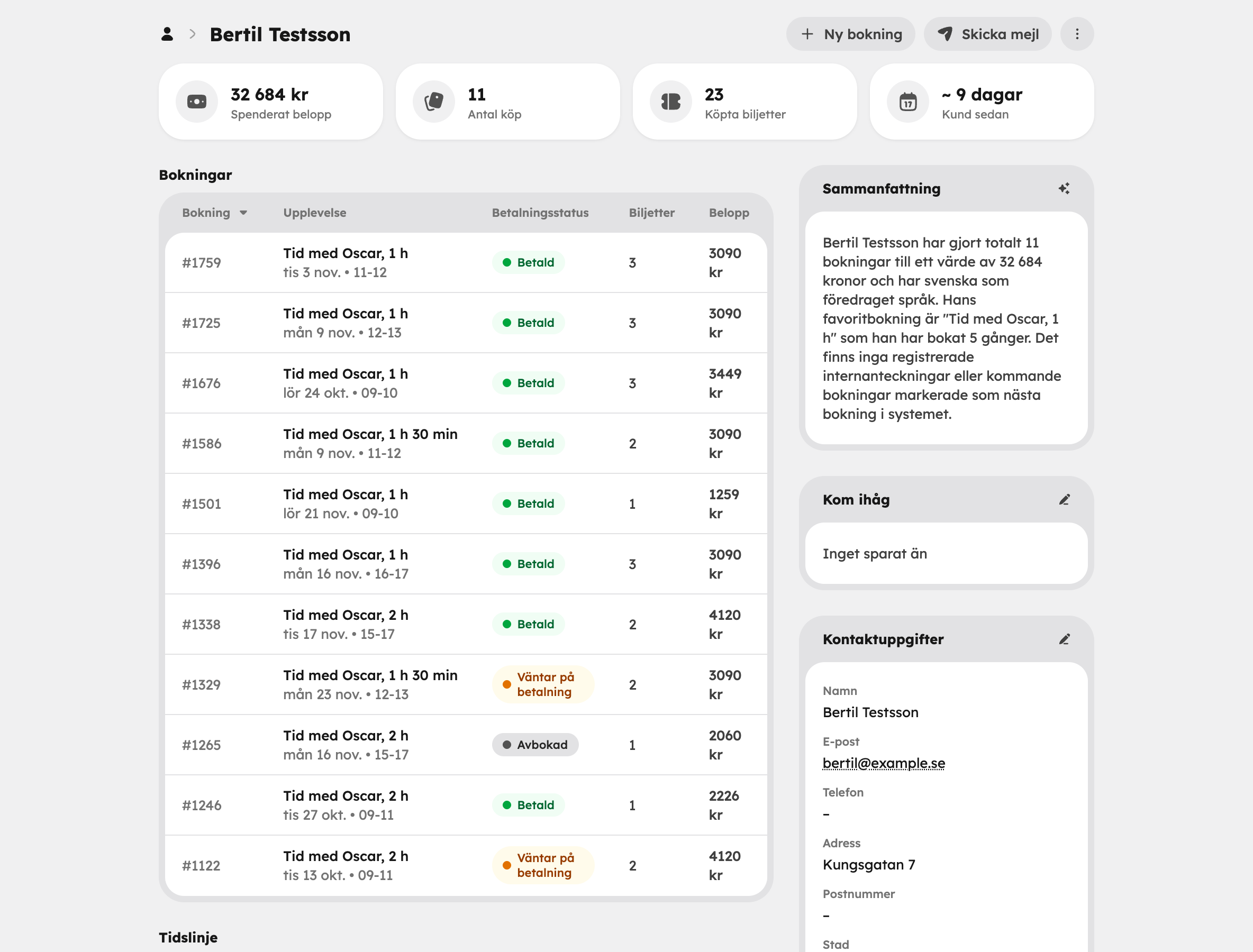
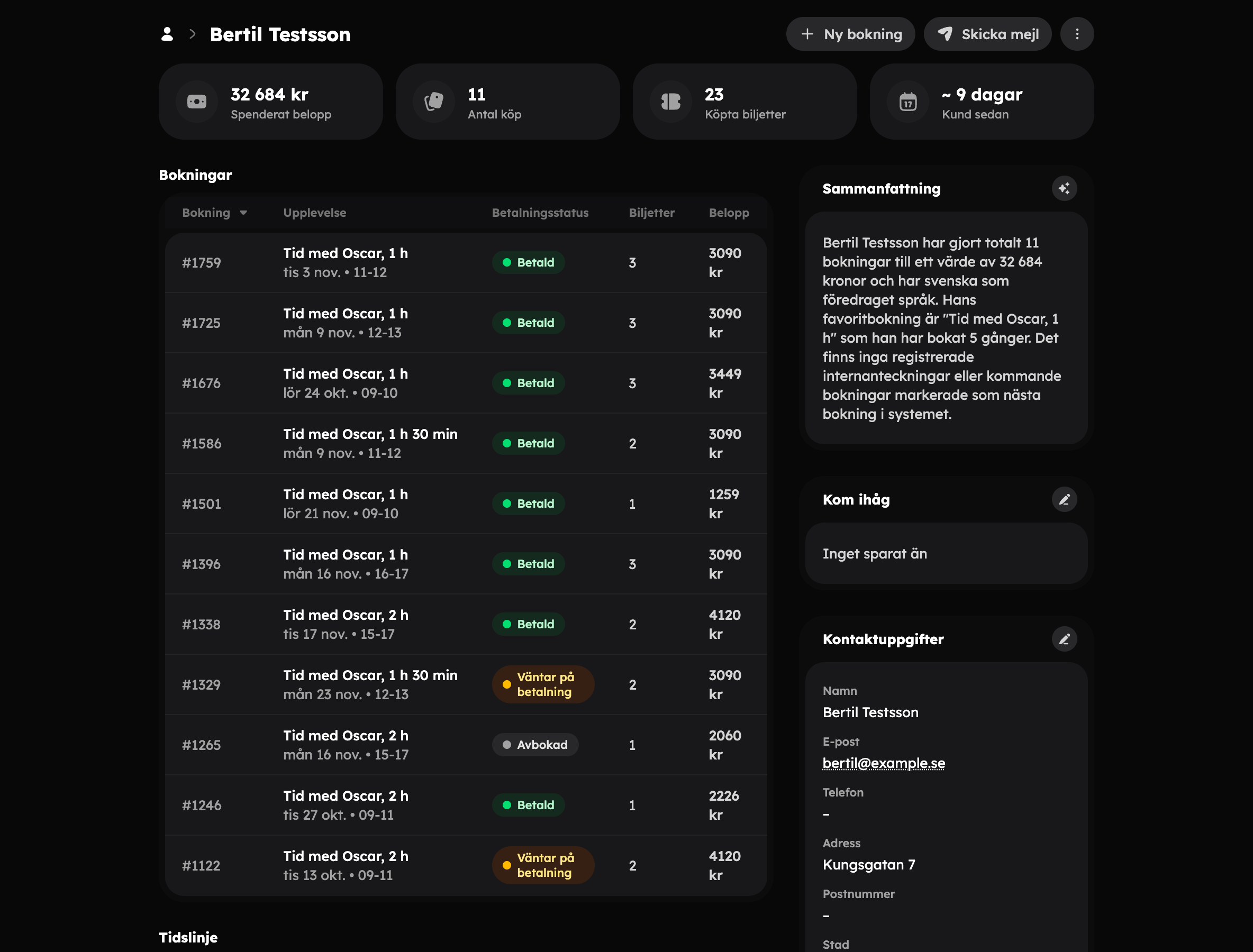
Overview#
At the top you see four key figures: Amount spent, Purchases, Tickets purchased and Customer since.
Summary is a short text that Aurora, the AI assistant, writes about the customer based on their history, for example what they usually book. Click Refresh to rewrite it. If the customer has too little history, it says there's too little to summarise.
Bookings#
Under Bookings you see all the customer's bookings with experience, payment status, number of tickets and amount. Click a row to open the booking card.
Timeline and comments#
Timeline shows everything that has happened with the customer, in order:
- when the customer was created,
- bookings that have been created, cancelled or rescheduled, and status changes,
- emails that have been sent — click to read the email,
- changed contact details, payments and merges.
Upcoming events, such as a tour next week, are marked Upcoming event.
Type in the Leave a comment… field and click Post to add an internal comment to the timeline. The comment is shown with your name and picture and is only visible to staff.
Remember, tags and contact details#
In the side column you'll find:
- Remember — a pinned internal note, for example "Allergic to nuts" or "Always wants a window seat".
- Tags — for example
viporpress. You get suggestions from tags you already use. You can then filter on the tags in the customer list. - Contact details — name, email, phone, address, postcode, city, country, email subscription and language, plus the experience the customer has booked most.
- Customer account — whether the customer has their own account on your website and when they last logged in.
Actions#
At the top right you'll find New booking and Send email. The other actions are in the menu next to them:
| Action | What it does |
|---|---|
| New booking | Starts a manual booking for the customer. |
| Send email | Writes an email to the customer with a subject and message. The email then appears in the timeline. |
| Merge customer | Moves bookings, customer account, tags, notes and address to the customer you choose, and removes this customer record. |
| Delete personal data | Anonymises the customer (see below). |
| Delete customer | Deletes the saved customer information. The bookings are kept. This can't be undone. |
Delete personal data (GDPR)#
If a customer asks you to remove their details, use Delete personal data. The personal data is anonymised in all the customer's bookings and the customer record is deleted. Booking amounts and history are kept, so your statistics aren't affected. When it's done, you're taken back to the customer list.
This can't be undone. If you need to send the customer their details, it's a good idea to export them first.