Awrora takes payments via Stripe. The money from your bookings goes to your own Stripe account and is then paid out to your bank account. Guests see your company name on receipts and bank statements, not Awrora's.
Connect your payment account#
Without a connected payment account you can't take payments online. Only the organisation's owner can connect the account.
Open Checkout
Go to SettingsCheckout.
Connect the account
Click Connect payment account. You'll be taken to Stripe.
Fill in your details with Stripe
Enter your company details and the bank account for payouts. When you're done, you'll come back to Awrora.
Once the account is connected, the button reads Manage payment account. There's more about the initial setup in Take payments.
Choose payment methods#
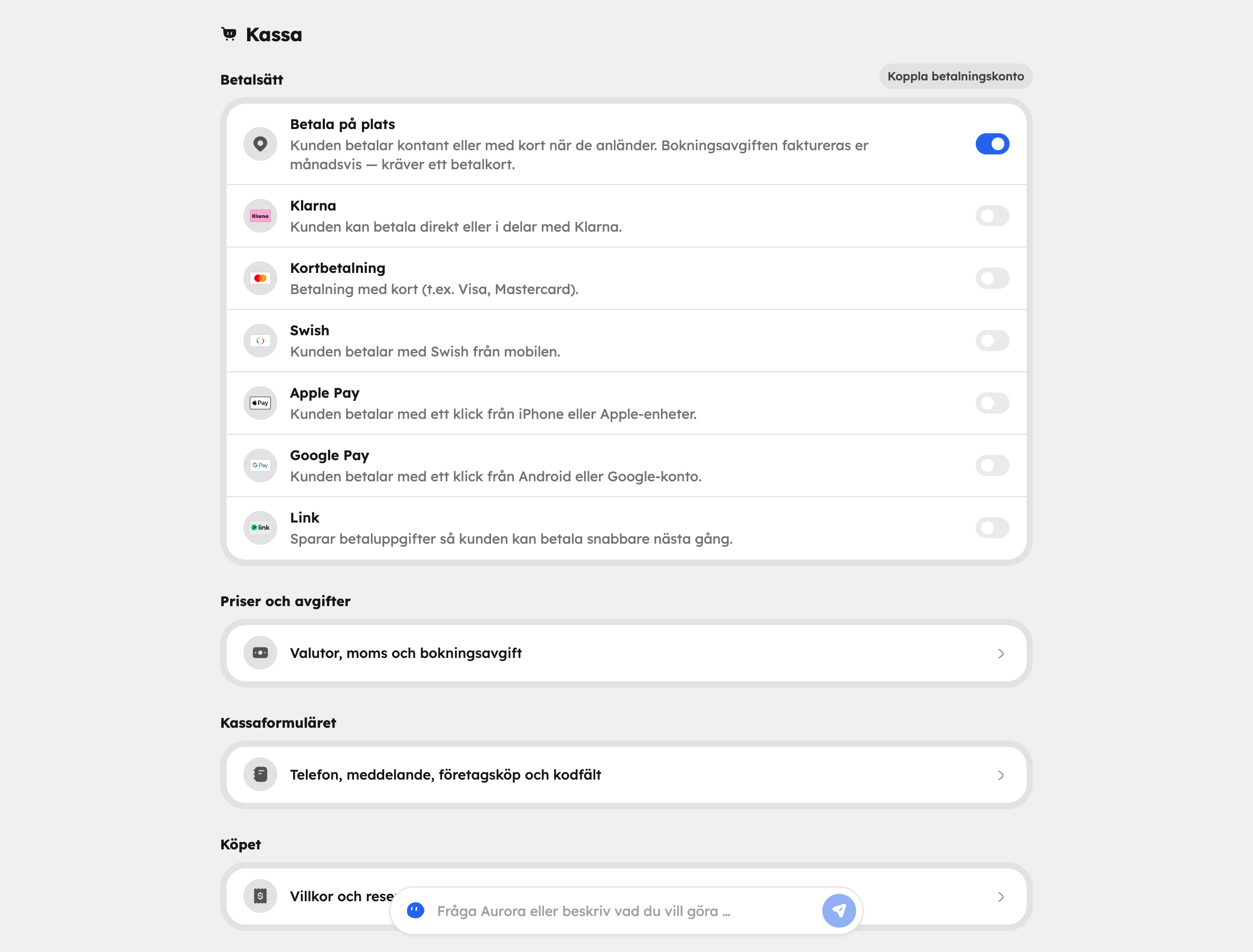
Under SettingsCheckout you switch the payment methods in the list on and off:
| Payment method | For the guest |
|---|---|
 Card payment Card payment | Payment by card, for example Visa and Mastercard. |
 Swish Swish | Payment with Swish from their mobile. |
 Klarna Klarna | Pay straight away or in instalments with Klarna. |
 Apple Pay Apple Pay | One-click payment from an iPhone and other Apple devices. |
 Google Pay Google Pay | One-click payment from Android or a Google account. |
 Link Link | Saves the payment details so the guest pays faster next time. |
| Pay on site | The guest pays in cash or by card when they arrive. |
All payment methods are switched off from the start. You switch on the Stripe methods once you've connected the payment account, and when you switch on Pay on site you add a payment card for the fees (see Pay on site below). Click Save when you're done.
A payment method that hasn't yet been approved for your Stripe account can't be switched on. You'll need to activate it in Stripe or complete your account details there.
The booking fee#
A booking fee is charged automatically for every booking paid via Stripe. How much it is depends on your plan:
| Plan | Booking fee |
|---|---|
| Free | 6 % |
| Bas | 4 % |
| Plus | 3 % |
| Premium | 2 % |
Bookings you add manually in the admin have no fee. Read more under Plans and billing.
Under SettingsCheckoutPrices and fees you control this with The guest pays the booking fee, which is switched on from the start. The fee is then added on top of the price and shown as a separate line at checkout. If you switch it off, the guest pays only the price and the fee is deducted from your payout.
Pay on site#
When the guest pays on site, the money doesn't go through Stripe. The same booking fee applies, but Awrora invoices you for it once a month. That's why a payment card is needed: if the company doesn't have one when you switch on Pay on site, the card form opens straight away on the Checkout page.
The fee is charged once the booking has been marked as paid on site, or 24 hours after the departure if the booking hasn't been cancelled. Cancelled bookings have no fee. The fees appear on the month's invoice, which you'll find under Receipts on SettingsBilling.
Finance — your payouts#
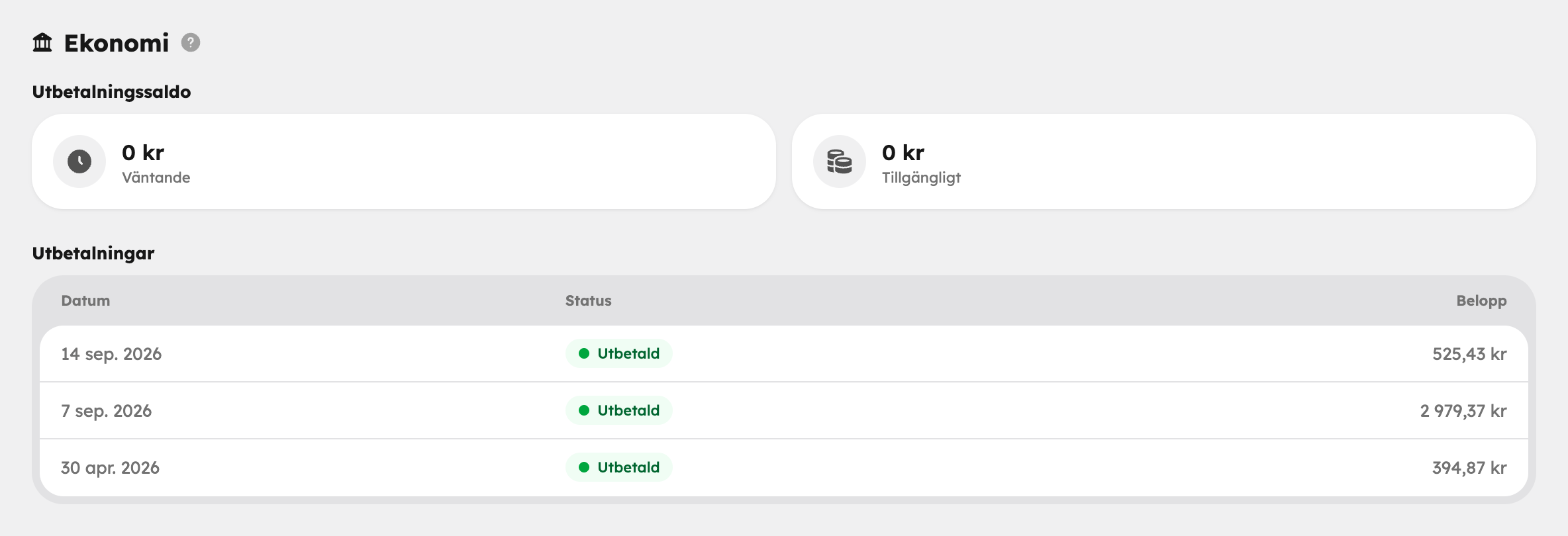
Under Finance in the side menu you follow the money from Stripe to your bank account. You need to be an administrator to see the page.
- Payout balance shows what is Pending and what is Available for payout.
- Payouts lists each payout with its date, status and amount.
Bookings paid outside Awrora, or that you've moved in from another system, are included in your turnover in the statistics. They never appear in the Stripe figures on the Finance page.