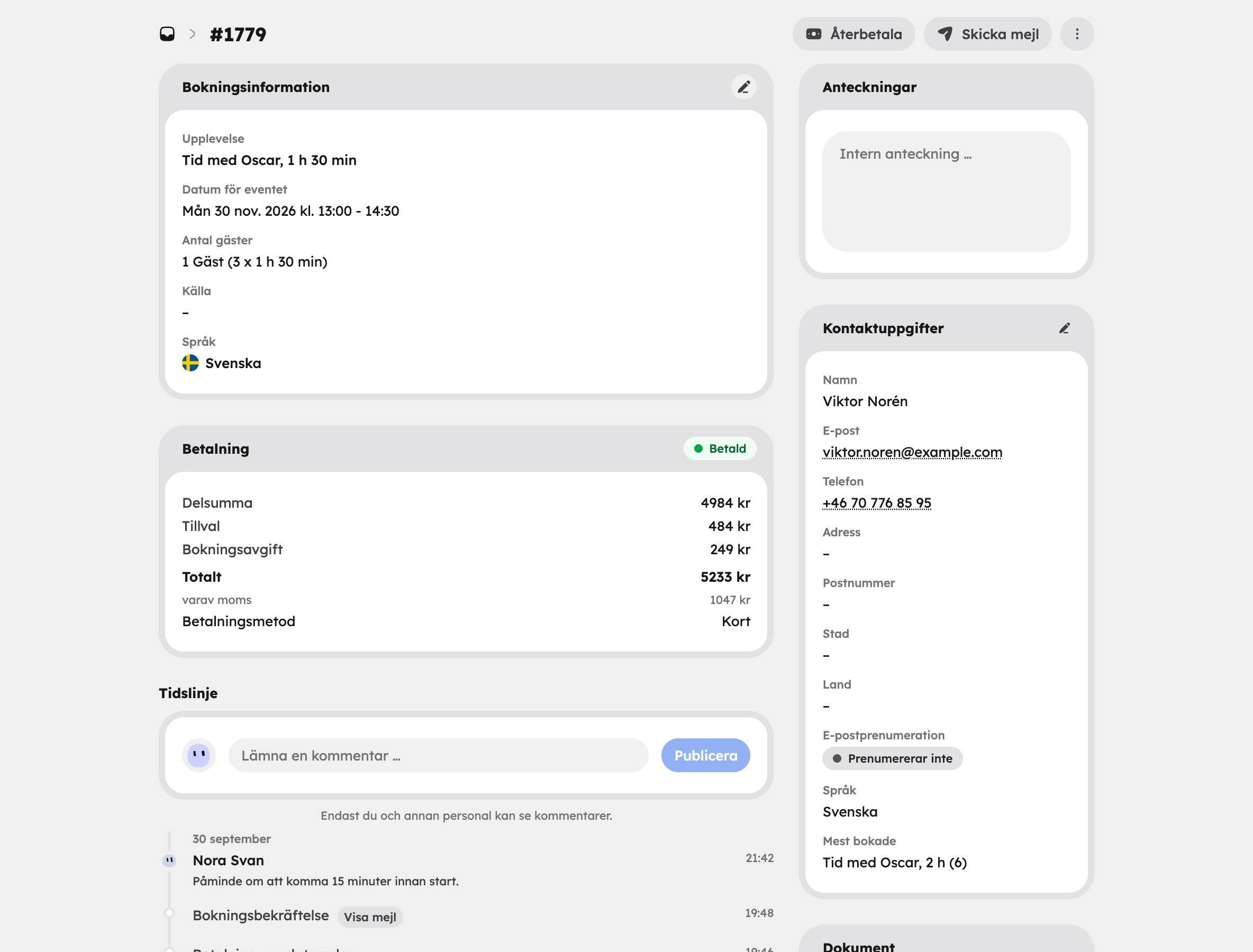
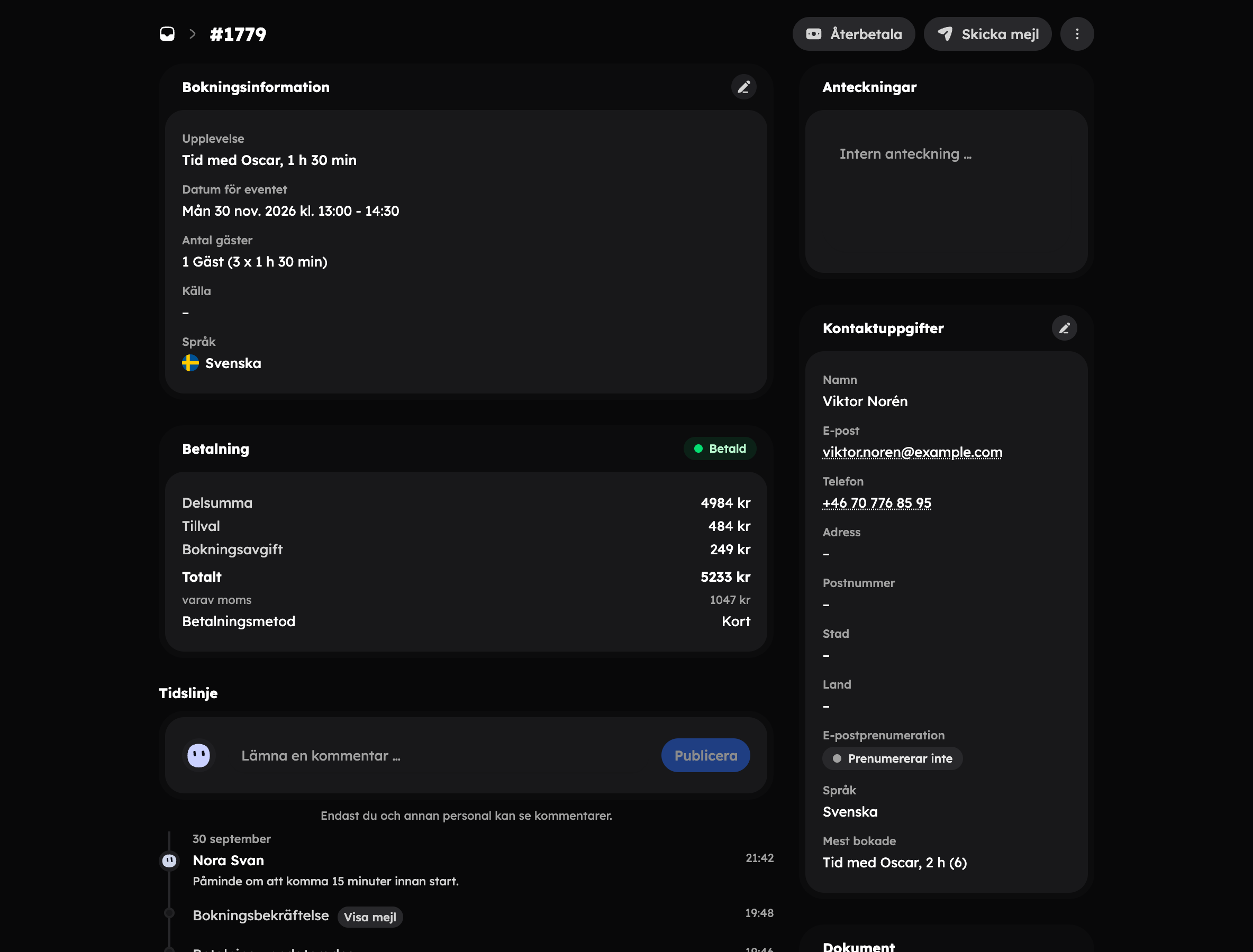
When you click a booking in the list or the calendar, the booking card opens. Here you can see everything about the booking and make all your changes in one place.
What the card shows#
- Booking information — the experience, the event date, number of guests, source and language.
- Payment — the full price breakdown: price, add-ons, discount or gift card, booking fee, total, VAT and payment method.
- Contact details — the guest's name, email, phone, address, email subscription and language. Click the pencil to change the name, email and phone in Edit customer.
- Notes — internal notes that only you and your team can see. The guest never sees them. Click Save when you've finished writing.
- Timeline — everything that has happened to the booking: when it was created, status changes, reschedules and emails. With View email you can read the exact email that was sent. In the Leave a comment… field you can write an internal comment that only staff can see.
- Documents — Receipt for bookings paid online. Click View receipt to open it.
Change the number of guests#
Click the pencil next to Booking information. In Edit booking information you adjust the number of guests for each price level. The price is recalculated and you see the difference straight away. Awrora also checks that there is room.
If the booking becomes more expensive, the guest can receive a payment link for the difference — leave Send an updated payment link switched on. You don't change the date and time here — use Reschedule for that.
Reschedule#
Open Reschedule
Click the three-dot menu at the top right and choose Reschedule.
Choose a new time slot
You'll see all upcoming time slots for the same experience. Fully booked ones are marked Fully booked and can't be selected.
Let the guest know
It's a good idea to write a Message to guest (optional) and choose whether the guest should get an email about the change with Send a confirmation email to the guest. Click Move booking.
Cancel#
Choose Cancel booking in the three-dot menu. The places are released immediately so that others can book them.
What happens to the money depends on your cancellation policy under SettingsBooking rules:
- Full refund — the full amount is refunded automatically via Stripe.
- No refund — the money is kept.
- Manual choice — you decide how much to refund. If you leave the field empty or enter 0, nothing is refunded.
Leave Send cancellation email to the guest switched on if the guest should be told about the cancellation and any refund.
Cancelling can't be undone. A cancelled booking can't be rescheduled either.
Refund#
With Refund at the top right you pay back all or part of the amount — without cancelling. The money goes back via Stripe, and the booking and the places stay as they are. This works well when, for example, a guest should get part of the price back as compensation.
Bookings paid in a previous booking system can't be refunded from Awrora. In that case an explanation is shown on the payment card instead of the button.
More actions#
- Send email — write your own email to the guest with any subject and message.
- Mark as paid — shown for bookings where the guest pays on the day and the payment hasn't been recorded yet. Click it once the guest has paid.
- Open in calendar — in the three-dot menu. Jumps to the day in the calendar with the time slot selected.
Business purchases#
If the booking was made by a company, you'll also see Business purchase with the company, company registration/VAT number, contact person, reference or PO number and company address. If the booking is invoiced, the payment card also shows the invoice type, invoice status and a link to the invoice in Stripe.
Business purchases with an invoice require the Agency app. You turn it on under SettingsApps.