Under Appearance you decide your shop's visual identity. The settings apply to the whole shop, so you only need to make them once. The sections in the web editor then take their colours and fonts from here.
Go to ShopAppearance. Your changes are saved when you click Save in the bar that appears when you have unsaved changes.
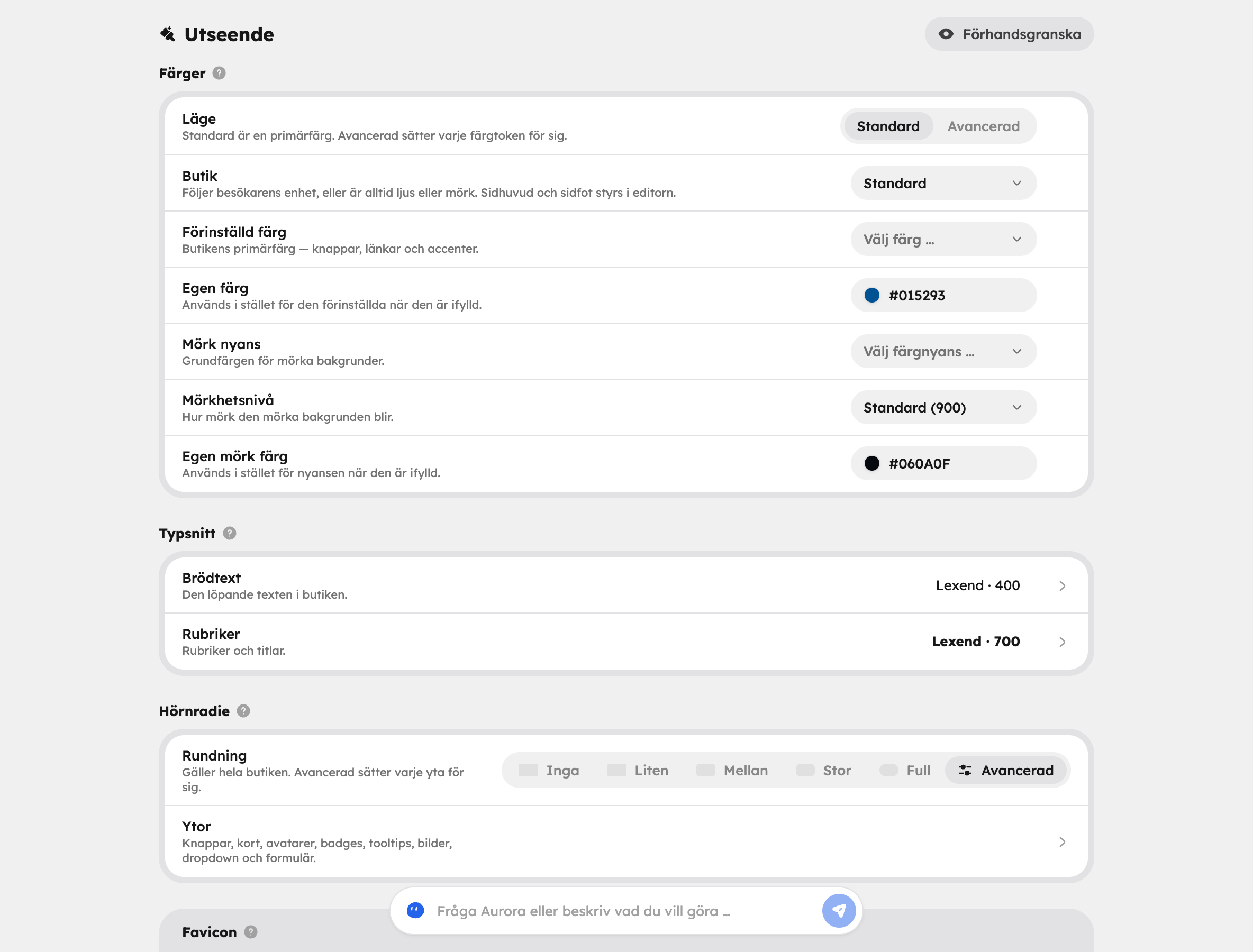
Colours#
Start with the shop's primary colour. It's used on buttons, links and accents. Choose a Preset colour or enter a Custom colour with a hex code.
The shop also has a dark theme. There you choose a Dark shade and a Darkness level, or a Custom dark colour.
If you want to control each colour separately — for both light and dark mode — switch Mode from Standard to Advanced and open Colour tokens. For most people, the primary colour is enough.
Fonts#
You choose fonts separately for Body text and Headings, and can set the weight.
- Google: choose from Google Fonts.
- Own file: upload your own font. The woff, woff2, ttf and otf formats work, and woff2 is recommended. The file can be no larger than 5 MB.
You are responsible for making sure you have the right to use the font on the web.
Corner radius#
The corner radius decides how rounded buttons, cards, images and forms are. Choose a preset under Rounding. If you choose Advanced, you can set buttons, cards, avatars, badges, tooltips, images, dropdown and forms separately under Surfaces.
Favicon#
The favicon is the small icon in the browser tab. If you don't have a favicon, the primary colour is used.
Logo#
The logo is shown in the header and at checkout. Upload two variants:
- Logo (light background)
- Logo (dark background)
SVG, PNG and other image formats work. With two variants, the logo stays clear whether the visitor sees the shop in light or dark mode.
Preview before you save#
Click Preview to see how the home page looks with your new settings before you save them.
Light or dark theme for the visitor#
Under Colours, use the Shop field to choose whether the shop follows the visitor's device (Default), is always Light or always Dark. You choose the theme per section and for the header and footer in the editor. Read more in Pages and sections.
Icons#
Every icon field in the editor has an icon library with search. Search for, say, "coffee" or "map" and choose an icon.