Awrora sends emails to your guests automatically — confirmations, reminders, thank-yous after the visit — and can let you know when something happens. You set all of this up under SettingsNotifications.
Emails to guests#
Under Customer notifications you switch each email on or off individually. You save all changes on the page with Save.
| Sent | |
|---|---|
| Booking confirmation | When a booking is confirmed. |
| Booking reminder | A chosen number of hours before the start. |
| Cancellation confirmation | When a booking is cancelled. |
| Rebooking confirmation | When a booking is moved to a new time slot. |
| Complete booking | When you create a booking in the admin that the guest is to pay for at checkout. |
| Message from calendar | When you message the guests on a departure from the calendar. |
| Changed time | When you move a departure in the calendar. |
| Thanks for visiting | After the experience has ended. |
| Abandoned checkout | To guests who started but didn't complete a booking. |
| Reply to review | When you publish a reply to the guest's review. |
| Gift card expiring soon | Before a gift card stops being valid. |
| Gift card to recipient | When someone buys a gift card online. |
| Gift card receipt to buyer | As confirmation of a gift card purchase. |
Some emails only appear when the app they belong to is switched on, for example gift cards and reviews.
Reminder before the start#
When Booking reminder is on, the Booking reminder card appears further down the page. There you fill in Send reminder (hours before event) — between 1 and 168 hours, 24 by default.
Customise an email#
Choose Edit
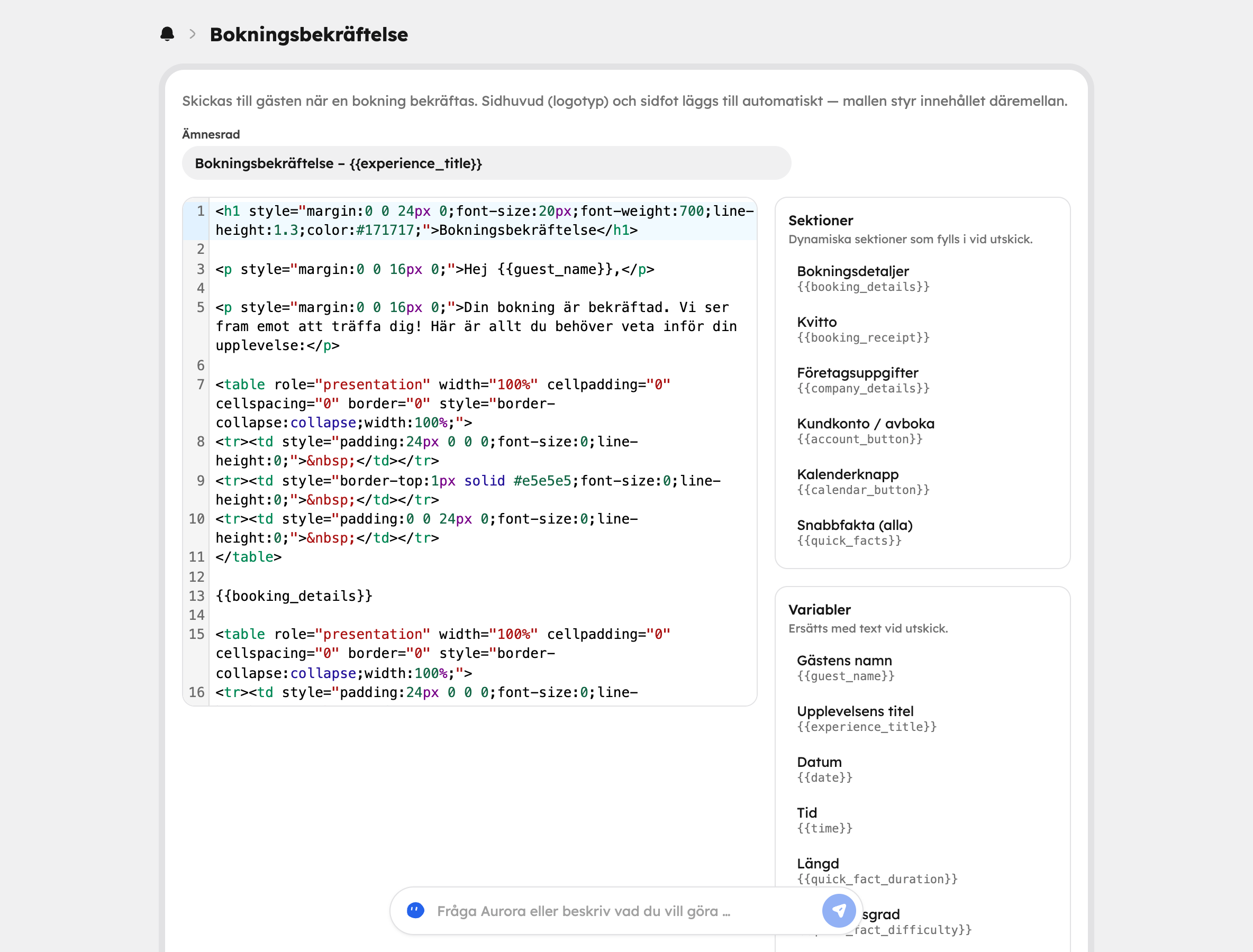
Click Edit next to the email under Customer notifications. The template opens on a page of its own.
Write your text
Change the Subject line and the content template, which is written in HTML. The logo and footer are added automatically. Under Variables you can see what you can insert, for example the guest's name, the experience title, the date and the booking number. Under Sections there are ready-made blocks such as booking details, a receipt and a button to add to calendar.
Preview and test
The preview shows the email with sample data. Click Send test to receive it in your own inbox, and Save when you're happy.
Something went wrong? Choose Reset to default to go back to the original text.
Appearance#
Under Customer email appearance you choose the Logo, Colour and Font for all emails to guests.
Which address are emails sent from?#
Emails to your guests are sent from an Awrora address with your company name as the sender. When a guest replies, the reply goes to the company's email address — make sure it's filled in under Organisation, otherwise replies won't get through.
If you've connected your own domain, emails can be sent from your own email address once the domain has been verified for email. Contact Awrora support to verify it. Until then, the essential emails go out as normal — confirmations, cancellations, changed times, payment links, gift cards and login codes — but reminders, thank-you emails and messages to guests aren't sent. The page shows a warning for as long as this applies.
If many emails bounce, or are marked as spam, Awrora pauses reminders, thank-you emails and your own messages to protect your sender reputation. Confirmations, cancellations, changed times, payment links and gift cards still go out. The owner receives a message, and you contact support to restart sending.
Notifications to you and the team#
Under Admin notifications you choose which events should trigger an email:
- New booking
- Cancellation
- Gift card — when someone buys a gift card online
- Form submission — when someone submits a form on the website
Under Recipients you choose who receives them: The owner (default), All site admins or a Specific email address.
You set up the email to the person who filled in a form under Form submission confirmation. Read more in Forms.